# HTTP
## Quick start
Have a look at [quick start to Traffic Parrot](https://trafficparrot.com/documentation/5.65.x/start.html)
## Tutorial: Record and replay HTTP requests and responses
For a basic introduction to HTTP record and replay with examples have a look at [Record and replay HTTP requests and responses to create API mocks](https://trafficparrot.com/tutorials/record-replay-http-requests-and-responses-to-create-api-mocks.html).
## HTTP virtual service architecture
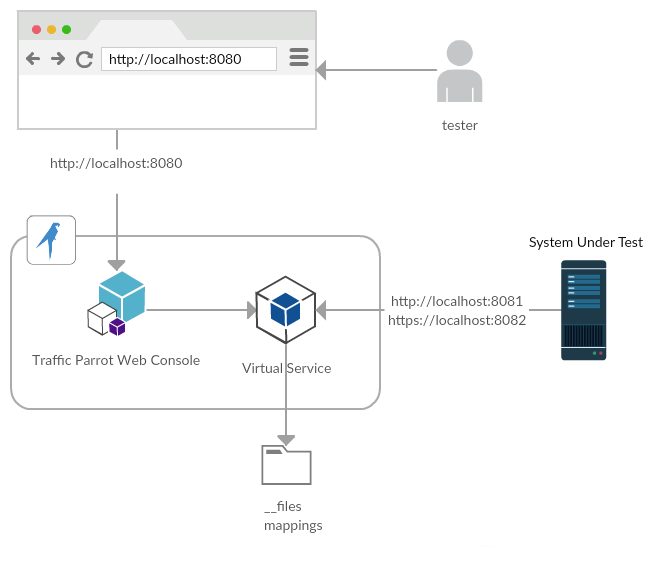
A tester uses a web browser to access the console. The console manages the virtual service. The system under test (application under test) connects directly to the virtual service on different ports.
## Supported HTTP protocols
Traffic Parrot's HTTP virtual service speaks HTTP/1.0, HTTP/1.1, and HTTP/2 out of the box. HTTP/2 is enabled by default on both the HTTPS port (ALPN-negotiated) and the plain HTTP port (h2c upgrade). There is no Traffic Parrot configuration flag to disable HTTP/2; the same stubs are served regardless of the protocol the client picks.
| Protocol | Port | Default | Supported since |
| --- | --- | --- | --- |
| HTTP/1.0, HTTP/1.1 | HTTP and HTTPS | Always on | All versions |
| HTTP/2 over TLS (ALPN-negotiated) | HTTPS only | On | Traffic Parrot 5.53.0 |
| HTTP/2 cleartext (h2c upgrade) | HTTP only | On | Traffic Parrot 5.53.0 |
### What differs over HTTP/2
The same mappings, matchers, templates, delays and faults serve an HTTP/2 client as an HTTP/1.1 one. Three things to allow for when a test speaks HTTP/2:
- **A connection-level fault ends every request on the connection.** An HTTP/2 client sends its requests on one TCP connection, where an HTTP/1.1 client uses one connection per request in flight. `Connection reset by peer` resets that connection, so every other request in flight on it fails too, not only the one that matched the faulty mapping. See [Injecting a fault](#fault-delay-faults).
- **The other faults damage HTTP/1.1 framing.** HTTP/2 has no status line and no chunked transfer encoding, so `Malformed response chunk`, `Random data and close`, `Incorrect too small Content-length`, `Close connection after half of response` and the dripping faults write bytes that an HTTP/2 connection has no defined reading of. The client fails rather than receiving a response, but what it reports is not specified. To test how a client handles one of those faults in particular, send the request over HTTP/1.1.
- **`Host` is carried as `:authority`.** An HTTP/2 request has no `Host` header; its host is the `:authority` pseudo-header. Traffic Parrot presents that value as `Host`, so a `Host` header matcher, `{{request.headers.Host}}` in a response template, the request log, a recording made from an HTTP/2 client and traffic validation of a HAR captured over HTTP/2 all see it as they would from an HTTP/1.1 client. A request that sends a `Host` header as well keeps the header's value.
## Import and export HTTP mappings
### How to export
First, go to HTTP in the top navigation bar and then click Export.

Click the button to download a ZIP file that contains all of the HTTP mappings in the WireMock format.
You can also export programmatically using the Traffic Parrot [Management APIs](https://trafficparrot.com/documentation/5.65.x/user_guide.html#management-apis).
### Exporting as an OpenAPI specification
As well as the native WireMock-format ZIP, Traffic Parrot can export your HTTP mappings as an **OpenAPI 3.0** document. This is the inverse of [importing an OpenAPI specification](#import-http-supported-formats): the mappings you have recorded or built are translated back out into a standard OpenAPI document you can share, diff, or feed into other tooling.
On the **Export** page (HTTP in the top navigation bar, then Export), alongside the **Download Mappings** button that downloads the native WireMock-format ZIP, there is an **Export as OpenAPI (YAML)** button. Click it to download the currently active scenario's mappings as an OpenAPI 3.0 YAML document, with an inferred response schema alongside each example and the coverage report described below embedded in the document. Unlike the native ZIP, which is a round-trippable archive you can re-import unchanged, the OpenAPI document is a standard contract for sharing and tooling.
The OpenAPI export is served off the same export endpoint as the native ZIP by adding the `?format=openapi` query parameter, so you can also trigger it programmatically. Without the parameter the endpoint returns the native ZIP as before; with it, the endpoint returns an OpenAPI 3.0 document in YAML (HTTP `Content-Type: application/yaml`), downloaded as `openapi-.yaml`.
The same document is also available as **JSON** by using `?format=openapi-json` instead. This returns an identical OpenAPI 3.0 document serialised as JSON (HTTP `Content-Type: application/json`), downloaded as `openapi-.json`. Only the serialisation differs; the paths, operations, examples and coverage report described below are the same in both formats. The GUI **Export as OpenAPI (YAML)** button always downloads YAML; the JSON variant is available through the endpoint.
```bash
# Export the active scenario's HTTP mappings as an OpenAPI 3.0 YAML document
curl -X GET "http://localhost:8080/http/management/exportMappings?format=openapi" \
-o openapi.yaml
# The same document as OpenAPI 3.0 JSON
curl -X GET "http://localhost:8080/http/management/exportMappings?format=openapi-json" \
-o openapi.json
# Without the format parameter, the same endpoint returns the native WireMock ZIP (unchanged)
curl -X GET "http://localhost:8080/http/management/exportMappings" \
-o mappings.zip
```
#### What gets exported
Traffic Parrot translates the [currently active scenario](https://trafficparrot.com/tutorials/scenarios.html)'s HTTP mappings into OpenAPI paths and operations:
- **Paths and operations**: mappings are grouped by URL path and HTTP method. Two mappings on the same path with different methods become one path with two operations.
- **URL matchers**: an exact URL or path becomes a literal OpenAPI path; a path template such as `/users/{id}` becomes a templated path with path parameters. A regular-expression URL matcher (`urlMatching` / `urlPathMatching`) is converted to a best-effort path template: each segment containing a regex metacharacter is replaced with a synthetic path parameter (`{p0}`, `{p1}`, …) so the path is always valid OpenAPI, and the original regex is preserved in the operation's `description`, marked as an approximation.
- **Request matchers**: query and header matchers become OpenAPI `parameters` (`in: query` / `in: header`).
- **Responses**: each mapping's response body is emitted as a literal `example` under `responses[status].content[contentType].example`. The content type is taken from the response's `Content-Type` header, falling back to `application/json` when the response is given as `jsonBody` and otherwise `text/plain`.
- **Response schema**: when the response body is JSON, an inferred JSON `schema` is emitted *alongside* the example under `responses[status].content[contentType].schema`. This is what client generators, SDK codegen and documentation portals consume to produce real models, rather than just a sample value. See [Inferred response schema](#export-http-response-schema) below for how the schema is derived and its caveats.
#### Inferred response schema
For each JSON response body, Traffic Parrot infers a JSON `schema` and emits it alongside the retained `example`. The example shows a concrete sample value; the schema describes the *shape* of the response, which is what client generators, SDK codegen and documentation portals actually read. Inference is **conservative** and based on the **single** example body, so it asserts only what that one body proves:
- The structure is followed recursively: nested objects and arrays produce nested schemas. An array's `items` schema is inferred from its **first** element; a mixed-type array therefore takes the first element's shape.
- Numbers are typed by value: an integral number becomes `type: integer`, a non-integral number becomes `type: number`. No numeric `format` (such as int32/int64) is asserted, because it cannot be known from a single value.
- A JSON `null` becomes `nullable: true` with no type (the type is unknowable from `null` alone).
- Every observed object key becomes a `property`, but **no `required` array** is emitted: one example does not prove a field is always present.
- **No `enum`** is inferred: a single observed value is not an enumeration of the allowed values.
- An empty array yields `items: {}` (the element type is unknown but OpenAPI still requires an `items` schema).
A response body that is **not JSON** (XML, plain text, or an empty body) gets **no schema**. The literal `example` is still emitted, and the mapping is recorded in the [coverage report](#export-http-coverage) with reason `no-schema-inferred` (disposition APPROXIMATED), so the lossiness stays explicit.
#### Coverage report
Some mappings have no clean OpenAPI representation: for example regular expression, JSONPath or XPath body matchers, proxy responses, and mappings whose HTTP method has no OpenAPI equivalent. These mappings are **never silently dropped**. Every mapping's disposition is recorded in a coverage report so you always know exactly what was and was not faithfully captured. Each mapping is reported as one of:
- **REPRESENTED**: translated faithfully.
- **APPROXIMATED**: translated with a documented caveat (for example a regex URL matcher converted to a synthetic path template, or a JSONPath/XPath/regex request-body matcher that cannot be expressed exactly).
- **OMITTED**: left out of the paths (for example a proxy response; a mapping whose HTTP method has no OpenAPI equivalent: OpenAPI operations are per-verb, so an `ANY` or `GET_OR_HEAD` method cannot be expressed as a single operation; or a second mapping that would duplicate an already-exported path and method).
In particular, a **“match any method” stub** (a stub that does not specify a `method`, which defaults to `ANY`) is reported as OMITTED with reason `unsupported-method:ANY` rather than appearing in `paths`. It still shows up in the coverage report so you can see it was not captured.
The coverage report is surfaced in the exported document in two ways:
- A root-level OpenAPI extension `x-trafficparrot-export-coverage` listing every mapping as `{mapping, reason, disposition}`, where `mapping` is the mapping's name (every mapping created through the GUI or the API has one).
- A one-line summary in `info.description`, for example `2 mappings exported (1 approximated), 1 omitted.`
```yaml
openapi: 3.0.1
info:
title: Traffic Parrot exported HTTP mappings
description: "2 mappings exported (1 approximated), 1 omitted."
version: 1.0.0
paths:
/users/{id}:
get:
parameters:
- name: id
in: path
required: true
schema:
type: string
responses:
"200":
description: Response
content:
application/json:
schema:
type: object
properties:
id:
type: integer
name:
type: string
example: '{"id": 1, "name": "Alice"}'
x-trafficparrot-export-coverage:
- mapping: get-usersid-7c1f2a9e-3b4d-4e5f-8a6b-9c0d1e2f3a4b.json
reason: represented
disposition: REPRESENTED
- mapping: get-search-2d3e4f5a-6b7c-4d8e-9f0a-1b2c3d4e5f6a.json
reason: regex-url
disposition: APPROXIMATED
- mapping: any-health-9a8b7c6d-5e4f-4a3b-8c2d-1e0f9a8b7c6d.json
reason: unsupported-method:ANY
disposition: OMITTED
```
#### Current limitations
The following are not yet supported and are planned for later releases:
- **Single example per response**: the schema is inferred from one example body; there is no union or merge across multiple examples.
- **Single scenario**: only the currently active scenario is exported; there is no multi-scenario merge.
- **No security schemes** are emitted.
- **OpenAPI 3.0** only (not 3.1).
### Exporting recorded traffic as a HAR file
Traffic Parrot can export the HTTP traffic it has served as a **HAR 1.2** ([HTTP Archive](http://www.softwareishard.com/blog/har-12-spec/)) document, so you can drive a **load or resilience test** through your own engine. Unlike the native ZIP and the OpenAPI export above, both of which export the deduplicated *mappings*, the HAR export is taken from the live **request journal**: the ordered, timed stream of inbound requests Traffic Parrot has served during the current session. That preserves the request order and per-request timing a load profile needs, which the deduplicated mappings discard.
On the **Export** page (HTTP in the top navigation bar, then Export), alongside the **Download Mappings** and **Export as OpenAPI (YAML)** buttons, there is a **Download recorded traffic (HAR)** button. Click it to download the current request journal as a HAR 1.2 file, named `recorded-traffic-.har`.
The HAR export is served off the same export endpoint as the native ZIP by adding the `?format=har` query parameter (the same way `?format=openapi` selects the OpenAPI export), so you can also trigger it programmatically. Without the parameter the endpoint returns the native ZIP as before; with it, the endpoint returns a HAR 1.2 document (HTTP `Content-Type: application/json`), downloaded as `recorded-traffic-.har`.
```bash
# Export the recorded HTTP request journal as a HAR 1.2 document
curl -X GET "http://localhost:8080/http/management/exportMappings?format=har" \
-o recorded-traffic.har
# Without the format parameter, the same endpoint returns the native WireMock ZIP (unchanged)
curl -X GET "http://localhost:8080/http/management/exportMappings" \
-o mappings.zip
```
#### What gets exported
Each request in the journal becomes one HAR `log.entries` entry, ordered by the time the request arrived. Every entry carries:
- **Request**: the HTTP method, the full URL, the request headers, the query string, and the request body (as `postData`) when one was sent.
- **Response**: the HTTP status, the response headers, and the response body.
- **Timing**: `startedDateTime` (when the request arrived) and `time` (how long Traffic Parrot took to serve it, in milliseconds), so the relative arrival times and per-request durations are preserved for the load profile.
#### Driving a load or resilience test
Traffic Parrot does not run the load itself; the HAR file is the hand-off to **your own load engine**. The exported document is a standard HAR 1.2 file, so it can be fed into the common HAR-to-load-test converters, for example the [Gatling](https://gatling.io/) HAR Converter (which generates a Gatling simulation from a HAR file) or [Grafana `har-to-k6`](https://github.com/grafana/har-to-k6) (which generates a [k6](https://k6.io/) script from a HAR file). You then run the generated test on that engine against whatever target you choose.
#### Journal size limit
The HAR export reads the in-memory request journal, which keeps only the **most recent** requests, bounded by the [`trafficparrot.virtualservice.maxRequestJournalEntries`](https://trafficparrot.com/documentation/5.65.x/properties.html#virtualservice-properties) property (default `1000`; older entries age out as new requests arrive). On a long recording session this means only the most recent `1000` requests are exported. If you need a longer history to export, raise [`maxRequestJournalEntries`](https://trafficparrot.com/documentation/5.65.x/properties.html#virtualservice-properties) in your [`trafficparrot.properties`](https://trafficparrot.com/documentation/5.65.x/properties.html) before recording (a larger journal uses more memory; see the [property reference](https://trafficparrot.com/documentation/5.65.x/properties.html#virtualservice-properties)). If the journal is disabled entirely (`maxRequestJournalEntries=0`, as some performance-tuning profiles set it), the export is a valid but empty HAR with no entries.
#### First-slice limitations
This is the first release of the HAR export. The following are not yet supported and are planned for later releases:
- **Text bodies**: request and response bodies are exported as text (the target is HTTP/JSON traffic); binary or Base64-encoded body fidelity is not yet preserved.
- **HTTP only**: the recorded request journal exported is the HTTP one; there is no messaging or gRPC HAR export.
### How to import
First, go to HTTP in the top navigation bar and then click Import.
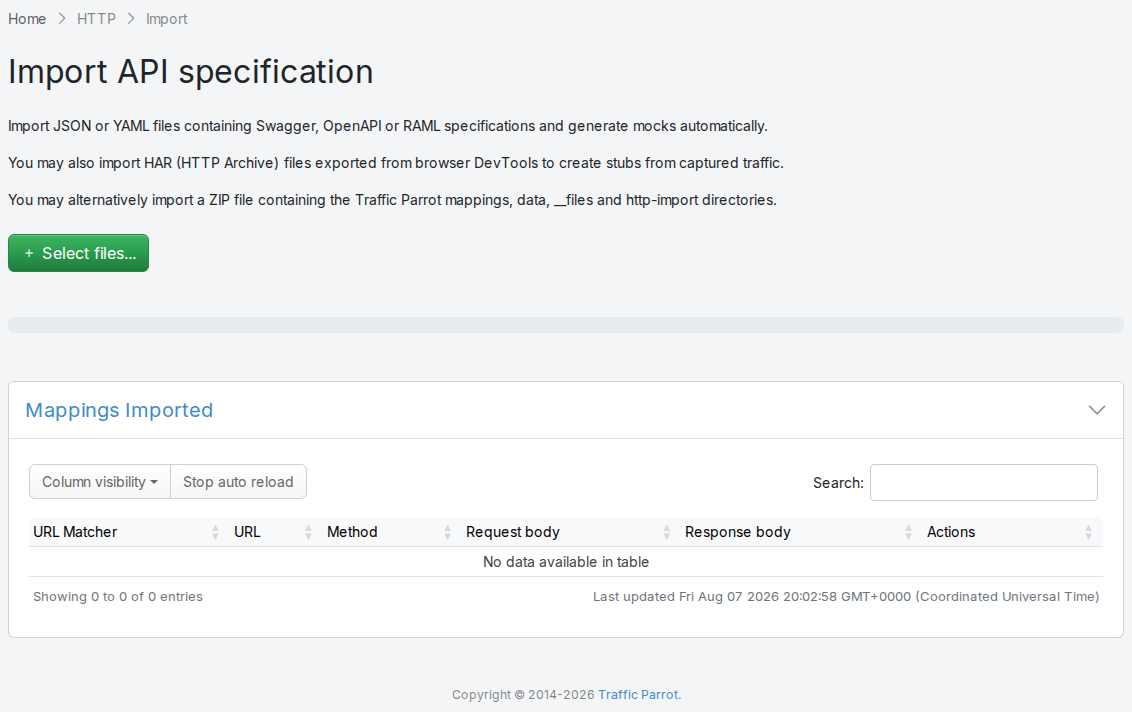
Click the button and select the file(s) to import using the file picker. Traffic Parrot will display the mappings that were successfully imported in the table below.
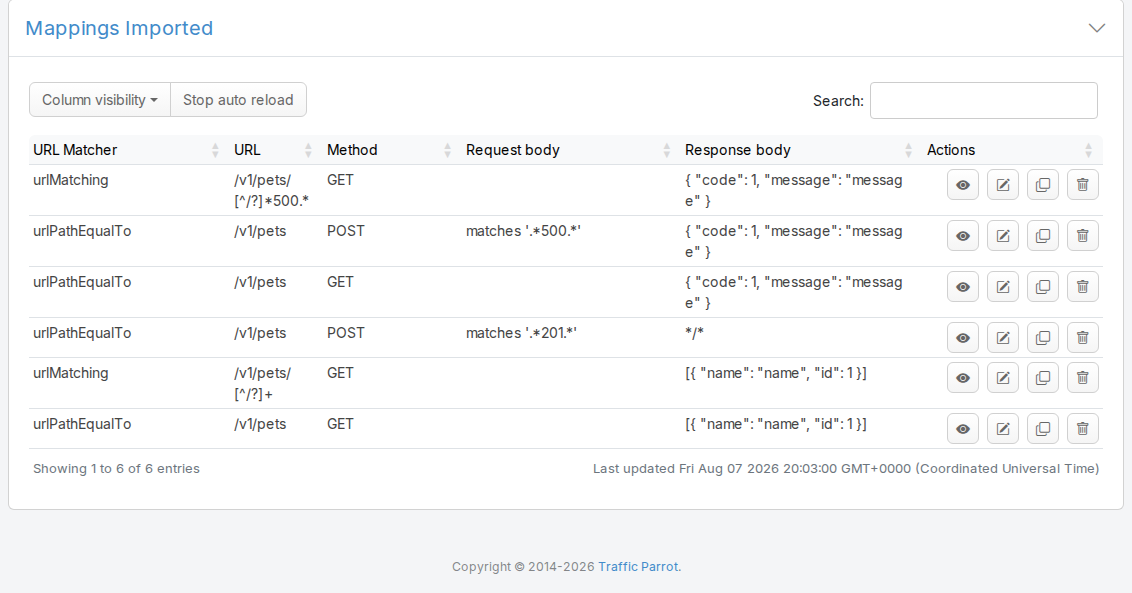
You can also import programmatically using the Traffic Parrot [Management APIs](https://trafficparrot.com/documentation/5.65.x/user_guide.html#management-apis).
### Supported formats
Traffic Parrot has support for the following formats to import:
- WireMock mappings in ZIP format
- Swagger 1.x and 2.x (both YAML and JSON)
- OpenAPI 2.0 and 3.0.x (both YAML and JSON); an OpenAPI 3.1 document is not accepted
- RAML 0.8
- HAR 1.1 and 1.2 (HTTP Archive files exported from browser DevTools)
- Pact v2, v3 and v4 (consumer-driven contract files, HTTP interactions only)
- Mountebank imposters (JSON: one imposter, or the file `mb save` writes); see [Traffic Parrot for Mountebank users](https://trafficparrot.com/documentation/5.65.x/mountebank_users.html)
- cURL commands, pasted on the Import page or in a `.curl` file; see [Importing from a cURL command](#import-http-curl)
You can also import directly from a URL; see [Importing from a URL](#import-http-from-url).
### Importing HAR files
HAR (HTTP Archive) files let you create stubs from captured network traffic rather than writing them from scratch. To obtain a HAR file:
1. Open the browser DevTools (press F12 or right-click and select "Inspect")
2. Go to the **Network** tab
3. Interact with the application to capture the HTTP traffic you want to mock
4. Right-click on any request in the network list and select **Save all as HAR with content** (Chrome) or **Save All As HAR** (Firefox)
Then [import](#import-http-usage) the `.har` file. Traffic Parrot creates a stub mapping for each HTTP request/response pair, named with a `[HAR Import]` prefix followed by the status code, HTTP method, and URL path for easy identification.
#### What gets imported
- **Request matching**: HTTP method and exact URL path including query string parameters
- **Content-Type matching**: when the original request included a `Content-Type` header, the stub also matches on it
- **Response**: status code, body (base64-encoded bodies are decoded automatically), and `Content-Type` header
By default, all other request headers (Accept, User-Agent, Cookie, Authorization, etc.) and all non-`Content-Type` response headers are excluded, to keep stubs flexible and reusable. If you need the stub to reproduce the recorded exchange faithfully (keeping every header), use the [Preserve full fidelity (all headers)](#import-http-har-full-fidelity) option described below. HAR files can also be placed inside ZIP archives in the `http-import/` directory.
#### Preserve full fidelity (all headers)
On the [import preview](#import-http-preview) screen, next to the **Import Selected** button, is a **Preserve full fidelity (all headers)** checkbox. It is **off by default**, which produces the flexible stubs described above. The checkbox applies to the **whole import**; it is a bulk setting for all selected entries, not a per-entry one.
When you tick it, every imported stub reproduces its recorded request and response exactly:
- **Request**: every recorded request header, including `Content-Type`, becomes an exact request matcher (matched with the full recorded value).
- **Response**: every recorded response header is emitted on the stub response, including the exact `Content-Type` with its charset.
The request and response **bodies** are imported the same way in both modes (base64-encoded bodies are decoded automatically); only header handling changes.
> **Caution:** full fidelity makes stubs strict, and often single-use. Turning every recorded header into an exact request matcher means the stub only matches a request that is byte-for-byte and environment-identical to the recording. Headers such as `Host`, `Cookie` and `Authorization` tie the stub to a specific host, session or token, and a `Content-Length` matcher only matches a request whose body is exactly the same length. Leave the option **off** (the default) for reusable stubs, and turn it on only when you specifically want a faithful reproduction of the exact recorded exchange.
HTTP/2 pseudo-headers (`:method`, `:authority`, `:scheme`, `:path` and `:status`), which appear in HAR files exported from browsers, are automatically excluded in full-fidelity mode: they are never turned into request matchers or emitted as response headers.
This option applies to **HAR import only**; it does not affect OpenAPI, Swagger, RAML, Pact or WireMock ZIP imports.
### Importing from a cURL command
A cURL command, for example one copied with **Copy as cURL** from the browser DevTools Network tab or taken from an API's documentation, can become a stub without writing the mapping. Paste it into **Paste a cURL command** on the HTTP [Import](#import-http-usage) page and click **Preview**, or [import](#import-http-usage) a `.curl` file holding one or more commands. Each command becomes one stub, listed on the [preview](#import-http-preview) with its method, host and path, and **Import Selected** adds the ones you select. A paste that is not a cURL command imports nothing, and the error names the problem, for example an unterminated quote. Pasting the same command again is flagged as a duplicate, with the usual skip, overwrite and import-as-new choices.
#### What the stub matches
By default the stub matches the command's HTTP method, path and query string and answers `200` with no body, so a request with other headers or another body still matches. The host and port of the pasted URL are not matched: the client points at the virtual service, so the real API's host never arrives.
Under **Also match on**, beneath the preview table, each header the command sends is offered as a checkbox labelled `Name: value`, and a command with a body offers **Request body**; only what you tick becomes a matcher. A ticked header matches its exact value. A ticked JSON body matches the same JSON whatever its whitespace or key order (`equalToJson`); any other body, a form body for example, matches exactly (`equalTo`). A ticked value is written to the mapping file as it was pasted, an `Authorization` or `Cookie` value included: imports do not redact headers. When a paste holds several commands that send one header with different values, its checkbox reads `Name (several values in the paste)`, and ticking it matches each stub on its own value.
#### Which cURL options are read
`-X`, `-H`, `-d` and its forms (`--data`, `--data-raw`, `--data-binary`, `--data-ascii`, `--data-urlencode`), `--json`, `-G`, `-I`, `-u`, `--url`, `--url-query`, `-b`, `-A`, `-e` and `--oauth2-bearer` describe the request and are honoured, so `-u user:pass` is offered as an `Authorization` header like one written with `-H`. `-F` and `-T` set the method only (`POST`, `PUT`) and warn that their content is not imported. Options that do not describe the request, such as `-s`, `-k`, `-L`, `-o` and `--compressed`, are ignored, and an option Traffic Parrot does not know is ignored with a warning. A body read from a file (`-d @body.json`) cannot come from a paste: the stub is made without it and a warning names the file. A `$` prompt, `sudo` and shell variable assignments before the command are skipped.
The same import runs from the REST API; see [cURL commands via the REST API](#import-http-rest-curl).
### Importing Pact contracts
Pact is a consumer-driven contract format. A Pact file records the requests a consumer makes and the responses it expects from a provider, so it is a convenient source of stubs when you want a virtual service to stand in for that provider. Traffic Parrot imports Pact specification **v2**, **v3** and **v4** files (the `Synchronous/HTTP` interactions of a v4 contract).
There is nothing extra to configure. [Import](#import-http-usage) the Pact `.json` file the same way you import any other format: Traffic Parrot detects that the file is a Pact contract automatically, so there is no format to choose. Each HTTP *interaction* in the contract becomes one stub mapping, named with a `[Pact Import]` prefix followed by the status code, HTTP method, and URL path. When an interaction has a provider state, the state is appended to the name to make it easy to identify.
#### What gets imported
- **Request matching**: HTTP method, URL path and query string, request headers, and request body
- **Response**: status code, response headers, and response body
JSON request bodies are matched **tolerantly** (extra elements and array ordering are ignored), which mirrors the way Pact matches a body by structure rather than byte-for-byte. XML and other bodies are matched against the example value from the contract.
The only structural difference between the versions is how the body is stored. In a v4 contract each request and response body is wrapped in a `body` object that carries the payload under `content` and its media type under `contentType`; Traffic Parrot reads the payload from `content` and uses the declared `contentType` to decide how to match the body. Everything else (method, path, query, headers, matching rules and provider states) is imported the same way as for v2 and v3.
#### Pact matching rules
Where a Pact contract declares `matchingRules`, Traffic Parrot honours the rules that map onto its own request matchers and falls back to an exact match for the rest. When a rule falls back, the import reports a warning listing the affected rules so you know which matchers became literal and may want to relax by hand on the imported mapping.
| Pact matching rule | How Traffic Parrot imports it |
| --- | --- |
| Request header `regex` | Honoured: the header is matched with the regular expression |
| Request path `regex` | Honoured: the URL path is matched with the regular expression |
| Request JSON body (default type matching) | Honoured: matched tolerantly (extra elements and array order ignored) |
| Field-level body `type` / `regex` rules | Falls back to an exact match of the example body, with a warning |
| Query parameter matchers | Falls back to an exact match of the example query string, with a warning |
| `integer`, `decimal`, `min`, `max`, `timestamp`, `include` rules | Fall back to an exact match of the example value, with a warning |
#### Message (asynchronous) interactions
> This HTTP import handles the **HTTP** interactions of a Pact contract. A Pact contract can also describe **asynchronous message** interactions: a top-level `messages[]` array in a specification v3 contract, or `Asynchronous/Messages` `interactions[]` in a v4 contract. Import those as messaging stubs from the messaging pages instead: [Import a message Pact contract](https://trafficparrot.com/documentation/5.65.x/jms.html#import-message-pact-jms) on the JMS page, or [Import a message Pact contract](https://trafficparrot.com/documentation/5.65.x/ibmmq.html#import-message-pact-mq) on the native IBM® MQ page. When a v4 contract mixes HTTP and message interactions, this HTTP import brings in the HTTP interactions and skips the message interactions with a warning; a contract that contains only message interactions is reported as having no HTTP interactions to import; use the JMS or IBM® MQ message Pact import for it.
#### Not supported in this release
This first release imports HTTP interactions only. The following are not yet supported:
- Generating dynamic (templated) responses from a contract: the example responses from the contract are imported as-is.
- Provider verification and pulling contracts from a Pact Broker. Import a contract file you already have on disk.
### Importing from a URL
Instead of downloading a specification to disk and then uploading it, you can paste a URL into the Import page and let Traffic Parrot fetch the document for you. This is convenient when the specification is published at a stable address: for example a running service's `/v3/api-docs` endpoint, or a hosted OpenAPI, HAR or Pact file.
Traffic Parrot fetches the document **server-side** and feeds it into the [same content-based import pipeline](#import-http-supported-formats) as an uploaded file. The format is detected from the content, so Swagger/OpenAPI, HAR and Pact specifications can be imported by URL exactly the way you would import them from a file. As with file upload, OpenAPI, HAR and Pact documents show a [preview](#import-http-preview) before importing.
#### Enabling the feature
Importing from a URL is **off by default** and must be enabled by an administrator. Until it is enabled the URL field is not shown on the Import page and the underlying server endpoint stays inert. Set the following two properties in `trafficparrot.properties` and restart Traffic Parrot:
- `trafficparrot.http.importfromurl.enabled=true`: turns the feature on. While this is `false` (the default), the URL field is absent from the Import page.
- `trafficparrot.http.importfromurl.allowedHosts`: a comma-separated allow-list of `host` or `host:port` entries that Traffic Parrot is permitted to fetch from. It is **default-deny**: when the feature is enabled but the allow-list is empty, every fetch is refused (fail-closed) with a message asking you to configure the allow-list. Only URLs whose host matches an allow-listed entry are fetched.
Both property names are described in full on the [Configuration reference](https://trafficparrot.com/documentation/5.65.x/properties.html#extension-system-properties) page.
The same two properties govern the fetch of an OpenAPI example that points at a URL with `externalValue`, whether the specification is imported on the Import page (from a file or from a URL), read from the OpenAPI directory at startup or built by the MCP `generate_mappings_from_openapi` tool. While the feature is off, the example's host is not allow-listed, or that host resolves to one of the blocked addresses listed below, that example is replaced with a `Traffic Parrot could not fetch externalValue: ()` placeholder and the mapping is still created.
#### Why the allow-list is required
Because Traffic Parrot makes the fetch from its own host, an unrestricted version could be used to probe addresses inside your network, a server-side request forgery (SSRF) risk. The host allow-list keeps the feature confined to a set of addresses you trust. In addition, Traffic Parrot rejects URLs that resolve to loopback, link-local, cloud-metadata (`169.254.169.254`) or private (RFC 1918 / IPv6 unique-local) addresses (even if such a host is allow-listed) guards against DNS rebinding, restricts the scheme to `http` and `https`, and caps the response size and the connect and read timeouts. Keep the allow-list as tight as possible.
#### How to import from a URL
1. Enable the two properties above and restart Traffic Parrot.
2. Go to HTTP in the top navigation bar and click [Import](#import-http-usage).
3. Paste the specification URL into the URL field.
4. Click **Fetch & preview**.
5. For an OpenAPI, HAR or Pact specification, [review and filter](#import-http-preview) the preview and select the entries you want.
6. Click **Import Selected** to create the stubs.
RAML and WireMock ZIP specifications cannot yet be imported from a URL; for those formats, download the file and [import it from disk](#import-http-usage) instead.
### Preview and filter before importing
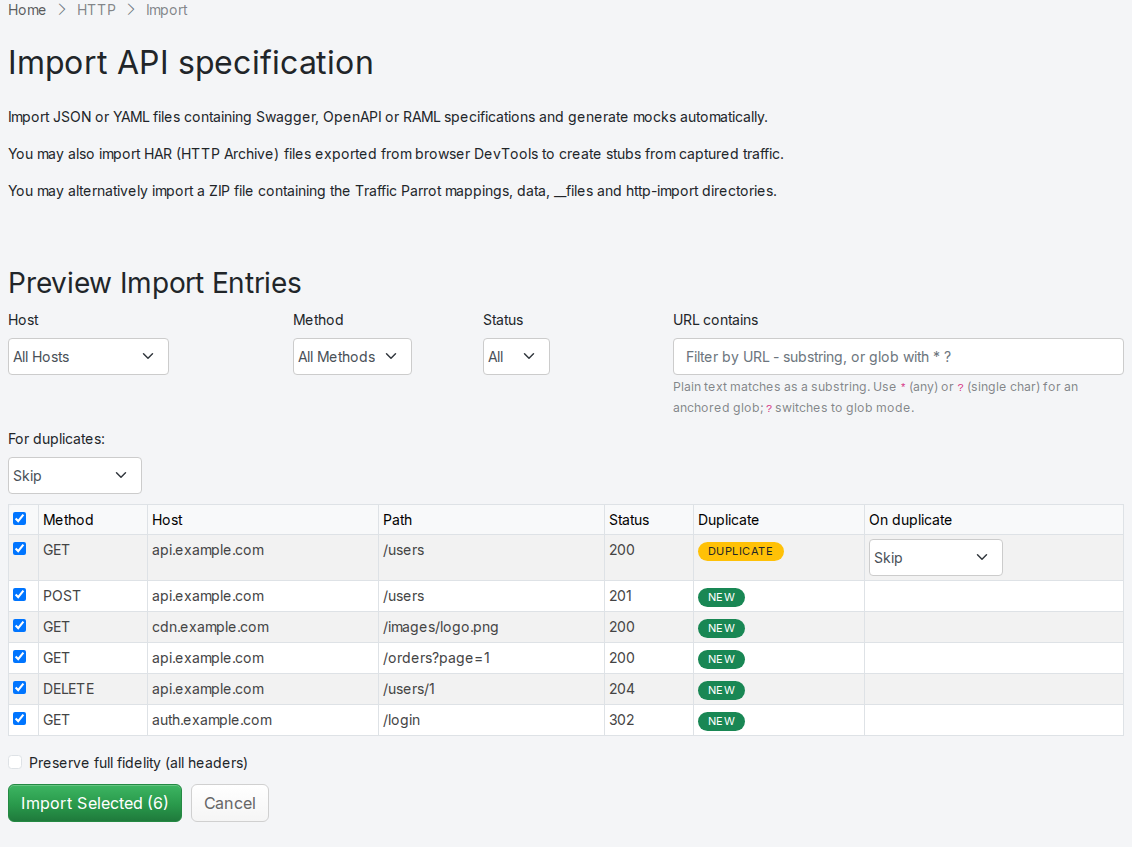
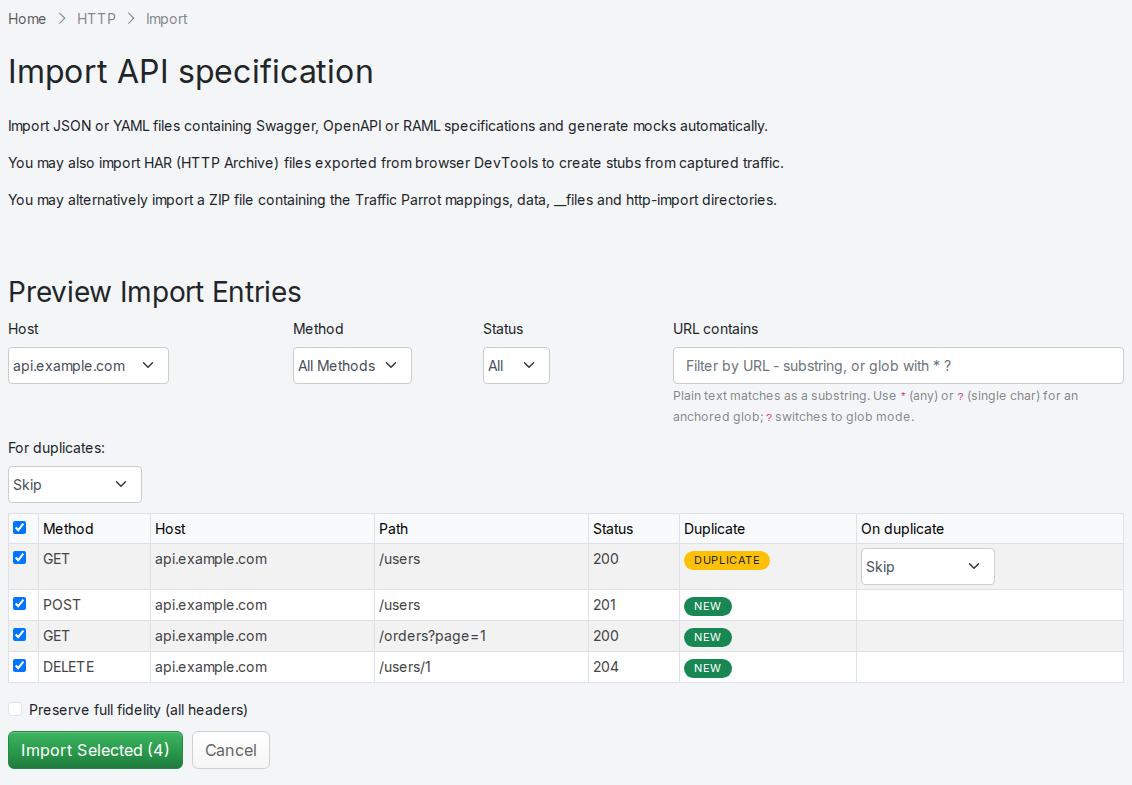
When you upload a HAR, OpenAPI, or Pact file, Traffic Parrot shows a preview of the entries before importing. This lets you review, filter, and select exactly which stubs to create.
#### Filtering entries
The preview panel provides four filters that you can use to narrow down the entries:
- **Host**: dropdown auto-populated with the unique hosts found in the file
- **Method**: dropdown auto-populated with the HTTP methods found in the file (GET, POST, PUT, DELETE, etc.)
- **Status**: dropdown to filter by status code range (2xx, 3xx, 4xx, 5xx)
- **URL contains**: text input to filter by URL. It matches against the request path (and query string), not the host (use the **Host** dropdown for that). Plain text matches any path that *contains* it (e.g. `users` matches `/api/users`). If the text includes a glob wildcard (`*` for any sequence of characters or `?` for any single character), the filter switches to an anchored, case-insensitive glob match where the whole path must match the pattern. For example `/api/*` matches paths beginning `/api/`, `*.json` matches paths ending `.json`, and `/users/?` matches `/users/1` but not `/users/12`. To match a literal `?` in a path, filter by plain substring without any other wildcard.
All filtering happens instantly in the browser without extra server requests. Filters combine with AND logic (e.g. selecting host "api.example.com" and method "POST" shows only POST requests to api.example.com).
This is a preview convenience that controls which entries are shown for selection; it does not change how the imported stubs match requests at runtime.
#### Selecting entries
Each entry has a checkbox. Use the header checkbox to select or deselect all visible (filtered) entries at once. You can also toggle individual entries. The "Import Selected" button shows the count of selected entries and is disabled when no entries are selected.
#### Duplicate detection and conflict resolution
The **Duplicate** column shows whether each entry is new or already exists. Entries that do not match any existing stub display a green "New" badge and are imported as-is. If an entry matches an existing stub with the same HTTP method and exact request URL (one created from a different import or added by hand), a yellow "Duplicate" badge appears instead.
Previously a duplicate could only be skipped. Now each duplicate entry offers an explicit action in the **On duplicate** column, and a single **For duplicates:** control above the table sets the action for all duplicates in one click. A per-row choice overrides the bulk default for that row. The three actions are:
- **Skip** (the default): do not import the duplicate; the existing stub is left unchanged. This is the behaviour of earlier releases, so imports you do not touch keep working exactly as before.
- **Overwrite**: remove the existing stub for that method and URL and add the imported one, so no duplicate is left behind. If more than one existing stub matched, all of them are replaced by the single imported stub.
- **Import as new**: keep both. The existing stub is untouched and the imported stub is added under a disambiguated name (` (copy)`, then `(copy 2)`, `(copy 3)`, and so on) so the two are easy to tell apart in the mappings list.
Re-importing the **same file** still replaces the mappings it created last time, so those entries show as **New** rather than Duplicate; the conflict actions apply to a clash against a stub from a *different* import or one you created manually. To keep two revisions of the same endpoint side by side, capture them under different file names and choose **Import as new**.
> **Known limitation:** duplicate detection compares the HTTP method and the exact request URL string. An existing stub that matches its URL with a pattern or regular expression (rather than an exact URL) is not recognised as a duplicate, so the imported entry is added as a separate stub whichever action you choose.
#### Importing selected entries
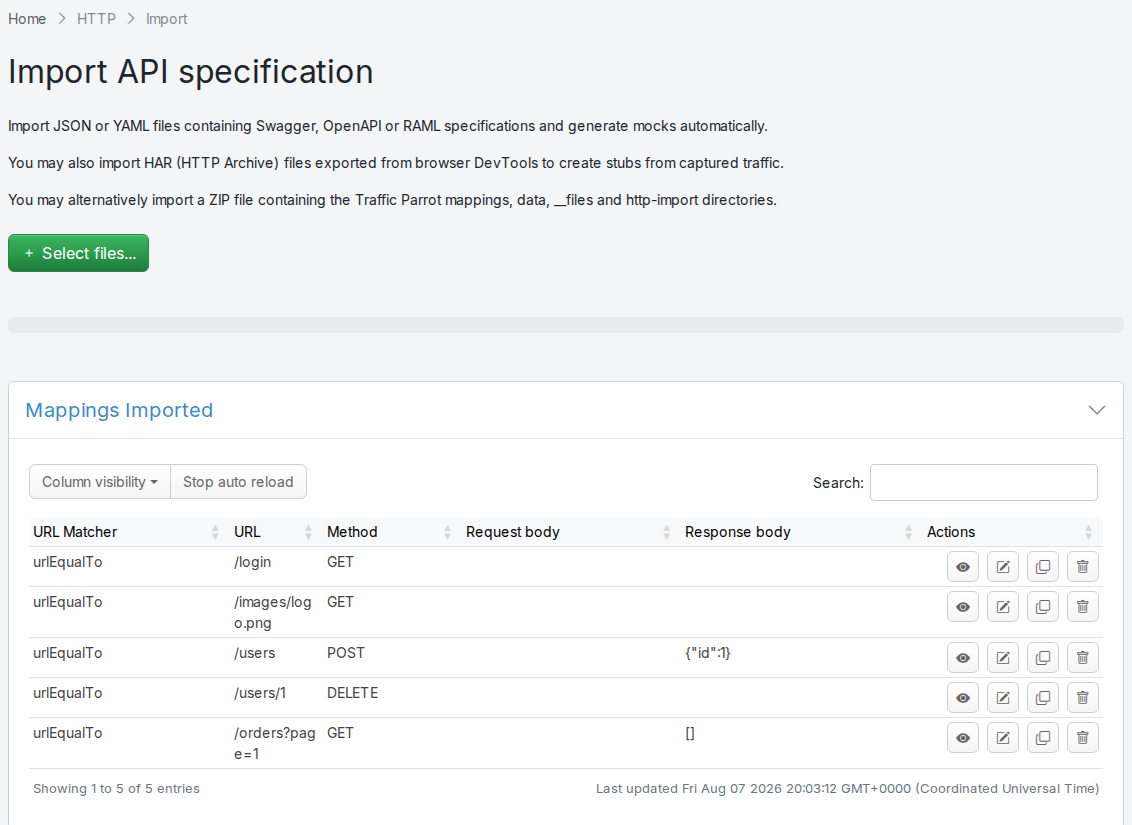
Click "Import Selected" to create stubs only for the checked entries. The imported mappings appear in the table below. Click "Cancel" to discard the preview and return to the file selector.
For HAR imports, a **Preserve full fidelity (all headers)** checkbox sits next to the "Import Selected" button. Leave it unticked for flexible stubs, or tick it to reproduce every recorded request and response header exactly; see [Preserve full fidelity (all headers)](#import-http-har-full-fidelity).
#### Format support
The preview and filter flow is available for HAR, OpenAPI/Swagger, and Pact files. RAML files and WireMock ZIP archives are imported directly without a preview step.
### Importing via REST API (curl)
You can import mapping files programmatically using the REST API instead of the web UI. This is useful for CI/CD pipelines and automation scripts.
Send a `POST` request to `/http/management/importMappings` with the file(s) as a multipart form upload:
```bash
# Import a single file (HAR, OpenAPI/Swagger, RAML, or WireMock ZIP)
curl -X POST http://localhost:8080/http/management/importMappings \
-F "files[]=@capture.har"
# Import multiple files at once
curl -X POST http://localhost:8080/http/management/importMappings \
-F "files[]=@api-spec.yaml" \
-F "files[]=@capture.har"
```
On success, the response contains the IDs of the imported mappings:
```json
{"mappings":["id1","id2",...]}
```
When part of an upload could not be imported but at least one mapping was, the response also carries a `warnings` array with one message per file, or part of a file, that could not be converted into a mapping. An upload from which nothing could be imported is refused with `HTTP 400` instead.
```json
{"mappings":["id1"],"warnings":["Did not find any mappings to import in other-file.yaml!"]}
```
Each imported mapping is registered under a fresh id and records the name of the uploaded file it came from as `tp.import.source` in its `metadata`. Importing a file of the same name again first removes the mappings its previous import registered, so a re-import replaces the earlier import rather than adding a second copy of each mapping. A mapping registered any other way is not removed by an import, but an imported mapping is written to the file its name maps to: a mapping whose name ends in `.json` is written to the file of that name, so importing an instance's own export writes each such mapping over the file of the mapping it was exported from, and the imported mapping takes its place.
On failure, the response returns HTTP 400 with an error message:
```json
{"result":"error message"}
```
An upload larger than [`trafficparrot.multipart.upload.max.size.mb`](https://trafficparrot.com/documentation/5.65.x/properties.html#virtualservice-properties) (default 10 MB) is rejected with HTTP 413 and a `{"result": …}` error body, and the mappings are not imported.
This endpoint supports all [supported import formats](#import-http-supported-formats): HAR, Swagger/OpenAPI, RAML, Pact, Mountebank, cURL commands, and WireMock ZIP.
#### Preview before importing
You can preview the entries that would be created before committing to an import. Send a `POST` request to `/http/management/previewImport`:
```bash
curl -X POST http://localhost:8080/http/management/previewImport \
-F "file=@capture.har"
```
The response contains a list of entries with their method, host, path, and status code:
```json
{
"previewSupported": true,
"entries": [
{"index": 0, "method": "GET", "host": "api.example.com", "path": "/users", "pathWithQuery": "/users", "statusCode": 200, "name": "[HAR Import] 200 GET /users", "duplicate": false},
{"index": 1, "method": "POST", "host": "api.example.com", "path": "/users", "pathWithQuery": "/users", "statusCode": 201, "name": "[HAR Import] 201 POST /users", "duplicate": false}
],
"hosts": ["api.example.com"],
"methods": ["GET", "POST"]
}
```
For file types that do not support preview (RAML, WireMock ZIP), the response returns `{"previewSupported": false}`.
#### Filtered import
To import only specific entries, send a `POST` request to `/http/management/importSelectedEntries` with the file and filter parameters:
```bash
# Import specific entries by index (from the preview response)
curl -X POST http://localhost:8080/http/management/importSelectedEntries \
-F "file=@capture.har" \
-F "selectedIndices=0,2,5"
# Import entries matching filter criteria
curl -X POST http://localhost:8080/http/management/importSelectedEntries \
-F "file=@capture.har" \
-F "hostFilter=api.example.com,auth.example.com" \
-F "methodFilter=GET,POST" \
-F "statusFilter=2xx,4xx" \
-F "urlFilter=/api/v1,/users"
```
Available filter parameters (all accept comma-separated values):
| Parameter | Description |
| --- | --- |
| `selectedIndices` | Entry indices from the preview response (e.g. `0,2,5`). Takes precedence over other filters. |
| `hostFilter` | Include only entries matching these hosts (e.g. `api.example.com,auth.example.com`) |
| `methodFilter` | Include only entries matching these HTTP methods (e.g. `GET,POST`) |
| `statusFilter` | Include only entries matching these status ranges (e.g. `2xx,4xx`) |
| `urlFilter` | Include only entries whose URL contains one of these substrings (e.g. `/api/v1,/users`) |
Filters combine with AND logic across filter types and OR logic within each filter type. For example, `hostFilter=api.example.com&methodFilter=POST,PUT` imports POST and PUT requests to api.example.com. If no filter parameters or indices are provided, all entries are imported.
#### Preserving full fidelity (all headers)
Both `/http/management/importMappings` and `/http/management/importSelectedEntries` accept an optional `preserveAllHeaders` parameter, the REST equivalent of the [Preserve full fidelity (all headers)](#import-http-har-full-fidelity) checkbox in the UI. Set it to `true` to turn every recorded request header into an exact request matcher and emit every recorded response header on the stub response. Omit it (or set it to `false`) for the default flexible behaviour.
```bash
# Direct upload, preserving all headers
curl -X POST http://localhost:8080/http/management/importMappings \
-F "files[]=@capture.har" \
-F "preserveAllHeaders=true"
# Filtered import, preserving all headers
curl -X POST http://localhost:8080/http/management/importSelectedEntries \
-F "file=@capture.har" \
-F "selectedIndices=0,2,5" \
-F "preserveAllHeaders=true"
```
#### Resolving duplicate entries
When a selected entry duplicates an existing stub (same method and exact URL), you can control what happens to it, the REST equivalent of the [conflict-resolution](#import-http-preview) dropdowns in the UI. Pass an optional `conflict-strategy` parameter to set the action for every duplicate in the request, and an optional `conflictStrategies` parameter to override it for individual entries by index:
```bash
# Overwrite every duplicate with the imported entry
curl -X POST http://localhost:8080/http/management/importSelectedEntries \
-F "file=@capture.har" \
-F "selectedIndices=0,1,2" \
-F "conflict-strategy=overwrite"
# Skip duplicates by default, but overwrite entry 0 and import entry 2 as a new stub
# (conflict-strategy must be given too, or conflictStrategies is ignored and every entry is added)
curl -X POST http://localhost:8080/http/management/importSelectedEntries \
-F "file=@capture.har" \
-F "selectedIndices=0,1,2" \
-F "conflict-strategy=skip" \
-F "conflictStrategies=0:overwrite,2:importAsNew"
```
| Parameter | Description |
| --- | --- |
| `preserveAllHeaders` | `true` keeps every recorded request header (as an exact matcher, including `Content-Type`) and every recorded response header; absent or `false` gives the default flexible stub (method, URL and request `Content-Type` matcher; response status, body and `Content-Type`). |
| `conflict-strategy` | Action for every duplicate entry in the request: `skip` (the default), `overwrite`, or `importAsNew`. Omit the parameter entirely for the previous behaviour, where every selected entry is added and duplicates are ignored. |
| `conflictStrategies` | Per-entry overrides as comma-separated `index:action` pairs (e.g. `0:overwrite,2:importAsNew`), where `index` is the entry's index from the preview. An entry's own strategy takes precedence over the request-level `conflict-strategy`. |
This parameter affects [HAR imports](#import-http-har) only; it is ignored for other formats. Full fidelity makes stubs strict, so review the [caution above](#import-http-har-full-fidelity) before enabling it for reusable stubs. HTTP/2 pseudo-headers are excluded automatically.
`overwrite` removes every existing stub that matches the entry's method and URL before adding the imported one; `importAsNew` keeps the existing stub and adds the imported one under a disambiguated name (` (copy)`). As in the UI, duplicate detection is an exact method-and-URL match, so an existing stub that matches its URL by pattern or regular expression is not treated as a duplicate.
#### cURL commands
A file holding one or more cURL commands imports through the same endpoints as the other formats; the content is recognised, so the file name need not end in `.curl`. The preview of such a file carries a `matcherOptIns` object naming the headers and the body the commands send, which the UI shows as the [Also match on](#import-http-curl) checkboxes. A header's `value` is `null` when the commands send it with several values:
```json
"matcherOptIns": {"headers": [{"name": "Accept", "value": "application/json"}, {"name": "X-Trace", "value": null}], "body": true}
```
To match on them, send `/http/management/importSelectedEntries` one `matchHeader` part per header name (compared case-insensitively) and `matchBody=true` for the body, which gives `equalToJson` for a JSON body and `equalTo` otherwise:
```bash
curl -X POST http://localhost:8080/http/management/importSelectedEntries \
-F "file=@users.curl" \
-F "selectedIndices=0" \
-F "matchHeader=Accept" \
-F "matchHeader=X-Trace" \
-F "matchBody=true"
```
Without them the stub matches method, path and query only. Both parameters apply to cURL files only.
### Dynamic responses
When importing from a specification format such as Swagger or OpenAPI, it is possible to use [dynamic responses](https://trafficparrot.com/tutorials/dynamic-responses.html) in the example responses in the specification.
Dynamic responses typically result in usage of the `{{...}}` notation that is not valid JSON or YAML. In these cases, you will need to specify the response as an [escaped string](https://www.freeformatter.com/java-dotnet-escape.html) when using JSON or YAML based import formats such as Swagger and OpenAPI.
You can find examples of dynamic OpenAPI responses in the [examples project](https://trafficparrot.com/documentation/5.65.x/downloads/trafficparrot-examples-5.65.x.zip).
### Matching response code
Traffic Parrot also supports selecting the response to return using a special test request header
```
x-traffic-parrot-select-response-status
```
that contains the status code of the response to return.
A response keyed by a range, `1XX` to `5XX`, is imported at the first code in that range, so a `4XX` example becomes the `400` response and is selected with `400`. Where a specification defines both a code and the range that covers it, for example `400` and `4XX`, the explicit code's example is the one imported.
Each response key must be a status code such as `200`, a range such as `4XX`, or `default`; any other key, a lowercase `4xx` or a typo for example, is skipped with a warning naming it, and the rest of the specification imports.
In this way, you can define OpenAPI examples for each status code, and then when you import them into Traffic Parrot, you can select a response by providing the test header with the response status code.
For example:
```
POST /example HTTP/1.1
x-traffic-parrot-select-response-status: 400
HTTP/1.1 400 Bad Request
{
"example": "Message from OpenAPI example"
}
```
This feature can be enabled in [`trafficparrot.properties`](https://trafficparrot.com/documentation/5.65.x/properties.html) by setting:
```
trafficparrot.openapi.import.mode=SELECT_RESPONSE_STATUS
trafficparrot.openapi.skeletons.mode=SELECT_RESPONSE_STATUS
```
- When OpenAPI response examples are present, they are used directly as mock responses
- Otherwise, OpenAPI schema data types and field structures are used to generate a valid mock response
- The request header `x-traffic-parrot-select-response-status` can be set to a numeric response code to select which response to return
- The default response returned is the success response
- The request body is not included in matching, to simplify the response selection
- The request URL is used for matching, including checking for mandatory path and query parameters
## Add/Edit HTTP mappings
### Usage
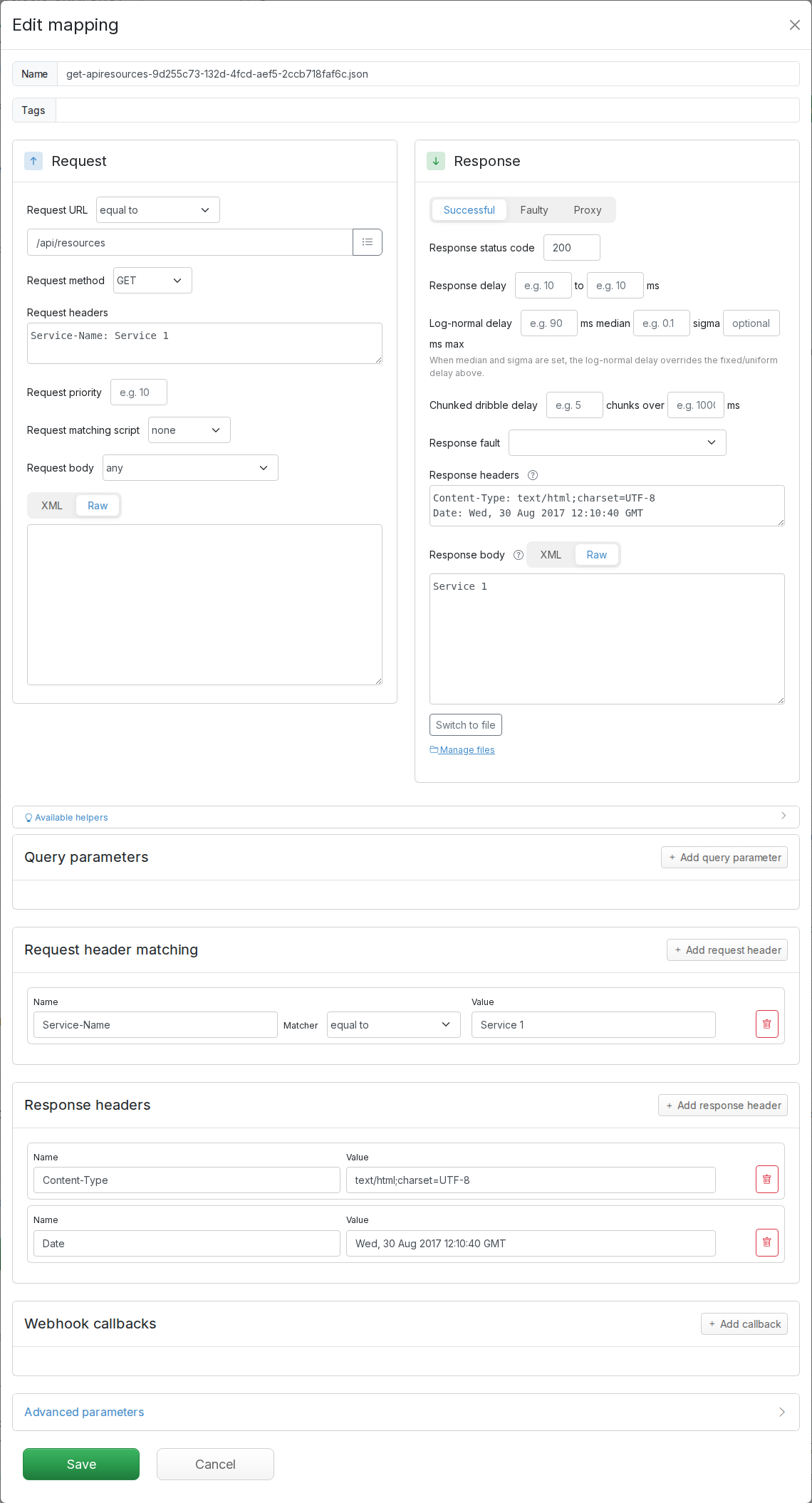
First, go to HTTP in the top navigation bar and then click Add/Edit.
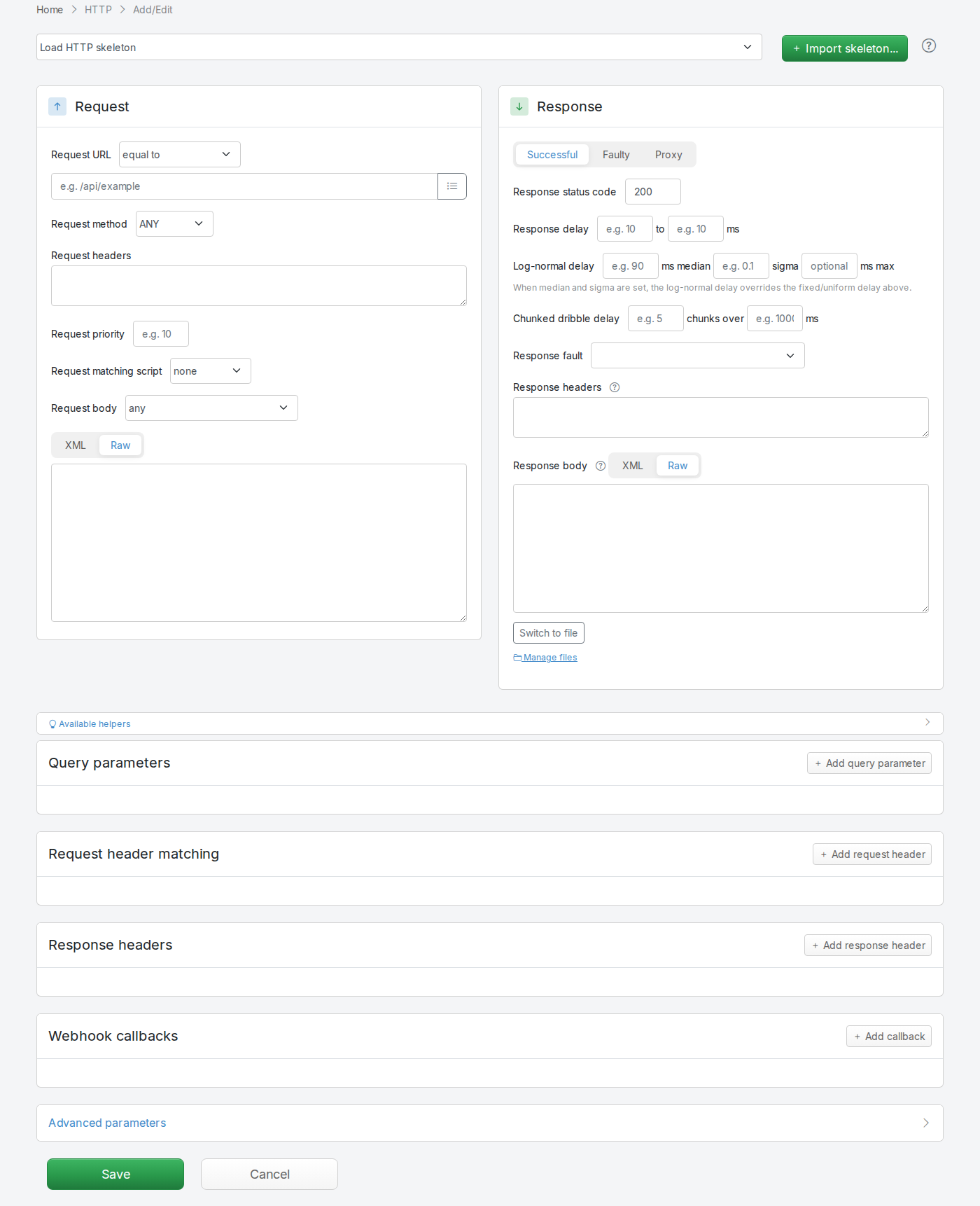
Fill in the Request/Response fields and click Save to configure a mapping.
A mapping saved here is a file in the selected scenario's `mappings` directory. A mapping added over the WireMock admin API (`POST /api/http/__admin/mappings`) without `"persistent": true` is held in memory instead: the mappings list marks it **Not saved**, a button that writes it to a file, and the editor shows the same note, with Save writing the file. See [A clean start for every test](https://trafficparrot.com/documentation/5.65.x/user_guide.html#junit-spring-tests-reset).
You can also select from the HTTP skeleton dropdown which will populate the Request/Response fields for that skeleton.
After saving the mapping, it will appear in the list of mappings. 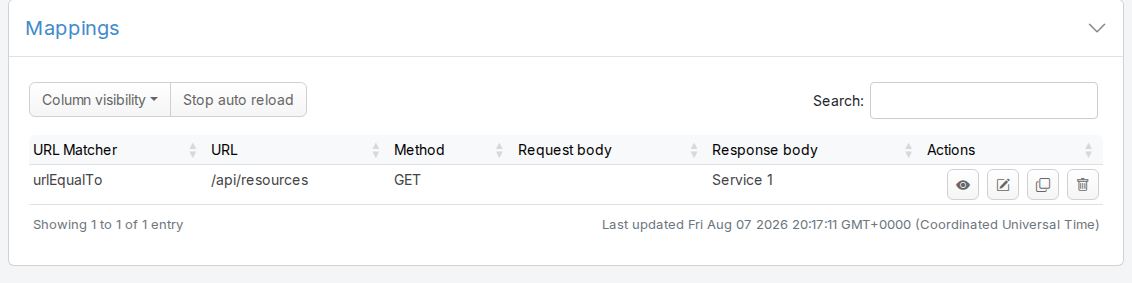
Clicking the edit button  will allow you to edit an existing mapping.
### Query parameters
The Edit Mapping panel has a dedicated **Query parameters** panel below the Request / Response panels that lets you match individual query string parameters without putting them in the URL field or hand-writing a URL regex.
When a mapping has no query parameter matchers, the panel shows only its heading and the **Add query parameter** button. Click **Add query parameter** to add the first row; each additional click appends another row. Each row exposes a parameter name, a matcher dropdown, an optional value, and a remove button.
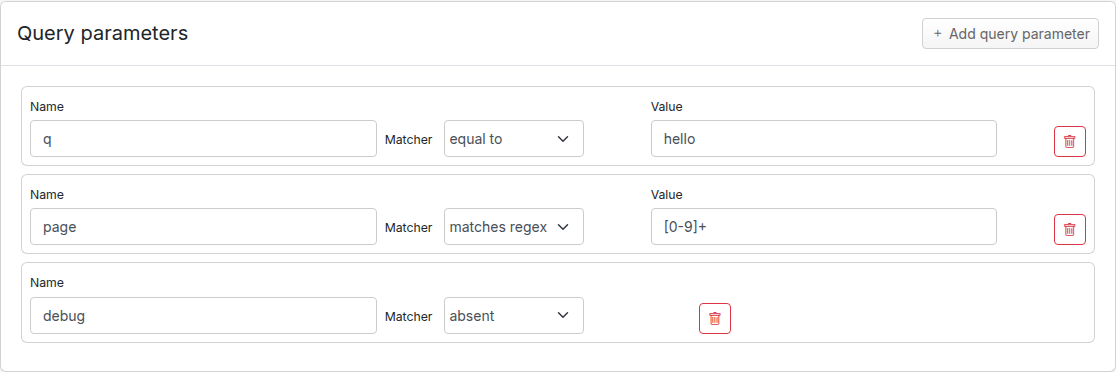
| Matcher | Behaviour | Value field |
| --- | --- | --- |
| `equal to` | The query parameter must be present and its value must be exactly the value you entered. | Required |
| `contains` | The query parameter must be present and its value must contain the entered substring. | Required |
| `matches regex` | The query parameter must be present and its value must match the entered Java regular expression. | Required |
| `absent` | The query parameter must *not* be present on the request. The mapping does not match if the request includes the named parameter (with any value). | Hidden: no value is needed |
Saving the mapping produces standard WireMock [`queryParameters`](https://wiremock.org/docs/request-matching/#query-parameters) JSON. Each row becomes one entry, keyed by parameter name:
```
{
"request": {
"method": "GET",
"urlPath": "/search",
"queryParameters": {
"q": { "equalTo": "test" },
"page": { "matches": "[0-9]+" },
"preview": { "absent": true }
}
},
"response": {
"status": 200,
"body": "..."
}
}
```
Loading a mapping that already contains a `queryParameters` block populates the rows on the form; the round-trip is preserved, so editing and re-saving a mapping does not change or drop existing query parameter matchers.
A mapping with `queryParameters` matches loosely: a request that includes *additional* query parameters not listed in the mapping still matches, provided every listed parameter satisfies its matcher. To match only on the path, use `urlPath` or `urlPathPattern` in the URL field; using `url` or `urlPattern` together with `queryParameters` is supported but the URL must not itself include a query string.
> **Caution:** when matching on query parameters, set the URL match mode to `path equal to` or `path matches regex`, not `equal to` or `matches regex`, which match the whole URL (including the query string) and will conflict with the separate query parameter matchers. The Edit Mapping panel shows an inline warning beneath the URL match mode if you combine a full-URL mode with one or more query parameter rows.
##### When to use Query parameters vs. the URL field
| Use case | Recommended approach |
| --- | --- |
| Match one or more specific query parameters, where parameter order in the request URL is not known or not stable | Use the **Query parameters** section with one row per parameter |
| Match against a value pattern, a substring, or "this parameter must be absent" | Use the **Query parameters** section with the `matches regex`, `contains`, or `absent` matcher |
| Match the entire URL including a fixed query string, character-for-character | Use `equal to` on the URL field with the full path plus query string (e.g. `/search?q=test&page=1`) |
| Match the same parameter appearing more than once on the request (e.g. `?tag=a&tag=b`) | Use `matches regex` on the URL field with a lookahead pattern such as `^/search\?(?=.*\btag=a\b)(?=.*\btag=b\b).*$`. Multi-occurrence parameters are deliberately not surfaced in the Query parameters section. |
The older approaches (full query string in `urlEqualTo`, lookahead regex in `urlMatching`) continue to work for existing mappings; the new section is additive. For most cases though, the Query parameters section produces a mapping that is easier to read, easier to edit, and tolerant of parameter ordering in the incoming request.
### Convert query string to rows
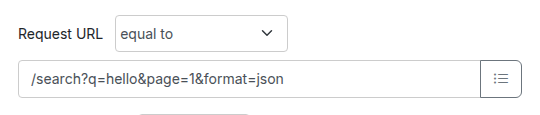
Pasting a full URL (e.g. one copied from a browser or a curl command) into the Request URL field leaves the query string baked into the URL value, which means the mapping then matches the exact query string only. To convert that query string into per-parameter rows in the [Query parameters](#add-edit-query-parameters) section in one click, use the **Convert query string to rows** link that appears directly below the Request URL input on the Edit Mapping panel.
Clicking the link parses each `name=value` pair from the URL's query string, appends one row per pair to the Query parameters section with the matcher set to `equal to`, and strips the query string from the Request URL field. URL-encoded characters in values (e.g. `%20`) are decoded automatically. The link does not save the mapping; the form changes are staged in the browser and you still need to click **Save** to commit them.
Before clicking the link, the Request URL field still contains the full URL with its query string and the Query parameters section is empty:
After clicking the link, the query string has been stripped from the URL and one `equal to` row has been appended for each `name=value` pair:
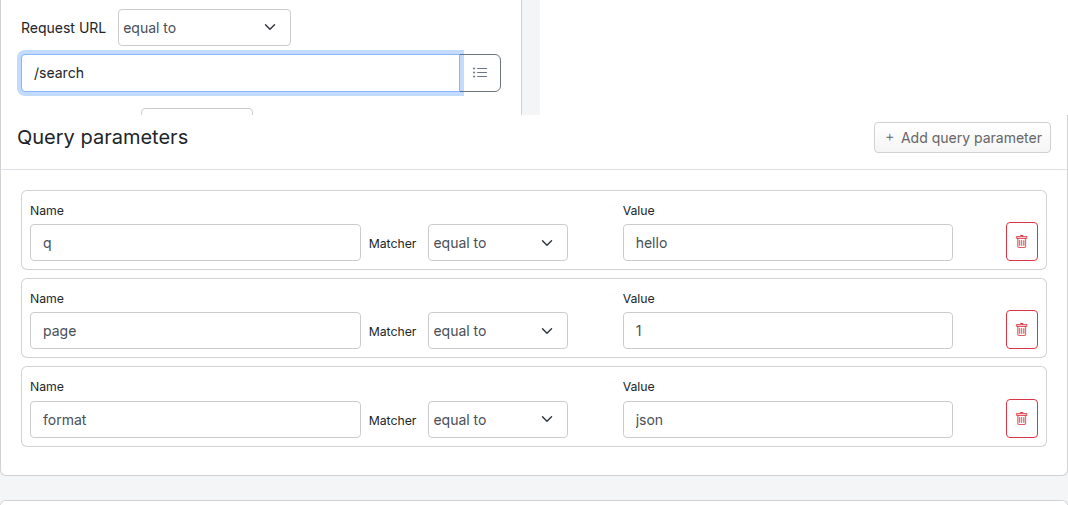
Example: with the Request URL set to `/search?q=hello%20world&page=1`, clicking **Convert query string to rows** rewrites the URL field to `/search` and adds two rows under **Query parameters**: name `q` with matcher `equal to` and value `hello world`, and name `page` with matcher `equal to` and value `1`. Existing rows are not touched; converted rows are appended to whatever rows are already present.
If the URL has no query string the link is a no-op. Multi-occurrence parameters (e.g. `?tag=a&tag=b`) produce one row per occurrence, but because the saved `queryParameters` JSON is keyed by parameter name, only the last row for a given name takes effect at match time. To match the same parameter appearing more than once, keep using the `urlMatching` lookahead workaround described in the [Query parameters](#add-edit-query-parameters) section above.
### Priority
The request priority can be set in order to set up a preference order for matching mappings. This works in the same way that priority works [in WireMock](https://wiremock.org/docs/stubbing/#stub-priority).
The highest priority value is `1`. If two or more mappings both match a request, the mapping with the higher priority will be used to provide the response. The default priority is `5`.
This can be useful, if you want a "catch-all" mapping that returns a general response for most requests and specific mappings on top that return more specific responses.
### Enable/disable mappings
You can temporarily disable a mapping without deleting it. Disabled mappings remain in the mapping list but are skipped during request matching, so no incoming request will match them.
In the mapping list, each mapping has a toggle button (eye icon) in the actions column. Click the toggle to disable a mapping. The mapping row appears dimmed to indicate it is disabled. Click the toggle again to re-enable it.
This is useful for:
- Temporarily removing a mapping from matching without losing its configuration
- Simulating service failures by disabling specific response mappings
- A/B testing different response configurations
The enable/disable state is stored in the mapping's metadata as `tp.enabled`. Mappings without this metadata field default to enabled, so existing mappings are not affected.
### Proxy responses for request passthrough
Traffic Parrot supports responding with a HTTP response including headers, body and status code, from another HTTP server.
This can be used to forward the requests you don't have mappings for to another endpoint.
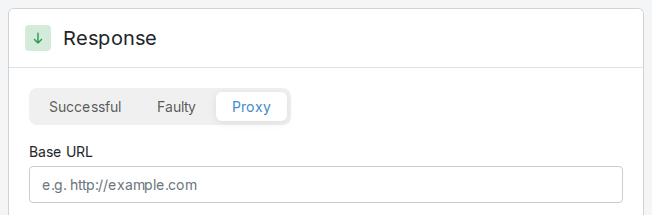
You can use this to provide a default response for unmatched requests:
1. Set a low [priority](#add-edit-priority) like `10` for the mapping with the proxy response
2. Leave default priority for other non-proxy response mappings
3. Now any unmatched requests will return a response from the proxy mapping
Alternatively, you can configure automatic passthrough for all unmatched requests using the [HTTP Passthrough Proxy](#passthrough-proxy) property. This creates the catch-all proxy mapping automatically on startup.
### Webhooks or callbacks
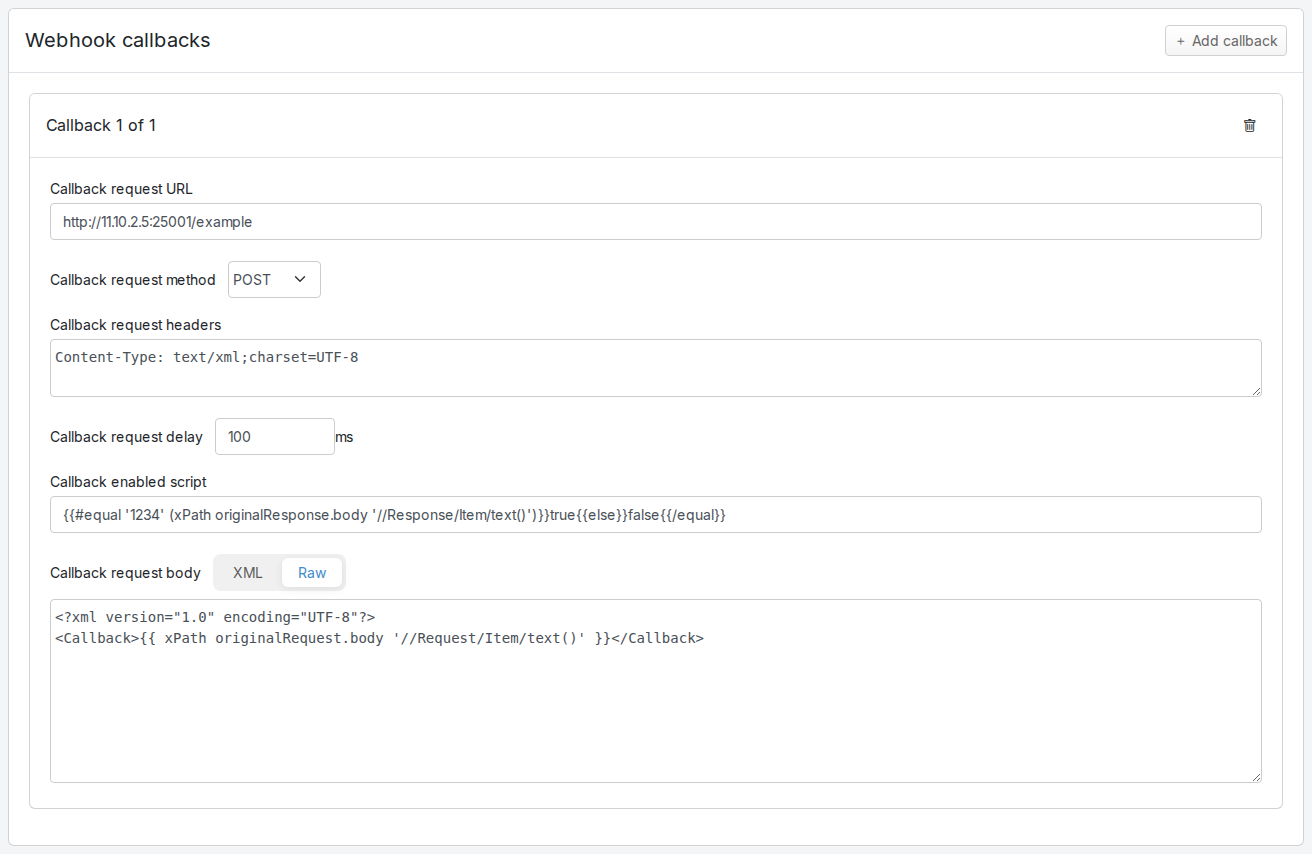
Traffic Parrot can also be configured to send an additional HTTP request after the mock response has been returned. This is called HTTP webhooks or callbacks.
It is possible to enable the callback based on a script evaluation condition. For example, this can be used to only send the callback if the mock response contains a particular success code.
The callback URL, headers and body are Handlebars templates, so a callback can carry the signature a real provider would send, computed over the callback body with the [`{{hmac}}` helper](https://trafficparrot.com/documentation/5.65.x/dynamic.html#hmac-hash-helpers). See [Signing an outbound webhook](https://trafficparrot.com/documentation/5.65.x/dynamic.html#sign-webhook) for a complete example.
### Request matcher script
Another way to match HTTP requests is with a request matcher script. If the expression evaluates to true, then the request is matched, otherwise it is not matched.
A script can also verify a signature on the incoming request, so that the mock accepts only correctly signed callbacks from the system under test; see [Verify an inbound webhook signature](https://trafficparrot.com/documentation/5.65.x/request_matching.html#verify-signed-webhook).
For example, Handlebars templating can be used to match a request header using a regular expression: 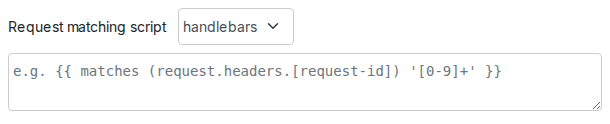
Below the script, **Require OAuth2 bearer token from mock** names a [mock OAuth2/OIDC provider](https://trafficparrot.com/documentation/5.65.x/oauth2-mock.html) scaffolded in the scenario; the mapping then matches only a request carrying a valid, unexpired token issued by that mock. Leave it blank for no such check. See [Requiring a token from the mock on a stub](https://trafficparrot.com/documentation/5.65.x/oauth2-mock.html#guard).
### HTTP skeletons
HTTP skeletons offer a quick way to generate a template of a mapping that matches an endpoint defined in an OpenAPI specification file. We may also add support for other specifications e.g. RAML in the future.
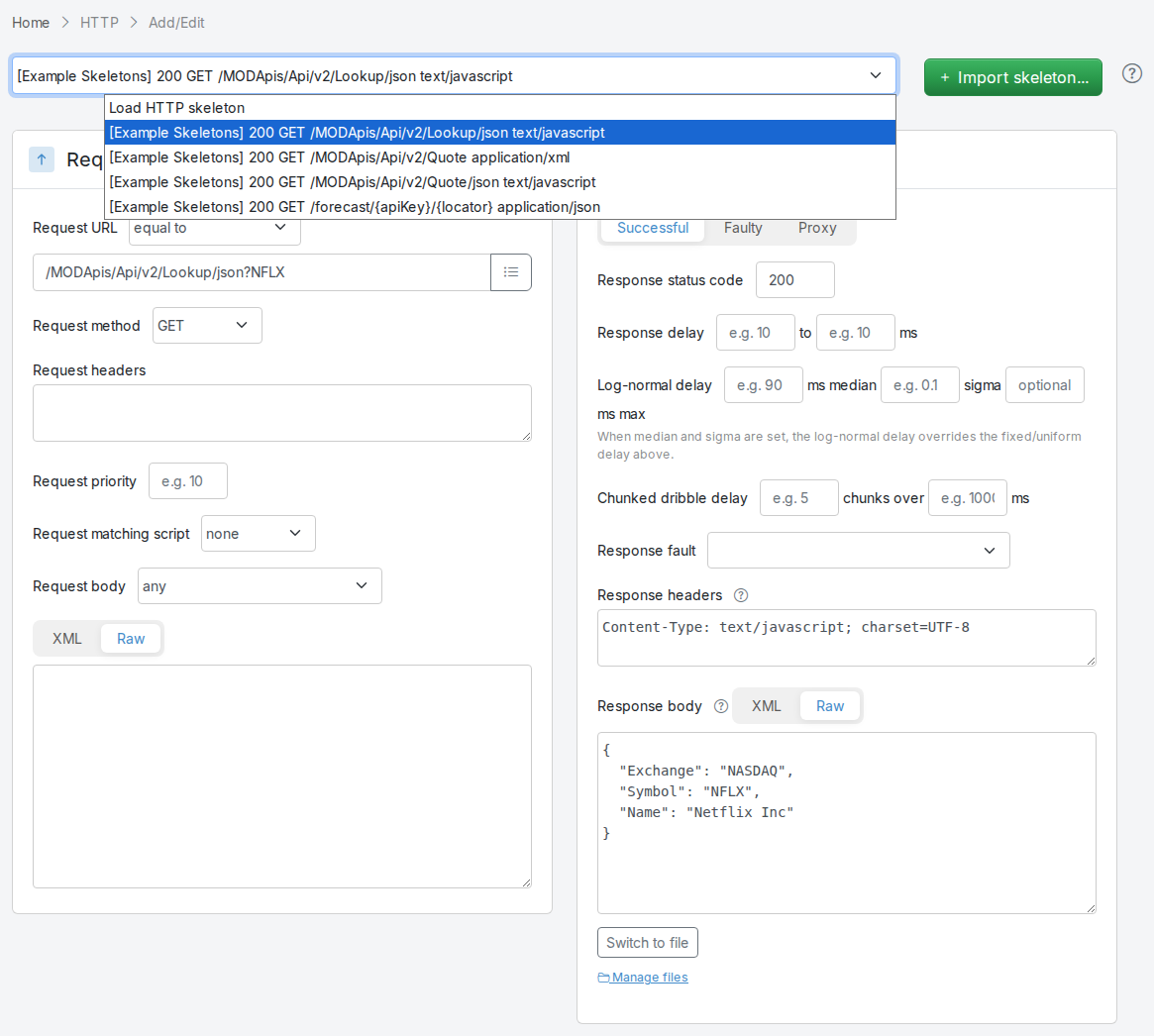
In order to edit the list of elements on the HTTP skeletons dropdown on the Add/Edit page you will need to place [OpenAPI specifications](https://github.com/OAI/OpenAPI-Specification/blob/master/versions/3.0.2.md) into the file `trafficparrot-x.y.z/openapi` configuration directory. JSON and YAML OpenAPI files are supported.
Alternatively, you can use the  button to import OpenAPI files. If you import a file with the same name as a file that was previously imported, it will be overwritten.
## Response delays and faults
Real services are slow before they are broken, and they break in more ways than an error status code. Traffic Parrot can hold a response back for a fixed or randomised time, dribble the body out over several seconds, or inject a connection-level fault such as a reset, an empty response or a malformed chunk. That lets you exercise the timeout, retry, circuit-breaker and error-handling paths of the system under test on demand, instead of waiting for the real service to misbehave.
Delays and faults are set per mapping, on the **Response** panel of the [Add/Edit mapping](#add-edit-http-mappings) form. There is no server-wide switch and no property to set: a mapping that carries a delay or a fault behaves that way every time it matches, and every other mapping is unaffected.
**Coming from WireMock?** The `fixedDelayMilliseconds`, `delayDistribution`, `chunkedDribbleDelay` and `fault` response attributes work unchanged, so mappings you already have (including ones you [import as a WireMock ZIP](#import-export-http-mappings)) load and serve without modification. Traffic Parrot adds five faults of its own on top of the four standard ones.
### Delaying a response
The **Successful** tab of the Response panel carries the delay controls. Fill in the one that matches the shape of slowness you want to reproduce, then save the mapping as usual.

**Fixed delay.** Type a number of milliseconds into the first **Response delay** field and leave the second one blank. Every request that matches the mapping waits that long before the response is written.
**Uniform random delay.** Fill in both **Response delay** fields. Each response waits a random number of milliseconds drawn evenly from the range, with both bounds included, which is the way to add jitter around an average. Two identical values are saved as a fixed delay instead, because there is nothing to randomise.
**Log-normal random delay.** Real response times rarely cluster evenly: most calls land near a typical figure and a minority take much longer. A log-normal delay reproduces that long-tailed shape. Set **ms median** to the 50th percentile you want in milliseconds, **sigma** to the standard deviation of the underlying normal distribution (unitless, and the larger it is the longer the tail), and optionally **ms max** to truncate the tail so no single response can exceed it. A maximum below the median is rejected, so set it above the median or leave it blank. As the note under the fields says, when median and sigma are both set the log-normal delay overrides the fixed or uniform delay above it.
| What you fill in | What the caller experiences | Saved on the mapping as |
| --- | --- | --- |
| `Response delay`, first field only | The same wait on every matching request | `"fixedDelayMilliseconds": 2000` |
| `Response delay`, both fields | A random wait spread evenly between the two values, inclusive | `"delayDistribution": {"type": "uniform", "lower": 1500, "upper": 2500}` |
| `Log-normal delay` | Most waits near the median, with a tail of slower ones | `"delayDistribution": {"type": "lognormal", "median": 800, "sigma": 0.1}` |
A delayed response holds a virtual service worker thread for the whole of the delay, so a long delay combined with high concurrency can exhaust the thread pool; that is worth keeping in mind for load and soak runs rather than for a handful of functional tests.
### Dribbling the body out in chunks
A delay makes the caller wait and then hands over the whole body at once. A **chunked dribble delay** does the opposite: the response starts arriving immediately but trickles in, which is what a saturated or bandwidth-starved service looks like from the client side.
Fill in the two **Chunked dribble delay** fields on the **Successful** tab: the number of chunks the response body is split into, and the total duration in milliseconds over which those chunks are sent. Five chunks over 2000 ms sends roughly a fifth of the body every 400 ms, so the caller waits about two seconds for the last byte.
The caller receives the **complete** body and a well-formed response, just slowly, so this exercises read timeouts, progress handling and streaming parsers rather than an error path. It is saved on the mapping as:
```json
"chunkedDribbleDelay": {
"numberOfChunks": 5,
"totalDuration": 2000
}
```
### Injecting a fault
A fault damages the response at the HTTP or connection level rather than returning a different status code, so the caller has to cope with a failure its HTTP client cannot turn into a normal response object. Traffic Parrot offers nine of them, in two places on the Response panel.
The **Response fault** dropdown on the **Successful** tab holds the faults that damage a response you have otherwise configured. The status code, headers and body you set are still sent; the fault changes how the body reaches the client. It offers `Close connection after half of response`, `Dripping bytes (100ms each)`, `Slow dripping bytes (1s each)` and `Very slow dripping bytes (10s each)`.
The **Faulty** tab's **Response** dropdown holds the faults that replace the response altogether. Picking one here saves the fault as the entire response definition, so the status code, headers, body and delays on the Successful tab are not saved with it. It offers `Empty response`, `Malformed response chunk`, `Random data and close`, `Incorrect too small Content-length` and `Connection reset by peer`.
A fault reaches the client whichever HTTP version it speaks: HTTP/1.1, HTTP/2 over TLS, or HTTP/2 cleartext after the h2c upgrade. Over HTTP/2, `Connection reset by peer` ends every other request in flight on the same connection as well, and the faults that damage HTTP/1.1 framing have no defined outcome; see [What differs over HTTP/2](#http2-differences).
One of those needs a response body to act on: `Incorrect too small Content-length` under-declares the length of the body it is sending, so a mapping saved from the Faulty tab (which keeps no body) has nothing to truncate. To get the truncated read, give the mapping a body by [writing that mapping as JSON](#fault-delay-json), where the fault and the body sit side by side.
### Fault reference
The value in the left-hand column is what appears in the mapping's `fault` attribute. Values are case-sensitive, including the lowercase `ms` and `s` suffixes on the dripping faults.
| Fault | Where you pick it | What the caller sees |
| --- | --- | --- |
| `CONNECTION_RESET_BY_PEER` | Faulty tab | The connection is reset instead of answered. The client reports a connection reset (`ECONNRESET` and equivalents) rather than any HTTP response. Over HTTP/2 the reset ends the whole connection, so every other request in flight on it fails too. |
| `EMPTY_RESPONSE` | Faulty tab | The connection is closed without a single byte being sent. The client reports the socket hanging up, or the server failing to respond. |
| `MALFORMED_RESPONSE_CHUNK` | Faulty tab | The response begins, then data that is not a valid chunk arrives and the connection closes. The client fails parsing the chunk size. |
| `RANDOM_DATA_THEN_CLOSE` | Faulty tab | Bytes that are not HTTP at all are written and the connection closed. The client fails before it can read a status line. |
| `INCORRECT_SMALL_CONTENT_LENGTH` | Faulty tab | The stubbed status is sent with a `Content-Length` header a tenth of the real body length. A client that trusts the header reads a truncated body and never sees the rest. |
| `CLOSE_CONNECTION_AFTER_HALF_RESPONSE` | Successful tab | The stubbed status and headers are sent with exactly the first half of the body, then the connection closes. The read completes cleanly, so the caller gets a truncated payload rather than a protocol error: the case where a client silently parses half a document. |
| `DRIP_BYTE_EVERY_100ms` | Successful tab | The body is written one byte at a time, a tenth of a second apart. |
| `DRIP_BYTE_EVERY_1s` | Successful tab | The body is written one byte per second. |
| `DRIP_BYTE_EVERY_10s` | Successful tab | The body is written one byte every ten seconds. |
The dripping faults spend one interval per byte, so a response takes its body length multiplied by the interval: a 40-byte body dripped at one byte per second takes about 40 seconds, and the same body at ten seconds a byte takes most of seven minutes. Keep the body short on a dripping mapping, or the test waiting on it will outlast your patience.
### Authoring delays and faults in mapping JSON
Everything the form saves is stored as standard response attributes on the mapping, so you can write the same thing by hand. That is the path to take when mappings are generated by a script or kept in version control, and it is how you combine a fault with a body, headers or a status code that the Faulty tab does not save.
Drop the mapping into the `mappings` directory as `mappings/slow-order.json`:
```json
{
"request": {
"method": "GET",
"url": "/orders/1"
},
"response": {
"status": 200,
"headers": { "Content-Type": "application/json" },
"body": "{\"id\": 1, \"status\": \"CONFIRMED\"}",
"delayDistribution": {
"type": "lognormal",
"median": 800,
"sigma": 0.1
}
}
}
```
Or push it into a running instance through the management API, on the management port (`trafficparrot.gui.http.port`, `8080` by default):
```bash
curl -X POST http://localhost:8080/api/http/mappings \
-H "Content-Type: application/json" \
-d '{
"request": { "method": "GET", "url": "/orders/2" },
"response": {
"status": 200,
"body": "The full body whose Content-Length is under-declared",
"fault": "INCORRECT_SMALL_CONTENT_LENGTH"
}
}'
```
Then call the stub on the virtual service port (`trafficparrot.virtualservice.http.port`, `8081` by default) and watch it misbehave:
```bash
curl -i http://localhost:8081/orders/2
```
Mappings authored this way open in the Add/Edit form with their delay and fault fields filled in, and saving from the form keeps them, so you can start in JSON and carry on in the UI. The one combination to keep in JSON is a Faulty tab fault paired with a response body, such as the `INCORRECT_SMALL_CONTENT_LENGTH` example above: the form saves that fault as the whole response, so re-saving the mapping there would drop the body.
The response attributes are:
| Attribute | Shape |
| --- | --- |
| `fixedDelayMilliseconds` | A whole number of milliseconds to wait before the response is written. |
| `delayDistribution` | An object discriminated by `type`:
- `{"type": "fixed", "milliseconds": 2000}`
- `{"type": "uniform", "lower": 1500, "upper": 2500}` - both bounds inclusive
- `{"type": "lognormal", "median": 800, "sigma": 0.1, "maxValue": 4000}` - `maxValue` is optional and must be greater than or equal to the median |
| `chunkedDribbleDelay` | `{"numberOfChunks": 5, "totalDuration": 2000}`, both required and both at least 1. |
| `fault` | One of the nine values in the [fault reference](#fault-delay-reference) above, spelled exactly. |
These attributes are described in the mapping JSON Schema that every instance serves at `http://localhost:8080/schemas/http-mapping.schema.json`, which is also what you would hand to a code assistant writing mappings for you; see [Point the agent at the mapping schema](https://trafficparrot.com/documentation/5.65.x/generate-mocks-with-ai-agent.html#download-schemas).
## OpenAPI schema check
Traffic Parrot can validate your HTTP mappings against OpenAPI specification files at startup. This helps you detect drift between your API specifications and your virtual service mappings, for example, when an endpoint is renamed or removed from the specification but the corresponding mapping is not updated.
When enabled, Traffic Parrot checks that each HTTP mapping's URL path and HTTP method match an operation defined in at least one of the loaded OpenAPI specification files. If any mappings reference endpoints not found in the specifications, startup is prevented and detailed error messages are logged.
### Enabling the check
To enable the OpenAPI schema check, set the following property in [`trafficparrot.properties`](https://trafficparrot.com/documentation/5.65.x/properties.html#openapi-properties):
```
trafficparrot.virtualservice.openapi.check.mapping.schema.on.startup=true
```
By default this property is set to `false`, so the check does not run and existing behaviour is unchanged.
### Setting up OpenAPI specifications
Place your OpenAPI specification files (JSON or YAML, OpenAPI 2.0 or 3.0.x) in the `scenarios/{scenario}/openapi/` directory. If multiple specification files are present, all operations from all files are aggregated before the check runs.
If no OpenAPI specification files are found, the check passes silently and startup proceeds as normal.
### What is checked
- Each HTTP mapping's URL path is compared against the paths defined in the OpenAPI specifications
- The HTTP method of each mapping must match a method defined for that path in the specification
- URL matching supports exact paths, path-only matching, and path templates with parameters; mappings using regex URL patterns are skipped
- Mappings without a method or with the `ANY` method are skipped
### Error reporting
When violations are found, Traffic Parrot prevents startup and logs detailed error messages including the mapping ID, URL, HTTP method, and the reason for the mismatch. This is similar to the [gRPC schema check](https://trafficparrot.com/documentation/5.65.x/properties.html#grpc-properties) feature.
## Validate mappings against your schemas from the command line
The `trafficparrot.sh validate` command checks your mappings against their bound schemas without starting the server, so you can run it as a step in a continuous integration pipeline. It loads the mappings from a files-root directory, validates each one against the OpenAPI specifications (for HTTP) and proto files (for gRPC) in that directory and each mapping file against the [mapping schema](#validate-cli-mapping-schema) for its format, prints a report, and exits with a status code your pipeline can act on. This is the headless equivalent of the startup-time [OpenAPI schema check](#openapi-schema-check) and [gRPC schema check](https://trafficparrot.com/documentation/5.65.x/properties.html#grpc-properties), with an additional under-coverage check (described below) for HTTP mappings, gRPC mappings, and messaging mappings. It also checks your messaging (JMS, native IBM® MQ and file-message) mappings against your imported [AsyncAPI](https://www.asyncapi.org/) specifications; see [Messaging coverage check](https://trafficparrot.com/documentation/5.65.x/jms.html#validate-messaging) on the JMS page.
The command performs two complementary checks against your specifications for each protocol, giving you a bidirectional view of how your mappings and your specifications line up, and a third against the mapping schemas. For HTTP the specification is your OpenAPI specifications; for gRPC it is your proto files; for messaging it is your AsyncAPI specifications:
- **Schema drift**: every mapping must match a declared schema element. For HTTP, a mapping whose URL path and method are not found in any loaded specification is reported as drift (for example, an endpoint that was renamed or removed from the specification but whose mapping was not updated). For gRPC, a mapping referencing a method that is not present in the bound proto files is reported.
- **Under-coverage**: every declared schema element must have at least one backing mapping. For HTTP, an operation (a path and method) that no mapping covers is reported; for gRPC, a proto method that no mapping covers is reported; for messaging, an AsyncAPI operation whose destination no mapping covers is reported. This means a partially-mocked API or service cannot silently drift from its contract. Operations, proto methods and destinations you have deliberately chosen not to mock can be excluded with an [allowlist](#validate-cli-allowlist).
- **Mapping schema**: every HTTP, JMS, native IBM® MQ and file message mapping file must match the [mapping schema](https://trafficparrot.com/documentation/5.65.x/generate-mocks-with-ai-agent.html#agents-md) for its format, so a misspelt field, a value of the wrong type or a file that is not JSON is reported. This check needs no specification; see [Checking mappings against their schemas](#validate-cli-mapping-schema).
A further check runs when you give the command a HAR file of real traffic: it compares what each mapping would answer with what the real service answered, which needs no specification at all; see [Checking mappings against captured traffic](#validate-cli-traffic).
### Running the command
Pass the files-root directory (the directory that contains your `mappings/` and `openapi/` directories) as the first argument. The command is `trafficparrot.sh` in the install directory on Linux and macOS, and `trafficparrot.exe` on Windows:
```
./trafficparrot.sh validate /path/to/files-root
```
The OpenAPI specifications are read from `/openapi/` (JSON or YAML, OpenAPI 2.0 or 3.0.x; all files in the directory are aggregated before the checks run) and the HTTP mappings are read from `/mappings/`. If no OpenAPI specifications are present, the HTTP schema-drift and under-coverage checks contribute nothing; the gRPC checks and the [mapping schema checks](#validate-cli-mapping-schema) still run.
When everything lines up, the command prints `No mapping schema drift detected.` and exits `0`. When drift or an uncovered operation is found, it prints one labelled section per problem class. For example, a specification declaring four operations with only one of them mapped reports:
```
Some OpenAPI operations have no backing mapping (under-coverage): (3)
No mapping covers operation: DELETE /pets/{petId}
No mapping covers operation: GET /pets/{petId}
No mapping covers operation: POST /pets
To intentionally leave an operation unmocked, list it in openapi-coverage.properties (alongside the mappings) under exclude.operations, e.g. exclude.operations=GET /pets/{petId}, POST /orders
```
The path shown is the *effective* path, including any base path declared in the specification's `servers` entry (for example, `GET /api/v1/items` for a specification served under `/api/v1`).
Mappings that use a regular-expression URL pattern, or the `ANY` HTTP method, cannot be matched to a specification operation and are skipped when deciding whether an operation is covered. An operation reachable only through such a mapping is therefore reported as uncovered.
### gRPC under-coverage
The same under-coverage check applies to gRPC mappings: every method declared in the bound proto files must have at least one backing gRPC mapping. The gRPC under-coverage check and its `grpc-coverage.properties` allowlist are documented on the gRPC page; see [Validating gRPC mappings](https://trafficparrot.com/documentation/5.65.x/grpc.html#validate-grpc).
### Messaging under-coverage
The same under-coverage check applies to messaging mappings: every operation declared in your imported AsyncAPI specifications (read from `/asyncapi/`) must have at least one backing messaging mapping: JMS, native IBM® MQ or file-message. A declared operation that no mapping covers is reported as under-coverage. The messaging under-coverage check and its `messaging-coverage.properties` allowlist are documented on the JMS page; see [Messaging coverage check](https://trafficparrot.com/documentation/5.65.x/jms.html#validate-messaging).
### Checking mappings against their schemas
Every HTTP mapping file under `/mappings/`, and every JMS, native IBM® MQ and file message mapping file under `jms-mappings/`, `ibm-mq-mappings/` and `file-mappings/`, is also checked against the [mapping schema](https://trafficparrot.com/documentation/5.65.x/generate-mocks-with-ai-agent.html#agents-md) for its format, the JSON Schema Traffic Parrot serves under `/schemas/`. This check needs no specification, so it runs on a files root that has none. A file with an unknown or misspelt field, a value the schema does not allow (an HTTP method outside its list such as `PROPFIND`, a status code in quotes, a file message `BYTES` body that is not base64) or text that is not JSON is reported, one section per format, with the file, the schema and each mismatch. For example, an HTTP mapping whose request names `methd` reports:
```
Some HTTP mappings do not match the HTTP mapping schema: (1)
HTTP mapping 'mappings/orders.json' does not match http-mapping.schema.json: /request: property 'methd' is not defined in the schema and the schema does not allow additional properties
To intentionally keep an HTTP mapping that does not match the schema, list it in http-schema.properties (alongside the mappings) under exclude.files, e.g. exclude.files=mappings/custom-method.json; or turn the check off with -Dtrafficparrot.validate.http.schema.check=false
```
To keep a file the schema refuses, list it in `http-schema.properties` (HTTP) or `messaging-schema.properties` (JMS, native IBM® MQ and file message) in the files-root directory, under `exclude.files`, each name qualified by its directory and separated by commas:
```
exclude.files=mappings/custom-method.json, mappings/legacy.json
```
To turn a check off altogether, run the command with `-Dtrafficparrot.validate.http.schema.check=false` or `-Dtrafficparrot.validate.messaging.schema.check=false`; only `false` turns it off. Both properties files are carried by an [upgrade](https://trafficparrot.com/documentation/5.65.x/user_guide.html#upgrade). gRPC mappings are not checked against their schema. The checks belong to the command: the server loads mappings as before, and a messaging mapping that does not match its schema prevents startup only with [`trafficparrot.virtualservice.messaging.check.mapping.schema.on.startup=true`](https://trafficparrot.com/documentation/5.65.x/properties.html#jms-properties), which ships `false`.
### Exit codes
The command exits with one of three status codes so a pipeline can fail the build on drift while still distinguishing a genuine drift failure from a misconfiguration:
| Exit code | Meaning |
| --- | --- |
| `0` | No drift: every mapping matches the specification or proto files, every checked mapping file matches its mapping schema, and every operation and proto method has a backing mapping (or is allowlisted). |
| `1` | Drift detected: one or more mappings do not match the specification or proto files, one or more mapping files do not match their [mapping schema](#validate-cli-mapping-schema), one or more operations or proto methods have no backing mapping, or an allowlist refers to an operation or method that is not in the specification or proto files. With `trafficparrot.validate.traffic.fail=true`, also a mapping that drifts from the [captured traffic](#validate-cli-traffic) or a captured request no mapping matches. |
| `2` | Usage or configuration error: the files-root path is missing or is not a directory, or it contains no mappings to validate; or a captured-traffic input cannot be used (a HAR path that does not exist, a directory with no `*.har` file, a file that is not UTF-8 text or not valid HAR JSON, a `compare` value other than `shape` or `values`, an ignore-file line that is not a path, an HTTP mapping file the server itself cannot load, or a helper class named in `trafficparrot.http.handlebars.helpers` that cannot be loaded). |
The check fails closed: a files-root with no mappings (a wrong path or an empty `mappings/` directory) is reported as a configuration error (`2`), never as a clean `0`.
### Allowlisting operations and methods you do not mock
If your virtual service intentionally mocks only part of an API, you can mark the remaining operations as deliberately unmocked so that they do not fail the under-coverage check. Create a file named `openapi-coverage.properties` in the files-root directory (next to your `openapi/` and `mappings/` directories) and list the excluded operations in the `exclude.operations` property:
```
exclude.operations=GET /pets/{petId}, POST /orders
```
Each entry is a `METHOD path` token. Entries are separated by commas. The method is case-insensitive. The path is the effective path (including any base path from the specification's `servers` entry), written exactly as it appears in the report (with `{parameter}` placeholders). If the file is absent, no operations are excluded.
To stop the allowlist from quietly going stale, an entry that does not match any operation in the loaded specifications is itself reported as drift and causes a non-zero exit code. Remove or correct an entry once the operation it refers to no longer exists in the specification.
gRPC has a parallel allowlist, configured through a `grpc-coverage.properties` file with an `exclude.methods` property; see [Validating gRPC mappings](https://trafficparrot.com/documentation/5.65.x/grpc.html#validate-grpc) for the gRPC allowlist specifics. Messaging has a parallel allowlist too, configured through a `messaging-coverage.properties` file with an `exclude.destinations` property; see [Messaging coverage check](https://trafficparrot.com/documentation/5.65.x/jms.html#validate-messaging) for the messaging allowlist specifics.
### Using it in a CI pipeline
Run the command as a pipeline step and check its exit status. With the default shell behaviour the non-zero exit code on drift fails the step automatically; you can also inspect `$?` explicitly:
```
./trafficparrot.sh validate /path/to/files-root
if [ "$?" -ne 0 ]; then
echo "Mappings have drifted from the OpenAPI specification"
exit 1
fi
```
Running the check on every change keeps your virtual service mappings in step with the API contract they stand in for: a renamed or removed endpoint, or a new operation that has not yet been mocked, fails the build instead of silently reaching a downstream environment.
### Checking mappings against captured traffic
The checks above tell you whether a mapping still conforms to its specification. They cannot tell you whether the real service still answers the way the mapping does, and they cannot help a service that has no specification, or whose specification lags its implementation. For that, give the command a [HAR 1.2](http://www.softwareishard.com/blog/har-12-spec/) file of real traffic. For each captured exchange it finds the mapping that would have served the request, works out what that mapping would have answered, and compares it with what the real service answered: a renamed or added field, a changed type or a changed status is reported as drift. It needs no running Traffic Parrot, no live backend and no data leaving your CI.
```
./trafficparrot.sh validate /path/to/files-root \
-Dtrafficparrot.validate.traffic=/path/to/captured-traffic.har
```
`trafficparrot.validate.traffic` names a HAR file, or a directory whose `*.har` files are read (in name order, not recursively). Without it the command runs the schema and coverage checks alone, and its output and exit code are unchanged. The options are `-D` arguments on the command line, in any position; none of them is read from `trafficparrot.properties`:
| Option | Meaning |
| --- | --- |
| `trafficparrot.validate.traffic` | A HAR file, or a directory of `*.har` files. The check runs only when this is set. |
| `trafficparrot.validate.traffic.host` | A comma-separated list of hosts. Only entries whose URL host is in the list are checked (case-insensitive, the port is ignored); the others are skipped as `other host`. Default: every host. |
| `trafficparrot.validate.traffic.compare` | `shape` (the default) or `values`; see [What is compared, and the two modes](#validate-cli-traffic-compare). |
| `trafficparrot.validate.traffic.ignore` | The path of a file listing the fields to leave out of the comparison. Default: none. |
| `trafficparrot.validate.traffic.fail` | `true` makes a drifted mapping or an unmatched captured request exit `1`. Default `false`: the findings are printed and the exit code is the schema and coverage checks' alone. |
Each captured request is matched against the HTTP mappings in the files root the way the running server would match it: every request matcher, body matchers included, then [priority](#add-edit-priority). A mapping that needs a scenario state (one with `requiredScenarioState`) is eligible whatever the state, since a capture does not say which state the service was in: when several mappings that need a scenario state match the same request, the exchange is compared with each of them and counts as clean if any of them is; otherwise it is reported against the closest one, with the scenario and state named. A mapping's [response template](https://trafficparrot.com/documentation/5.65.x/dynamic.html) is rendered with the captured request, so a response that echoes a path segment or a query parameter compares clean. A [request matcher script](#add-edit-request-matcher-script) depends on data the check does not have, so it is assumed to match: such a mapping is ranked below every mapping whose matchers all ran, and the report marks the exchange `matched assuming the template matches`.
A template that uses a helper from your own [extension](https://trafficparrot.com/documentation/5.65.x/dynamic.html#custom-handlebar-helpers) renders only if the command is told about the helper class: pass the same `-Dtrafficparrot.http.handlebars.helpers=...` value your `trafficparrot.properties` sets, because the command does not read that file. Helpers that read or write anything outside the mapping (`dataSource`, `csvDataFile`, `objectStore`, `manageState`, `evaluate`, `executeProcess`, and the deprecated `databaseQuery` and `select`) are never run: a mapping whose template uses one is listed under `Not compared` naming the helper, and no data source is touched.
The check reads the mappings, their `__files` and the HAR files, and writes nothing: it never changes a mapping to match a capture. Two things a running server does around matching are not modelled: a request a server filter answers before any mapping is consulted (a CORS preflight, a request the OpenAPI validator rejects) reads as unmatched or as drift, and a request the server would refuse whatever it matched (a header the HTTP layer rejects) is compared as captured.
### Capturing the traffic
Any HAR 1.2 file works: browser developer tools save the network panel as HAR, HTTP proxies and many API gateways record one, and Traffic Parrot writes one from its own request journal. An entry needs its request's method and URL and a response with a status; an entry the check cannot use is skipped and counted rather than failing the run (see [The report and the exit code](#validate-cli-traffic-report)). Capture outside production, or with test data: the report prints paths and statuses and never header values, query strings or request bodies, but the HAR itself holds everything the client sent. Save the HAR as UTF-8: Windows PowerShell 5.1 writes UTF-16 by default (`Out-File`, `>`), which the command refuses with `Captured traffic file '' is not UTF-8 text: save it as UTF-8` and exit code `2`; use `Out-File -Encoding utf8`, or PowerShell 7, which writes UTF-8.
To capture with Traffic Parrot, send the traffic through it to the real service and export the journal. Either set the [passthrough proxy](#passthrough-proxy) to the service's URL, or add one low-priority mapping with a [proxy response](#add-edit-proxy) to it; point the client at Traffic Parrot, run the flow, then download the journal from the [Export](#export-http-har) page or with `GET /http/management/exportMappings?format=har`. The export holds the responses the real service gave, one entry per request, up to the journal's [`trafficparrot.virtualservice.maxRequestJournalEntries`](https://trafficparrot.com/documentation/5.65.x/properties.html#virtualservice-properties); a longer run needs several exports, or another capture tool.
Proxy rather than [record](#recording-http) when the service is stateful. While recording, a request Traffic Parrot has already recorded is answered from the new mapping rather than by the service, so for a flow that repeats a request after changing something (create an order, then read it) the HAR holds the live answer for the first read only.
### What is compared, and the two modes
For each matched exchange, what the mapping would answer is compared with what the service answered:
- **Status**: exact.
- **Content type**: the media type only (`type/subtype`, case-insensitive), so a different `charset` parameter is not drift. A missing content type counts only when the other side has a body. No other header is compared.
- **Body**: by the captured response's media type, in the mode `trafficparrot.validate.traffic.compare` selects. An empty body against a non-empty one is drift in both modes.
The default mode, `shape`, compares structure and ignores example values, because a mapping body is usually example data. For JSON (`application/json` and any `+json` type) that means an object key present on one side only, and a value whose JSON type differs (string, number, boolean, null, object, array); an array's elements are compared as the union of their shapes and its length is ignored. For XML (`application/xml`, `text/xml` and any `+xml` type) it means element and attribute names and nesting, with namespace URIs compared and prefixes ignored. A body of any other media type is not compared in this mode: the mapping is listed under `Not compared` as `body compared only in values mode`, with its status and content type still compared.
`values` mode compares everything `shape` does and then every value: JSON scalars, with arrays compared element by element, XML text and attribute values, and any other media type byte for byte. Use it when the mapping is meant to answer exactly what the service answers. In this mode the report prints the two differing values (cut to about 60 characters), so a template that echoes request data prints that data; in `shape` mode no value is printed.
#### Ignoring volatile fields
A timestamp, a request id or a generated key differs on every run. List such fields in the file `trafficparrot.validate.traffic.ignore` names, one path per line, and they are left out of the comparison and of the report. A line starting with `#` is a comment. A JSON path is a [JSONPath](https://github.com/json-path/JsonPath) starting with `$`; an XML path is an XPath of `*[local-name()='x']` steps starting with `/`, which selects by local name whatever prefix a document uses:
```
# fields that change on every run
$.meta.requestId
$..timestamp
$.items[*].id
/*[local-name()='order']/*[local-name()='issuedAt']
/*[local-name()='order']/@*[local-name()='ref']
```
Every path the report prints is written in this form, so a volatile field is silenced by pasting the path from its report line (the part before the colon) into the file unchanged. A line that is not a valid path exits `2` naming the line: a prefixed XPath step such as `/ns:order` has no namespace binding and is refused with `has a namespace prefix; write the step as *[local-name()='x']`, and a JSONPath that names a function rather than a value is refused too.
#### Mappings the check cannot compare
A mapping is listed under `Not compared`, with its reason, when what it would answer cannot be worked out without a server: a [proxy](#add-edit-proxy) mapping, a [fault](#fault-delay-faults) mapping, a mapping with a [response transformer](https://trafficparrot.com/documentation/5.65.x/dynamic.html#built-in-transformers) other than response templating, a template using one of the helpers named above or failing to render, a mapping with a custom request matcher other than a [request matcher script](#add-edit-request-matcher-script) (the command runs no matcher extension), a body file that cannot be read, and a body file that is binary (for a binary file, status and content type are still compared). Delays are ignored. A template that does not compile is compared, because the server answers it with a `500` and so does the check: it shows as `status 500 != 200`. One cause to know is a JSON body whose last helper's closing `}}` sits directly before the body's closing `}`, which Handlebars reads as a `}}}` triple-stash. Write `}} }` there.
### The report and the exit code
The captured-traffic sections follow the schema and coverage sections of the report. A summary line counts the files, the exchanges, the entries skipped (by reason), the exchanges a mapping matched and those none did; then one section per kind of finding, each with its count. A drifted mapping is named with its file, how many exchanges it matched and how many of those drifted, and the first drifted exchange (method, path, HAR file and entry index) with up to five of its differences:
```
No mapping schema drift detected.
Captured traffic: 1 file, 7 exchanges, 0 skipped, 4 matched, 3 unmatched
Mappings that drift from captured traffic: (2)
get-order (orders/get.json): 3 matched, 2 drifted, first drift GET /orders/42 (run.har entry 4)
status 200 != 404
$.customer.email: in the mapping, missing from the capture
cart-full (cart/full.json): 1 matched, 1 drifted, scenario "cart" state "Filled", matched assuming the template matches, first drift GET /cart (run.har entry 5)
$.items[*].price: number in the mapping, string in the capture
Captured requests no mapping matches: (2)
POST /orders (x2), nearest: get-order (orders/get.json)
DELETE /orders/7 (x1), nearest: none
Mappings no captured request reached: (1)
delete-order (orders/delete.json)
Not compared: (2)
proxy-all (proxy.json): proxy mapping (http://real.example.com)
signed (signed.json): matcher not verifiable (signature-check)
```
- **Mappings that drift from captured traffic**: the mapping's answer differs from the service's. Each difference gives the mapping's side first, for example `status 200 != 404`, `content type application/json != text/html`, `$.customer.email: in the mapping, missing from the capture`, `$.items[*].price: number in the mapping, string in the capture`, or in `values` mode `$.status: "ACTIVE" in the mapping, "ENABLED" in the capture`.
- **Captured requests no mapping matches**: grouped by method and path with a count, each with the closest mapping. An endpoint the service gained that nothing mocks shows up here.
- **Mappings no captured request reached**: information only. The capture never exercised the mapping, so nothing is known about it.
- **Not compared**: the mappings the check cannot compare, each with its reason.
An entry the check cannot use is skipped and counted in the summary, never dropped silently and never an error, so one odd entry from a proxy does not fail a run: `malformed entry` (no request, method or URL, a status that is not a number, base64 that does not decode), `not plain HTTP` (`CONNECT`, WebSocket, `data:` and `blob:` URLs), `other host` (left out by the host filter), `no response` (status `0` or absent) and `body elided` (a body the tool that wrote the HAR left out). The summary then reads, for example, `20 exchanges, 15 skipped (malformed entry 1, not plain HTTP 2, other host 3, no response 4, body elided 5)`.
The report never prints header values, query strings, request bodies or response bodies: a difference names a path and, in `values` mode, the two values at it, and an ignored path appears nowhere. Captures come from real traffic, and the report lands in CI logs.
#### Warn by default, or fail the build
The schema and coverage checks keep their [exit codes](#validate-cli-exit-codes). The traffic findings warn by default: they are printed and do not change the exit code, so you can add a capture to an existing pipeline step and read the report before anything goes red. Set `trafficparrot.validate.traffic.fail=true` to exit `1` when a mapping drifts or a captured request matches no mapping; unreached and not-compared mappings never fail the run. A traffic input the check cannot use exits `2` with the problem on standard error and no report: a path that does not exist, a directory with no `*.har` file, a file that is not valid HAR JSON, a `compare` value other than `shape` or `values`, an ignore-file line that is not a path, an HTTP mapping file the server itself cannot load, or a helper class named in `trafficparrot.http.handlebars.helpers` that cannot be loaded.
```
./trafficparrot.sh validate /path/to/files-root \
-Dtrafficparrot.validate.traffic=/path/to/captures/ \
-Dtrafficparrot.validate.traffic.compare=values \
-Dtrafficparrot.validate.traffic.ignore=/path/to/validate-ignore.txt \
-Dtrafficparrot.validate.traffic.fail=true
```
The HAR is read entry by entry, so a capture larger than the command's heap is fine, and thousands of exchanges against hundreds of mappings take a few seconds.
## SOAP
### Record SOAP and generate dynamic responses
Traffic Parrot helps with SOAP and XML mocking by providing an XML editor, the `matchesXML` request body matcher and dynamic response helpers such as `xPath` and `xPathList`.
Please see the video below for a full demo of recording SOAP requests and responses, and then generating dynamic responses.
Please [download Traffic Parrot](https://trafficparrot.com/download.html) and the [sample UV Index SOAP application](https://github.com/trafficparrot/trafficparrot-demo-applications/releases/download/v2026.10.05.2/uv-index-application-1.3.0.zip) and follow the demo in the video below.
###### If you cannot see a video frame below [please download it here](https://trafficparrot.com/documentation/videos/SOAP_API_Mocking_tutorial.zip)
[Video](https://www.youtube.com/watch?v=vh_Z4tJNV_E)
## Recording HTTP
### Configuration
To record HTTPS traffic against any host, point your browser or application's proxy setting at Traffic Parrot and import the Traffic Parrot CA certificate into the client's trust store. See the configuration guide [Recording HTTPS via the browser proxy](https://trafficparrot.com/documentation/5.65.x/user_guide.html#recording-https-proxy).
If your system requires the use of an outbound HTTP proxy (e.g. in a corporate environment) you will need to make sure Traffic Parrot was started using those proxy settings so that it can correctly record. See the configuration guide [HTTP proxy settings](https://trafficparrot.com/documentation/5.65.x/user_guide.html#outbound-http-proxy).
If you need to record a system with a certificate that is not trusted by default, you will need to specify the trust store properties. See the configuration guide [Outbound HTTPS certificates](https://trafficparrot.com/documentation/5.65.x/user_guide.html#outbound-https-certificates).
If you need to record a system that requires a client certificate for authentication, you will need to specify the key store properties. See the configuration guide [Outbound HTTPS certificates](https://trafficparrot.com/documentation/5.65.x/user_guide.html#outbound-https-certificates).
### Usage
First, navigate to the recording page by clicking HTTP in the top navigation bar and then click Record.
In order to record traffic to a URL, simply enter the Recording URL and click Start recording.
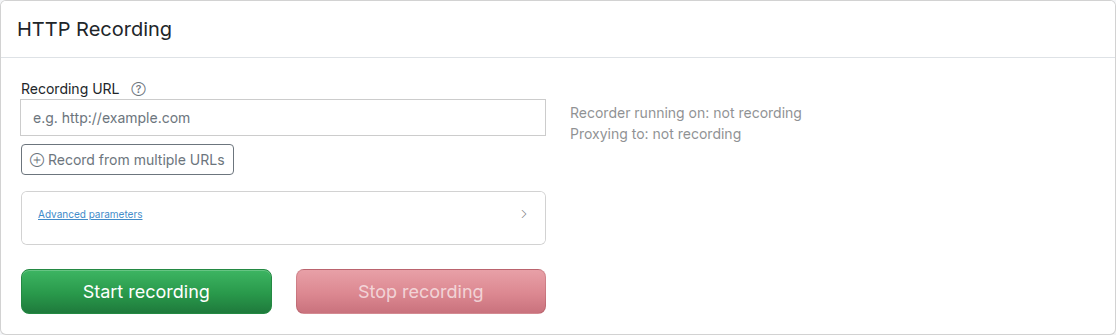
All traffic received by the Traffic Parrot virtual service will be proxied to the host in the Recording URL and recorded as mappings.
To record HTTPS traffic to any host without specifying a single Recording URL, point your client's proxy setting at Traffic Parrot instead. See [Recording HTTPS via the browser proxy](https://trafficparrot.com/documentation/5.65.x/user_guide.html#recording-https-proxy).

Clicking the edit button  will allow you to edit the recorded mapping.

### Existing mappings
If there are existing mappings present before a recording starts, these mappings will be used to return responses instead of recording a new response.
For example, if there is a mapping with path equal to `/example` then any traffic to path `/example` will return a response from the existing mapping and traffic to other paths will still be recorded.
### Deleting mappings while recording
You can delete a recorded mapping while a recording session is still active, for example to prune noise as it is captured. When you delete a mapping during recording, Traffic Parrot remembers that endpoint for the rest of the current recording session, so the same request is **not** recorded again if it is proxied a second time.
The endpoint is matched by HTTP method and normalised URL path, so query-string variants and numeric-id variants (for example `/orders/123` and `/orders/456`) of the deleted request are suppressed as well.
While a recording session is active, the mappings list shows a **Recording active** banner above the table as a reminder that deleting a mapping here also stops that endpoint being re-recorded for the rest of the session. The banner is shown only while recording is running.
> #### Note
>
> This suppression is scoped to the current recording session. It is cleared when you stop recording (and at the start of each new recording session), so a previously deleted endpoint becomes recordable again in a fresh recording session. This applies to HTTP recording.
### Live coverage while recording
While a recording session is active, the Record page shows a **Live coverage** panel that refreshes about once a second. It answers the question “has this recording captured the endpoints I expected, and do they all have mappings yet?” without waiting for the session to finish. The panel is empty when you are not recording (it shows **Start recording to see live coverage**) and fills in as traffic is proxied through Traffic Parrot.
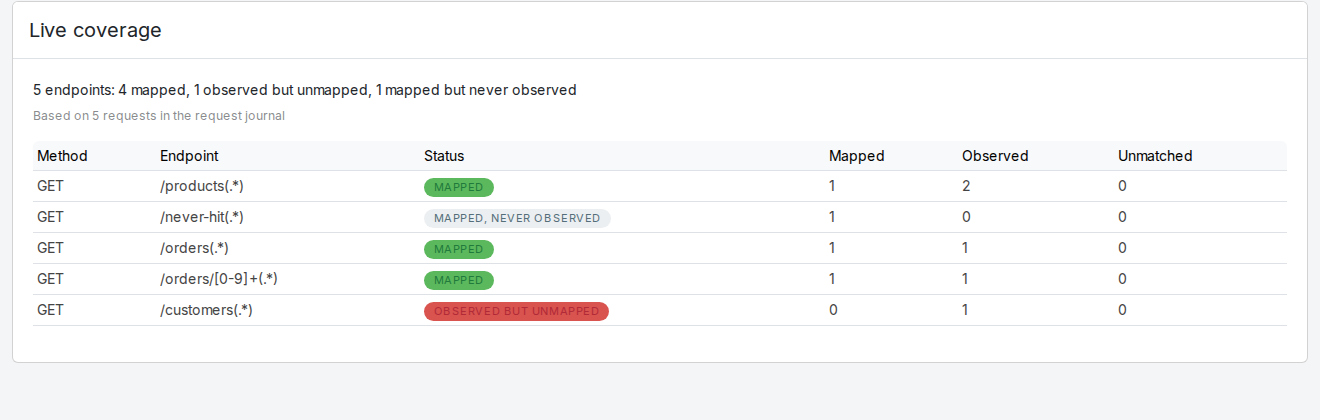
An **endpoint** is one HTTP method plus a normalised URL path. Numeric and variable path segments are collapsed using the same convention that [Mapping cleanup](#http-cleanup) uses (for example `/orders/123` and `/orders/456` are counted as the one endpoint `/orders/[0-9]+(.*)`), and query-string variants of the same path are not counted as separate endpoints. This means the coverage tally and cleanup always agree about what “the same endpoint” is.
The summary line above the table reports the totals for the current scenario: how many distinct endpoints have been seen, how many of those now have a mapping, how many were observed but have no mapping yet, and how many mappings exist that have not been observed during this session.
Each row in the table shows one endpoint:
| Column | Meaning |
| --- | --- |
| **Method** | The HTTP method (`GET`, `POST`, …). |
| **Endpoint** | The normalised request path. |
| **Status** | **Mapped** (observed and a mapping now exists), **Observed but unmapped** (requests were seen but no mapping has been recorded for them yet), or **Mapped, never observed** (a mapping exists but no request hit it during this session). |
| **Mapped** | How many mappings exist for the endpoint. |
| **Observed** | How many requests to the endpoint are in the request journal. |
| **Unmatched** | How many of those requests did not match any existing mapping. |
Watch the **Observed but unmapped** rows: those are endpoints your traffic hit that have not produced a mapping yet (for example a request that was answered by an existing mapping rather than recorded, or one that was filtered out). They are the “you hit this but it didn’t get a mapping” case.
> #### Coverage reflects the request journal
>
> Coverage is calculated from the requests still held in the in-memory request journal, so the panel shows a **Based on N requests in the request journal** note. The journal is bounded (see `trafficparrot.virtualservice.maxRequestJournalEntries` in [`trafficparrot.properties`](https://trafficparrot.com/documentation/5.65.x/properties.html)), so on a very long recording session the oldest requests can age out and the tally then reflects only what is still in the journal rather than every request ever proxied. This monitor covers HTTP recording.
### Live coverage REST API
The Live coverage panel reads from an endpoint on the Traffic Parrot GUI/admin port that you can also poll yourself. Send a `GET` request to `/api/http/currentRecordingCoverage`:
```bash
curl http://localhost:8080/api/http/currentRecordingCoverage
```
While recording is active, the response carries `"recording": true` and the per-endpoint coverage for the current scenario:
```json
{
"recording": true,
"coverage": {
"endpoints": [
{
"method": "GET",
"path": "/orders/[0-9]+(.*)",
"mapped": true,
"mappedCount": 1,
"observedCount": 3,
"unmatchedCount": 0
},
{
"method": "POST",
"path": "/orders(.*)",
"mapped": false,
"mappedCount": 0,
"observedCount": 1,
"unmatchedCount": 1
}
],
"totalEndpoints": 2,
"mappedEndpoints": 1,
"observedButUnmappedEndpoints": 1,
"mappedButNeverObservedEndpoints": 0,
"totalRequestsInJournal": 4
}
}
```
When no recording session is running, the response is well defined: the flag is `false` and the coverage totals are zeroed with an empty endpoint list. This is the same idle state the panel renders as **Start recording to see live coverage**.
```json
{
"recording": false,
"coverage": {
"endpoints": [],
"totalEndpoints": 0,
"mappedEndpoints": 0,
"observedButUnmappedEndpoints": 0,
"mappedButNeverObservedEndpoints": 0,
"totalRequestsInJournal": 0
}
}
```
### Filter by URL path
If the Recording URL includes a path, only traffic to this path will be recorded, however all traffic will still be proxied.
For example, if the Recording URL is set to `http://example.com/aSampleResource` then only traffic to paths staring with `/aSampleResource` will be recorded and all other traffic will be proxied to `http://example.com` without saving mappings.
### Filter by Content-Type
In order to record only specified content types go to [`trafficparrot.properties`](https://trafficparrot.com/documentation/5.65.x/properties.html) file and change the value of the property:
`trafficparrot.virtualservice.recordOnlyContentTypesContaining=TP_RECORD_ALL_CONTENT_TYPES`
to include content types you would like to record, for example:
`trafficparrot.virtualservice.recordOnlyContentTypesContaining=application/javascript,application/xml`
### Recording multiple APIs
By default the Record page shows a single **Recording URL** input for the common case of recording one backend. To record from multiple backends in a single session, click **Record from multiple URLs** below the input. This reveals a URL pattern field alongside the target field and adds a second row so you can route different paths to different backends. Use **Add proxy target** to add more rows, or click the remove button on a row to delete it. Removing rows until only one row remains with an empty pattern returns the form to the simple single-URL mode.
Each row consists of a URL pattern (a regular expression matched against the request path) and a target URL. For example:
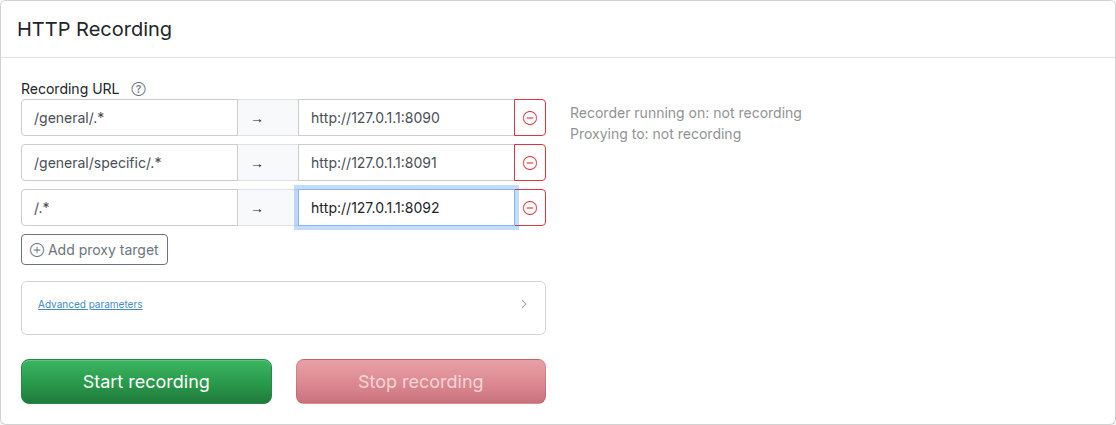
The path is used to determine which API should be used to provide the recorded response. The expression `.*` is used as a wildcard matcher.
In the example above:
- /general/something will route to http://127.0.1.1:8090
- /general/specific/something will route to http://127.0.1.1:8091
- /something will route to http://127.0.1.1:8092
### Recording headers for matching
In order to record HTTP request headers that can be later used for matching request go to the HTTP->Record page, click on "Advanced parameters" and fill in "Record request headers for matching" text area. It should contain a list of headers, one per line, for example:
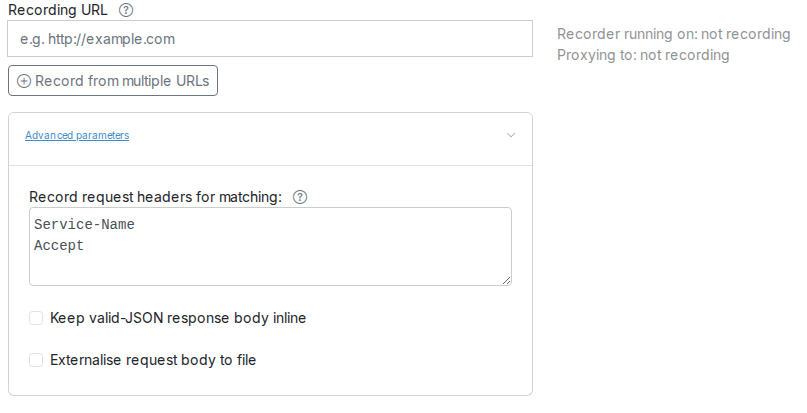
### Compressed responses
A response the recorded system sends compressed is stored decoded. A body whose `Content-Encoding` is `gzip`, `deflate` or `br` (Brotli) is decompressed before the mapping is saved: the body file holds the text, the saved mapping carries no `Content-Encoding` header, the mapping replays the body uncompressed, and [`trafficparrot.http.recording.storage.rewrite.regex`](#recording-url-rewriting) rules are applied to that text.
A coding Traffic Parrot cannot decode, such as `zstd`, which browsers advertise, or several codings stacked, is stored as it arrived: the body file holds the compressed bytes and the mapping keeps the `Content-Encoding` header. The mapping replays those bytes as sent when the `Content-Type` is a binary type such as `application/octet-stream`; with a text `Content-Type`, such as `application/json`, the bytes that are not valid UTF-8 are replaced on replay, so the body is corrupted. Storage rewrite rules are applied to those compressed bytes too, so a rule that happens to match inside them corrupts the body. A server sends a coding only when the client's `Accept-Encoding` header offers it, so a client that offers only `gzip`, `deflate` and `br` is recorded decoded.
### Keeping JSON response bodies inline
By default, every response body captured during recording is written to a separate file in the `__files/` directory and the recorded mapping references it by name. You can instead keep JSON response bodies **inline** in the mapping itself, so a recorded JSON API produces a single self-contained mapping file with no companion body file.
On the HTTP → Record page, click **Advanced parameters** and tick **Keep valid-JSON response body inline**, then start recording as usual.
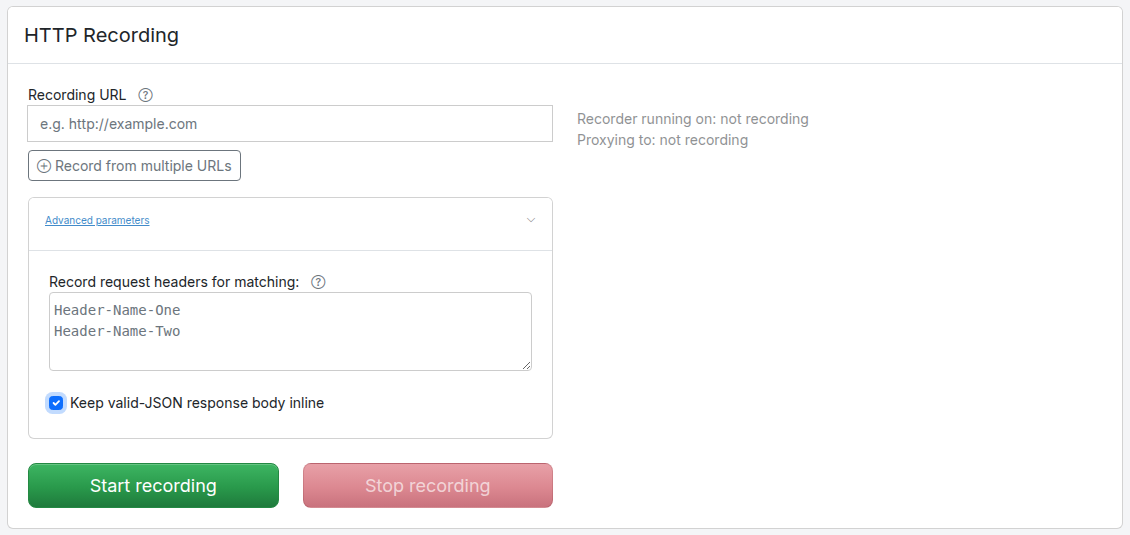
The checkbox appears below the **Record request headers for matching** field in the same **Advanced parameters** accordion.
When the option is on, a recorded response body is kept inline in the mapping (as a structured `jsonBody`) when **both** of these are true:
- the response is served with a **text content type** (for example `application/json`); and
- the response body is **valid JSON**.
Any other response body is still written to a `__files/` file exactly as before. In particular:
- a non-JSON text body (HTML, XML, plain text, …) is externalised to a file;
- a binary body is externalised to a file: even if its bytes happen to parse as JSON, a body served with a binary content type such as `application/octet-stream` is written to a file, because the declared content type is honoured.
The inline JSON is stored byte-for-byte as it was received; it is not reformatted. When the option is off (the default), all response bodies are externalised to `__files/` exactly as in earlier releases, so existing recording workflows are unchanged.
> #### No size limit on inlined JSON
>
> There is no size cap on inlining: any valid-JSON text response is kept inline regardless of how large it is. A very large JSON response is therefore embedded directly in the mapping file rather than in a separate `__files/` file, which can make that mapping file large. Leave the option off if you prefer large JSON responses to remain in their own body files.
The checkbox controls a single recording session. To change the default state of the checkbox for everyone (for example to have it ticked out of the box), set the [`trafficparrot.http.recording.response.inlineJson`](https://trafficparrot.com/documentation/5.65.x/properties.html#recording-properties) property in [`trafficparrot.properties`](https://trafficparrot.com/documentation/5.65.x/properties.html). The property only seeds the checkbox's initial state: whatever the checkbox is set to when you start recording is what takes effect for that session.
### Externalising request bodies to files
By default, when a recorded request has a body, that body is written **inline** into the recorded mapping as the request body matcher (a `bodyPatterns` value). You can instead have the request body **externalised to a file** in the `__files/` directory, with the recorded mapping's request matcher carrying a `bodyFileName` reference to that file instead of the inline value, the request-side counterpart of a [file-backed request body matcher](#request-body-file).
On the HTTP → Record page, click **Advanced parameters** and tick **Externalise request body to file**, then start recording as usual.
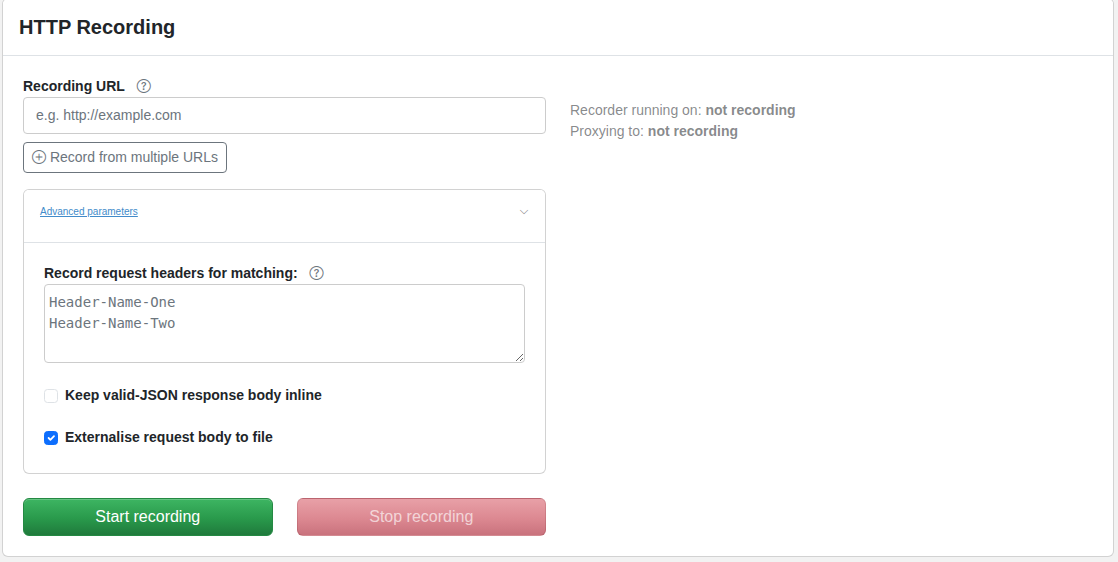
The checkbox appears below the **Keep valid-JSON response body inline** checkbox in the same **Advanced parameters** accordion.
When the option is on, a recorded request body is written to a `__files/` file and the mapping's request matcher references it by name. The matcher form is chosen from the request's content type, so the externalised body still matches on replay exactly as an inline one would:
- a JSON request body produces `{"equalToJson":{"bodyFileName":"…"}}`;
- an XML request body produces `{"equalToXml":{"bodyFileName":"…"}}`;
- a binary request body produces `{"binaryEqualTo":{"bodyFileName":"…"}}` (the file is written byte-for-byte);
- any other body (plain text, or a request with no `Content-Type`) produces `{"equalTo":{"bodyFileName":"…"}}`.
Two kinds of request body are **always kept inline**, regardless of the checkbox, and are never externalised:
- an **empty** request body; and
- a **multipart** request body.
When the option is off (the default), request bodies are recorded inline exactly as in earlier releases, so existing recording workflows are unchanged.
> #### Externalised request bodies are editable in the GUI
>
> A recorded request body that was externalised to a file loads, matches on replay, and is **editable in the Add/Edit mapping editor** exactly like a manually [file-backed request body matcher](#request-body-file-in-gui): a *Content from file* note names the file and the request body field is pre-filled with its contents.
The checkbox controls a single recording session. To change the default state of the checkbox for everyone (for example to have it ticked out of the box), set the [`trafficparrot.http.recording.request.externaliseToFile`](https://trafficparrot.com/documentation/5.65.x/properties.html#recording-properties) property in [`trafficparrot.properties`](https://trafficparrot.com/documentation/5.65.x/properties.html). The property only seeds the checkbox's initial state: whatever the checkbox is set to when you start recording is what takes effect for that session.
### URL rewriting during recording
Traffic Parrot can automatically rewrite URLs in response bodies during recording. This is useful when recording from production systems where responses contain absolute URLs that need to be changed to point to your test environment.
#### Configuration
Configure URL rewriting by setting the `trafficparrot.http.recording.response.rewrite.regex` property in `trafficparrot.properties`. The format is:
```
trafficparrot.http.recording.response.rewrite.regex=pattern->replacement,pattern2->replacement2
```
#### Examples
**Simple string replacement:**
```
trafficparrot.http.recording.response.rewrite.regex=https://api.example.com->http://localhost:8081
```
**Regex with capture groups:**
```
trafficparrot.http.recording.response.rewrite.regex=(https?://[^/]+)(.*)->http://localhost:8081$2
```
**Multiple rules:**
```
trafficparrot.http.recording.response.rewrite.regex=(https://api.example.com)(.*)->http://localhost:8081$2,(https://cdn.example.com)(.*)->http://localhost:8082$2
```
#### How it works
- URL rewriting is applied only during recording mode
- The live response the client receives is transformed by `trafficparrot.http.recording.response.rewrite.regex`; the body written to the saved mapping file is transformed separately by `trafficparrot.http.recording.storage.rewrite.regex` (often in the opposite direction, to preserve Handlebars templates)
- Works with gzip, brotli, and uncompressed responses
- Only text-based response bodies are processed (JSON, XML, HTML, etc.)
> #### Note
>
> URL rewriting only applies during recording. The transformed URLs are saved in the recorded response files, so during replay mode, the already-transformed responses are served.
### Rewriting request bodies during recording
The properties above rewrite response bodies. To rewrite the **request** body as it is recorded, set `trafficparrot.http.recording.request.storage.rewrite.regex`. The usual reason is to keep a credential, token or item of personal data out of your recorded traffic files.
It is empty by default, so nothing is rewritten until you configure it. The format is the same as the other rewrite properties:
```
trafficparrot.http.recording.request.storage.rewrite.regex=("apiKey"\\s*:\\s*")[^"]*->$1***REDACTED***
```
Record a `POST` whose body is `{"apiKey":"live-key-1234","orderId":42}` and the saved mapping matches on `{"apiKey":"***REDACTED***","orderId":42}` instead. The real key is in no traffic file Traffic Parrot writes, and it is not in the per-request entry of the [log](https://trafficparrot.com/documentation/5.65.x/logging.html) either: while rules are set, that entry shows the request body as rewritten, whether or not a recording is running, and closes with a line naming what was redacted. The [HTTP Request Log](#request-log-overview) page still shows the body as received.
> #### This changes what the saved stub matches
>
> The recorded request body is what Traffic Parrot builds the request matcher from. Once you redact it, a replay client that sends the real value no longer matches the stub, and gets no response. You have two options: have the client send the placeholder during replay, or edit the saved mapping to match more loosely, for example with `matchesJsonPath` on the fields you do care about.
#### What is covered
- Rules run on every non-empty request body, whatever its content type. A body is decoded using the charset from the request's `Content-Type` header, defaulting to UTF-8.
- A `multipart/form-data` request body is rewritten **part by part**. Each part is decoded using the charset from its own `Content-Type`, defaulting to UTF-8, and the rules run on that part on its own, so a rule cannot match across a part boundary. A part's own headers are saved as they are, so a credential in a part header is covered by [header redaction](#recording-header-redaction), not by these rules.
- Empty request bodies are left alone, as there is nothing to match.
- A body that **no** rule matches is written byte-for-byte as received, because nothing is decoded. A body that a rule **does** match is decoded and re-encoded in full, so every byte that is not valid in its character set becomes the replacement character `U+FFFD`, anywhere in the body and not only where the rule matched. In a multipart body this happens per part: a part that a rule matches is re-encoded, so a rule that matches inside a file upload re-encodes that part, while a part that no rule matches is written as received. If an endpoint you record can also carry a file upload, keep the upload out of the recording rather than relying on the pattern to miss it: [give the Recording URL a path](#recording-filter-path) so that only requests under that path are saved. The [content type filter](#recording-filter-content-type) matches the response's `Content-Type`, not the request's, so it does not keep out an upload whose response is JSON.
- This property is independent of `trafficparrot.http.recording.storage.rewrite.regex`, which still applies to response bodies only. Set both if you want both sides scrubbed.
- Rules apply whether the request body is stored inline in the mapping or externalised to a `__files/` file. See [Externalising request bodies to files](#recording-externalise-request).
#### Writing the rules
- Double every backslash. `trafficparrot.properties` is a Java properties file, which reads a single `\s` or `\d` as a bare `s` or `d` and so changes what the rule matches without reporting anything. Write `\\s` and `\\d`, as the example above does.
- A comma separates rules and an arrow separates a pattern from its replacement, so neither can appear inside a pattern. A range quantifier such as `\\d{12,19}` splits into two rules; write `\\d{12}\\d*` (twelve or more digits) instead, or spell the optional digits out as repeated `\\d?` if the upper bound matters.
- Keep the surrounding quotes when redacting a JSON string value. Capture the field name and the opening quote, as the example above does, so the result is still valid JSON. If a rewrite leaves a JSON request body invalid, the exchange is still recorded and the client still receives the backend's response, but the saved mapping matches that body as exact text (`equalTo`) rather than as JSON, and an error naming the URL and the rules is written to the [log](https://trafficparrot.com/documentation/5.65.x/logging.html). A JSON part of a `multipart/form-data` request that a rewrite leaves invalid, and a request body labelled JSON that does not parse as it arrives, are recorded the same way, matched as exact text.
- A malformed rule stops Traffic Parrot from starting, and the error names the rule at fault. This is deliberate: the property exists to keep values out of recordings, so a rule that cannot be parsed must not be skipped silently while recording continues. The same applies to `trafficparrot.http.recording.response.rewrite.regex` and `trafficparrot.http.recording.storage.rewrite.regex`.
### Redacting credential headers during recording
A recording saves the response headers the backend sent, and whichever request headers you listed under [Record request headers for matching](#recording-headers). If those include an `Authorization` header, a session cookie or an API key, the credential is then in a traffic file. Set `trafficparrot.http.recording.redaction.enabled=true` in `trafficparrot.properties` to mask such headers as they are saved. It is off by default.
```
trafficparrot.http.recording.redaction.enabled=true
trafficparrot.http.recording.redaction.strategy=PLACEHOLDER
trafficparrot.http.recording.redaction.placeholder=***REDACTED***
trafficparrot.http.recording.redaction.headers=X-Api-Key, X-Session-Token
```
Each key can also be set as a `-D` system property or as a `key=value` argument to the start script, whether or not your `trafficparrot.properties` holds it. See the [recording properties](https://trafficparrot.com/documentation/5.65.x/properties.html#recording-properties).
#### What is covered
- `Authorization`, `Cookie`, `Set-Cookie` and `Proxy-Authorization` are always covered while redaction is on. Name any other headers in `trafficparrot.http.recording.redaction.headers`, separated by commas or spaces; names are matched without regard to case, and a value keeps its own casing in the saved mapping.
- Both directions are covered: the recorded response headers, and the request headers recording matches on. A request header is saved, and so redacted, only if it is listed under [Record request headers for matching](#recording-headers). The headers of each part of a `multipart/form-data` request are covered in the same way.
- The strategy decides what is saved. `PLACEHOLDER`, the default, keeps the header and replaces its value with `trafficparrot.http.recording.redaction.placeholder`, which is `***REDACTED***` unless you change it. `DROP` leaves the header out of the saved mapping.
- Only what is written to disk changes. The client recording through Traffic Parrot still receives the backend's real headers, and a mapping created in the [Add/Edit HTTP mappings](#add-edit-http-mappings) editor or through the admin API is saved as you wrote it.
- The per-request `Request received:` entry in `logs/trafficparrot.log` shows the covered headers redacted the same way, in the request and in the response, whether or not a recording is running, and closes with a line naming what was redacted. The [HTTP Request Log](#request-log-overview) page still shows them as received.
- A value other than `true` or `false`, a strategy other than `PLACEHOLDER` or `DROP`, or an entry in the header list that is not a header name stops Traffic Parrot from starting, naming the property and the value at fault, rather than recording with the setting silently ignored. When recording starts, the [log](https://trafficparrot.com/documentation/5.65.x/logging.html) names the strategy and the headers it covers, and never their values.
> #### A placeholder changes what the saved stub matches
>
> A redacted request header is saved as a request matcher, exactly as a [rewritten request body](#recording-request-body-rewriting) is. Under `PLACEHOLDER` the matcher expects the placeholder, so a replay client that sends the real value no longer matches the stub, and gets no response. Either have the client send the placeholder during replay, edit the saved mapping to match the header more loosely or not at all, or use `DROP`, under which the header is not matched at all and a client sending the real value matches as before.
#### What is not covered
- The request body in the per-request log entry is as received unless [request storage rewrite rules](#recording-request-body-rewriting) are set; header redaction does not look at it.
- A credential in the URL query string is saved in the URL matcher and logged as received. Header redaction does not look at the URL.
- A header value the backend echoes into a response body is saved as the body is. Only `trafficparrot.http.recording.storage.rewrite.regex` reaches it.
- A recording started through WireMock's own recording API (`/__admin/recordings/start`, `/stop` and `/snapshot`) rather than the Record page, which writes its mappings through WireMock's recorder and saves every header as received.
### Handling HTTP redirects during recording
There are two unrelated things people call "redirects" in Traffic Parrot, and they are controlled separately. Read this first so you know which one applies to you.
#### 1. Serving a stubbed 3xx (always available)
You can define a mapping that returns a `301` or `302` response with a `Location` header. This is standard mock behaviour: Traffic Parrot returns the redirect to the client exactly as you defined it. This is **always available** and is **not** affected by the `trafficparrot.virtualservice.enableRedirectHandling` property.
For example, a mapping that redirects clients calling `/old-path` to `/new-path`:
```
{
"request": {
"method": "GET",
"url": "/old-path"
},
"response": {
"status": 302,
"headers": {
"Location": "/new-path"
}
}
}
```
Clients calling `/old-path` receive `HTTP/1.1 302 Found` with `Location: /new-path`, just like any other stubbed response.
#### 2. Following a backend redirect in proxy/record mode (property-controlled)
When Traffic Parrot is recording by proxying to a real backend and that backend returns a 3xx redirect (e.g. `302` with a `Location` header), the `trafficparrot.virtualservice.enableRedirectHandling` property decides whether the redirect itself is recorded, or whether Traffic Parrot follows it and records the final response instead.
The property defaults to `false`. It is read once at startup (it is a server setting, not a per-recording-session option, so there is no toggle on the Record page). Set it in [`trafficparrot.properties`](https://trafficparrot.com/documentation/5.65.x/properties.html):
```
trafficparrot.virtualservice.enableRedirectHandling=true
```
The following table summarises the recording behaviour for a backend that answers a request with `302` + `Location`, where the target of the `Location` returns a terminal `200`:
| Setting | What the proxy does | What gets recorded | What replay returns |
| --- | --- | --- | --- |
| `false` (default) | Passes the backend's 3xx straight through to the client. | The `302` (with its `Location` header). | `302` + `Location`. |
| `true` | Follows the backend's `Location` and reads the final response. | The final response (e.g. the terminal `200` and its body) instead of the redirect. | The final `200`. |
#### When to use each
- Leave `enableRedirectHandling` at its default `false` when you want the redirect itself reproduced in your virtual service, so replay returns the `302` + `Location` exactly as the backend did.
- Set it to `true` for transparent recording where you only care about the final response: Traffic Parrot follows the redirect hop while recording and saves only the terminal response, so your mocks contain no redirect.
> #### Note
>
> Setting `enableRedirectHandling` does **not** change how your own stubbed 3xx mappings behave; it only changes what is recorded when proxying to a backend that redirects.
## Mapping cleanup
### Overview
Mapping cleanup is a page in the Traffic Parrot admin UI. To open it, go to the **HTTP** menu in the top navigation bar and choose **Cleanup**. It rewrites a scenario's HTTP mappings into a clean, convention-following form.
Recording a real API (or importing a HAR) typically produces dozens of near-identical per-request stubs (one each for `/users/1`, `/users/2`, `/users/3` and so on), each carrying noisy response headers and over-strict matchers. The result is hard to maintain. Cleanup consolidates these stubs into a small set of pattern-based mappings.
**Cleanup is non-destructive.** It never modifies the source scenario. The cleaned mappings are written to a **new** scenario named by the `targetScenario` parameter; the original scenario is left untouched. The new scenario carries the HTTP mappings and `__files` only, so it is not a complete copy of the source: see [What the cleaned scenario does not carry](#cleanup-not-copied).
Cleanup is **convention-only** today. The standard cleanup applies a fixed set of conventions: there are no configurable parameters or rule toggles. The only input is the target scenario name.
For a step-by-step walkthrough, see the tutorial [How to clean up recorded HTTP mappings](https://trafficparrot.com/tutorials/clean-up-recorded-http-mappings.html).
### What cleanup does
Standard cleanup applies these conventions to every mapping in the scenario:
| Transform | Before | After |
| --- | --- | --- |
| Consolidate specific URLs into patterns | separate stubs for `/users/1`, `/users/2`, `/users/3` | one stub matching `/users/[0-9]+`. Numeric segments become `[0-9]+`, alphanumeric segments become `[0-9a-zA-Z-]+`, and hex segments become `[0-9a-f]+`. |
| Remove noisy response headers | the response returns `Date`, `Server`, `Connection`, `Content-Type`, … | keeps only `Content-Type` and id-style headers (names ending in “id”, e.g. `Request-Id`) |
| Remove request body-matching constraints | the stub only matches one exact request body | the stub matches regardless of request body |
| Consolidate duplicate mappings | three identical `/health` stubs | a single stub (the simplest response is kept) |
| Standardize file naming | `get-users1-8ee16f88-….json` and ad-hoc body files | mapping files are named after their URL pattern; response body files are renamed to `_response.` |
| Make response URLs portable | the response body contains an absolute URL such as `https://api.example.com/users/1` | the host is replaced with the `{{request.baseUrl}}` template (`{{request.baseUrl}}/users/1`) |
| Add response templates | `/users/7` always returns `"id": 7` | the response echoes the requested id via `{{request.path.[1]}}` |
The last two transforms (making response URLs portable and adding response templates) correspond to the `urlsReplaced` and `templatesAdded` result counters described below.
### What the cleaned scenario does not carry
Cleanup copies the source scenario's HTTP mappings and its `__files` directory into the new scenario, and nothing else. A scenario can also hold mappings for other protocols, in directories beside `mappings`: `jms-mappings`, `ibm-mq-mappings`, `file-mappings`, `grpc-mappings` and `websocket-mappings`. None of those is copied, and neither is anything else the scenario holds, such as its `data` directory.
That is deliberate. The conventions in the table above are HTTP conventions: URL patterns, response headers, response templating. They have no meaning for a JMS or a gRPC mapping, so cleanup leaves those mappings where they are instead of rewriting them.
**Nothing is lost.** Cleanup never modifies the source scenario, so its messaging, gRPC and WebSocket mappings are still there, exactly as they were. What this guards against is a **lossy migration**: treating the cleaned scenario as a complete replacement for the recording it came from. Promote only the cleaned scenario to the next environment and the other protocols' mappings do not travel with it; delete the original once you have switched to the cleaned one and they are gone. Keep the source scenario, or copy the directories you still need into the cleaned one yourself.
Cleanup reports the mapping directories it did not copy, so you do not have to go looking for them. Each entry names the directory and how many files stayed behind, for example `jms-mappings (3 file(s)) - not copied into the cleaned scenario`. The count is of **files**, not mappings: one mapping file can hold several mappings.
Only a directory that actually holds files is reported. Traffic Parrot creates all of these directories in every scenario, so an empty one says nothing about whether the scenario uses that protocol, and cleaning up an HTTP-only scenario reports nothing at all.
The report is informational: it is a warning, not an error. The cleanup succeeded, and the `errors` field stays empty. You see it in the warning panel on the [cleanup page](#cleanup-gui), in the `droppedMappingDirectories` field of the [REST API](#cleanup-api) response, and in the output of the [`cleanup_mappings`](https://trafficparrot.com/documentation/5.65.x/mcp.html#tools) MCP tool.
### Using the cleanup page
1. From the **HTTP** menu in the top navigation bar, choose **Cleanup**. The page shows the current scenario and how many mappings it contains.
2. The **Target scenario name** field is pre-filled with a suggested name (the current scenario name with `_cleaned` appended). Change it if you like; it has to be a name inside the `scenarios` directory, so a name that climbs out of it with `..` or an absolute path is refused, and the page says why rather than writing anything.
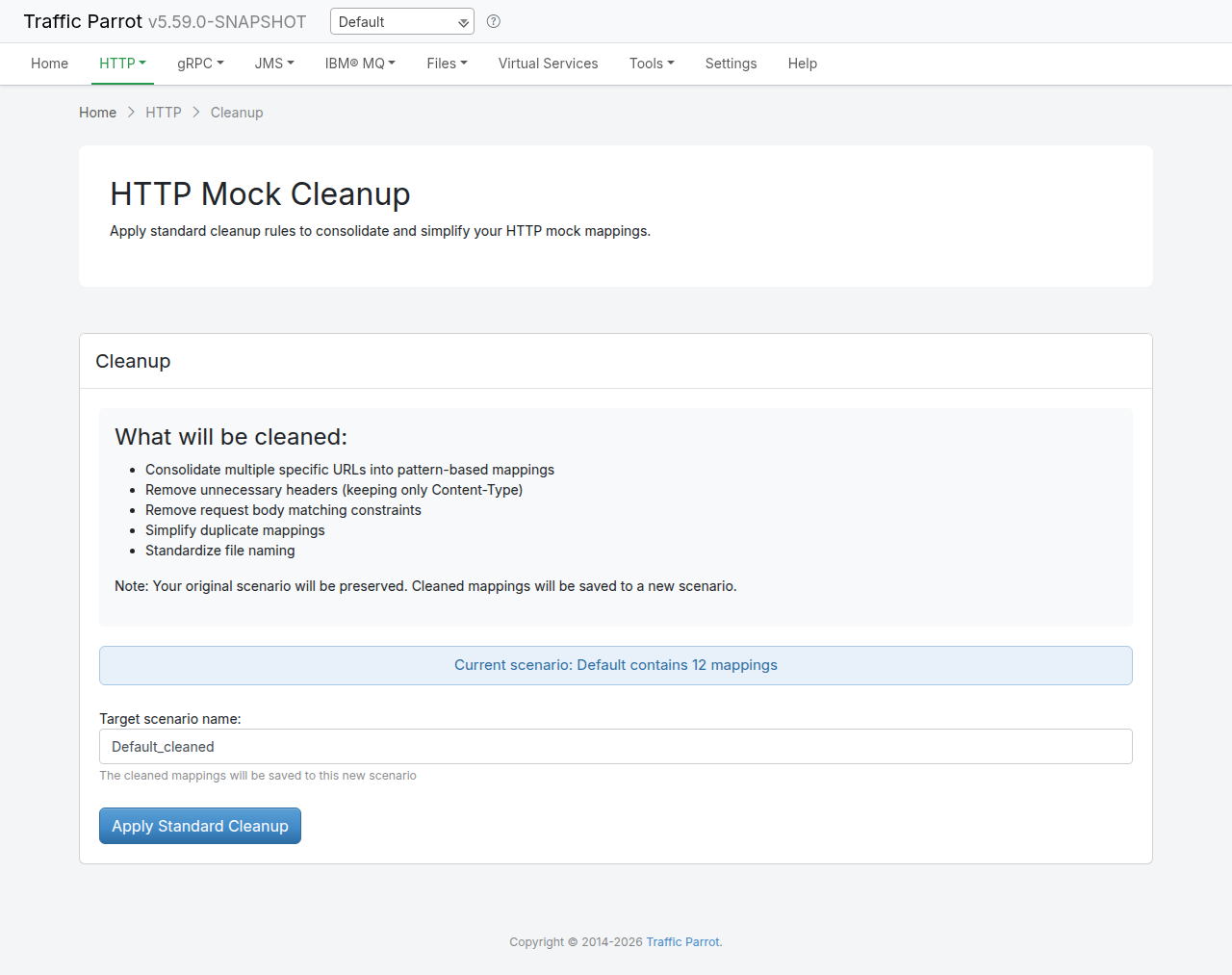
3. Click **Apply Standard Cleanup**.
4. The **Results** panel shows the before/after counts; click **switch to the cleaned scenario** to start using the simplified mappings.
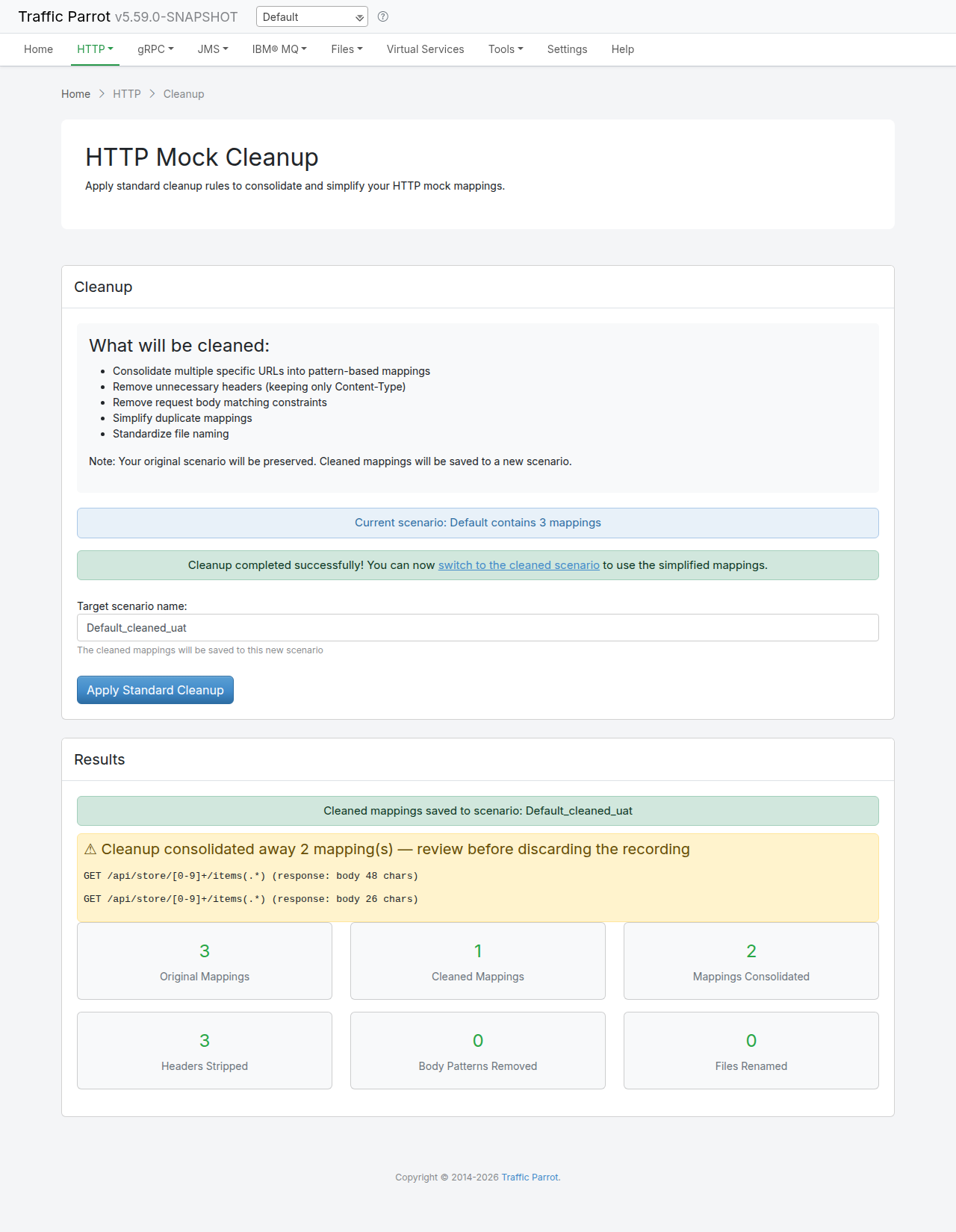
The results panel reports six counters: **Original Mappings**, **Cleaned Mappings**, **Mappings Consolidated**, **Headers Stripped**, **Body Patterns Removed**, and **Files Renamed**.
When cleanup consolidates near-duplicate mappings (same method and URL pattern, only the smallest-body mapping is kept), a warning panel lists **exactly which mappings were consolidated away**, for example `GET /api/store/[0-9]+/items(.*) (response: body 61 chars)`. Cleanup is no longer silent about what it drops: review this list before discarding the original recording, in case a consolidated-away mapping carried a response you still need.
Above the counters, a warning panel headed **Mappings the cleaned scenario does not serve** appears when the source scenario also holds mappings for another protocol. It names each mapping directory that was not copied and how many files stayed behind, for example `jms-mappings (3 file(s)) - not copied into the cleaned scenario`. The panel is hidden when there is nothing to report, which is the normal case for an HTTP-only scenario. See [What the cleaned scenario does not carry](#cleanup-not-copied).
Below the summary counters, expand **Per-endpoint detail** to see, for every recorded endpoint, exactly what cleanup did to it. Each row is tagged **Kept**, **Consolidated**, **Headers stripped**, **Body match removed**, **URL pattern applied**, **Response template added**, or **Removed**. A **consolidation groups** block underneath makes the grouping explicit, listing which specific recorded URLs were collapsed into each surviving pattern. Because cleanup is intentionally lossy, this view lets you confirm what changed before you discard the original recording.
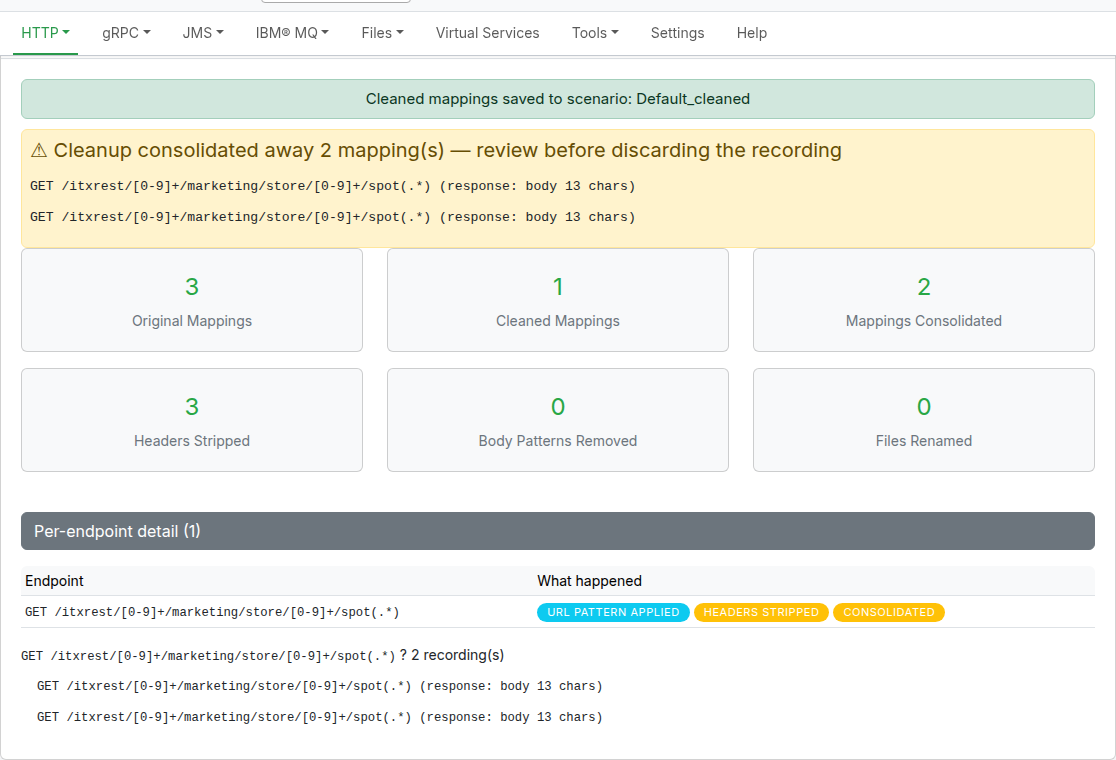
### REST API
The cleanup endpoints run on the Traffic Parrot GUI/admin port. You can use them to inspect the current scenario and run cleanup programmatically.
Send a `GET` request to `/api/http/cleanup/mappings` to return the current scenario and its mapping count:
```bash
curl http://localhost:8080/api/http/cleanup/mappings
```
The response includes a short preview list (`sampleMappings`) of up to 10 file names:
```json
{
"scenario": "Default",
"mappingCount": 42,
"sampleMappings": ["get-users1-….json", "get-users2-….json"]
}
```
Send a `GET` request to `/api/http/cleanup/suggestedName` to return a suggested target name. The response is a JSON object, not a bare string:
```bash
curl http://localhost:8080/api/http/cleanup/suggestedName
```
```json
{
"suggestedName": "Default_cleaned",
"currentScenario": "Default"
}
```
Send a `POST` request to `/api/http/cleanup/execute?targetScenario=` to run the standard cleanup and write the result to the new scenario. The `targetScenario` query parameter is required; there is no request body.
```bash
curl -X POST "http://localhost:8080/api/http/cleanup/execute?targetScenario=cleaned-api"
```
The value names a new scenario **inside the instance's `scenarios` directory**. A name that would resolve outside that directory (one climbing out of it with `..`, or an absolute path) is rejected, as are a blank name, the name of the current scenario, and the name of a scenario that already exists. A rejected name returns `HTTP 400` with the reason in an `error` field, and nothing is written:
```json
{
"error": "Target scenario '../cleaned-api' must be a name inside the scenarios directory. Please provide a scenario name without '..' or an absolute path."
}
```
On success, the response is the cleanup result:
```json
{
"targetScenario": "cleaned-api",
"originalMappingsCount": 42,
"cleanedMappingsCount": 18,
"mappingsConsolidated": 20,
"headersRemoved": 15,
"bodyPatternsRemoved": 8,
"filesRenamed": 5,
"urlsReplaced": 12,
"templatesAdded": 0,
"consolidatedAwayMappings": [
"GET /api/store/[0-9]+/items(.*) (response: body 61 chars)",
"GET /api/store/[0-9]+/items(.*) (response: body 36 chars)"
],
"removedEndpoints": [],
"droppedMappingDirectories": [
"jms-mappings (3 file(s)) - not copied into the cleaned scenario",
"grpc-mappings (1 file(s)) - not copied into the cleaned scenario"
],
"endpointDispositions": [
{ "endpoint": "GET /users/[0-9]+", "actions": ["CONSOLIDATED", "HEADERS_STRIPPED"] },
{ "endpoint": "GET /health", "actions": ["KEPT"] }
],
"consolidationGroups": [
{
"pattern": "GET /users/[0-9]+",
"consolidatedUrls": [
"GET /users/123 (response: body 61 chars)",
"GET /users/456 (response: body 36 chars)"
]
}
],
"errors": []
}
```
The result fields are:
- `originalMappingsCount` / `cleanedMappingsCount`: the mapping count before and after cleanup.
- `mappingsConsolidated`: stubs merged into patterns or deduplicated.
- `headersRemoved`: mappings whose response headers were trimmed.
- `bodyPatternsRemoved`: request body matchers that were dropped.
- `filesRenamed`: response body files that were renamed.
- `urlsReplaced`: response bodies where an absolute URL was replaced with `{{request.baseUrl}}`.
- `templatesAdded`: responses where a dynamic `{{request.path.[…]}}` template was inserted.
- `consolidatedAwayMappings`: the identity of each near-duplicate mapping that consolidation removed, formatted as `METHOD url-pattern (response: body N chars | file | none)`. Empty when nothing was consolidated.
- `removedEndpoints`: any endpoint (method and normalised path) that was mapped before cleanup but has no mapping afterwards. Normally empty, because consolidation always keeps one survivor per endpoint; it is a safety guard that only fires if a transform were to remove an endpoint entirely.
- `droppedMappingDirectories`: the mapping directories the source scenario holds that the cleaned scenario does not carry, one entry per directory, formatted as ` (N file(s)) - not copied into the cleaned scenario`. A directory that holds no files is not listed, so this is empty for an HTTP-only scenario. It is a warning rather than an error: the cleanup itself succeeded. See [What the cleaned scenario does not carry](#cleanup-not-copied).
- `endpointDispositions`: one entry per recorded endpoint, each `{ "endpoint": "GET /users/[0-9]+", "actions": […] }`, where every action is one of `KEPT`, `URL_PATTERN_APPLIED`, `HEADERS_STRIPPED`, `BODY_PATTERN_REMOVED`, `TEMPLATE_ADDED`, `CONSOLIDATED`, or `REMOVED`. This is the per-endpoint view behind the **Per-endpoint detail** table in the GUI.
- `consolidationGroups`: one entry per surviving pattern, each `{ "pattern": "GET /users/[0-9]+", "consolidatedUrls": […] }`, listing which recorded URLs were collapsed into that pattern. Empty when nothing was consolidated.
- `errors`: any mappings that could not be cleaned (empty on success).
The standard cleanup is convention-driven and is not currently configurable.
## Endpoint coverage
### Overview
Endpoint coverage tells you, for the current scenario, which HTTP endpoints Traffic Parrot knows about and how the real traffic it has seen lines up with your stub mappings. Every endpoint is classified as exactly one of three states:
- **Mapped**: at least one stub mapping exists for the endpoint and it has been observed in traffic.
- **Observed but unmapped**: requests for the endpoint appear in the request journal but no stub matched them, so they fell through to the unmatched HTTP 900 `No responses matched` response. These are gaps in the virtual service.
- **Mapped, never observed**: a stub exists but no request has exercised it yet. This is a candidate for cleanup (possibly an obsolete mapping).
Endpoint coverage complements [Mapping cleanup](#http-cleanup): after consolidating mappings, coverage answers the question “did consolidation accidentally drop an endpoint that real traffic still hits?”. An endpoint that becomes **Observed but unmapped** after a cleanup is a regression signal. Coverage and cleanup use the **same** endpoint normalisation (URL patterns collapse concrete URLs such as `/orders/123` and `/orders/456` into a single endpoint), so the two pages always agree on what counts as one “endpoint”.
“Observed” is derived from the HTTP request journal: the serve events the virtual service records as requests arrive. Traffic Parrot's HTTP engine is based on WireMock, so this is the same request journal described in the [WireMock verifying / request-journal documentation](https://wiremock.org/docs/verifying/).
### Using the coverage page
Open the coverage page from the top navigation bar: go to the **HTTP** menu and choose **Coverage** (direct URL `/http/coverage.html`). It is available when virtual services are enabled.
The page header shows a summary line (for example `3 endpoints: 2 mapped, 1 observed but unmapped, 1 mapped but never observed`) and a caveat line stating how much traffic the figures are based on, for example `Based on 2 requests in the request journal`. A **Refresh** button reloads the data, and the table refreshes live.
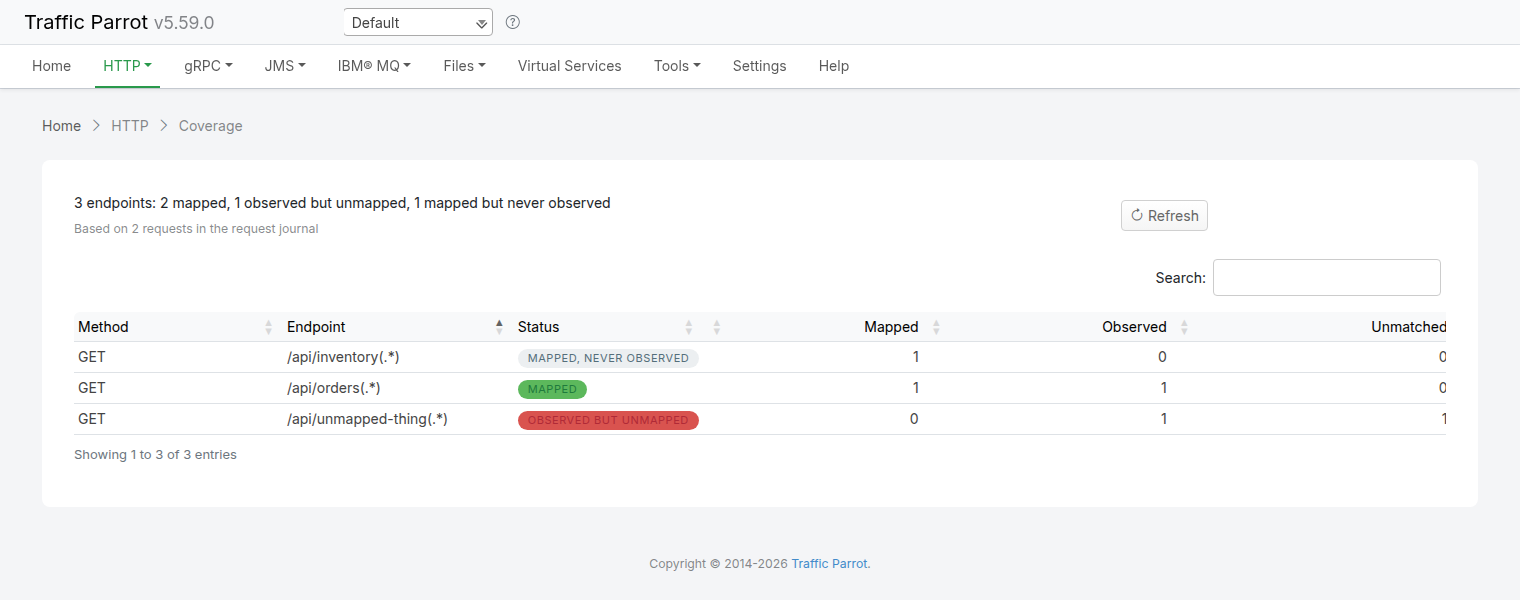
The table has six columns, in this order:
| Column | Meaning |
| --- | --- |
| **Method** | The HTTP method. |
| **Endpoint** | The normalised URL pattern, for example `/api/orders(.*)`. |
| **Status** | One of three badges: **Mapped** (green), **Observed but unmapped** (red), or **Mapped, never observed** (grey). |
| **Mapped** | How many stub mappings exist for the endpoint. |
| **Observed** | How many requests for the endpoint were seen in the journal. |
| **Unmatched** | How many of those observed requests matched no mapping. |
The table is searchable using the **Search:** box, and each column is sortable.
How to read it:
- Red **Observed but unmapped** rows are gaps: traffic with no stub behind it.
- Grey **Mapped, never observed** rows are cleanup candidates: stubs no request has exercised.
- A non-zero **Unmatched** count on an otherwise-mapped endpoint means some requests to that path did not match any of its stubs, for example matchers that are stricter than the real traffic. See the [request log](#request-log) for the per-request near-misses.
### REST API
Send a `GET` request to `/api/http/coverage` on the Traffic Parrot GUI/admin port to return the same data as JSON for the current scenario. It takes no parameters and is always available, independent of whether a recording is in progress.
```bash
curl http://localhost:8080/api/http/coverage
```
A representative response (trimmed to two endpoints):
```json
{
"endpoints": [
{ "method": "GET", "path": "/api/orders(.*)", "mapped": true, "mappedCount": 1, "observedCount": 1, "unmatchedCount": 0 },
{ "method": "GET", "path": "/api/unmapped-thing(.*)", "mapped": false, "mappedCount": 0, "observedCount": 1, "unmatchedCount": 1 }
],
"totalEndpoints": 3,
"mappedEndpoints": 2,
"observedButUnmappedEndpoints": 1,
"mappedButNeverObservedEndpoints": 1,
"totalRequestsInJournal": 2
}
```
The top-level aggregates are `totalEndpoints`, `mappedEndpoints`, `observedButUnmappedEndpoints`, `mappedButNeverObservedEndpoints`, and `totalRequestsInJournal`. Each entry in `endpoints` carries `method`, `path`, `mapped`, `mappedCount`, `observedCount`, and `unmatchedCount`.
`/api/http/coverage` is the standalone, always-available endpoint-coverage view: you can call it at any time, for any scenario. It shares this same per-endpoint model with the [Live coverage REST API](#recording-live-coverage-api) (`/api/http/currentRecordingCoverage`), which wraps the same data in a top-level `recording` flag but is scoped to an in-progress HTTP recording session; this endpoint is the live monitor during a recording, whereas `/api/http/coverage` is the always-on view.
## HTTP request matchers
When Traffic Parrot receives a request, it will try to simulate the system it is replacing by sending back a response to the client that sent the request. To decide which response to send, it will go through all the request to response mappings it has available to find the response to be returned. For more details how request matching works, see [Request matching](https://trafficparrot.com/documentation/5.65.x/request_matching.html).
There are several matchers available to match HTTP requests, depending on the attribute.
The most common matchers are shown below. All other WireMock [request body patterns](https://wiremock.org/docs/request-matching/) are also supported.
##### Request URL matchers
| Matcher name | Matcher Id | Description |
| --- | --- | --- |
| equal to | urlEqualTo | Check that the whole url (including query parameters, etc.) of the request received is equal to the url specified in the mapping |
| matches regex | urlMatching | Check that the url of the request received matches the regexp specified in the mapping |
| path equal to | urlPathEqualTo | Check that the url path of the request received is equal to the path specified in the mapping |
| path matches regex | urlPathMatching | Check that the url path of the request received matches the path specified in the mapping |
##### Request HTTP method (verb) matchers
| Matcher name | Description |
| --- | --- |
| ANY | When matching a request, do not pay attention to the request method |
| GET | Check that the method of the request received is GET |
| POST | Check that the method of the request received is POST |
| PUT | Check that the method of the request received is PUT |
| HEAD | Check that the method of the request received is HEAD |
| OPTIONS | Check that the method of the request received is OPTIONS |
| DELETE | Check that the method of the request received is DELETE |
| CONNECT | Check that the method of the request received is CONNECT |
| TRACE | Check that the method of the request received is TRACE |
##### Request query parameter matchers
Each query parameter row in the [Query parameters](#add-edit-query-parameters) section of the Edit Mapping panel uses one of the matchers below. In the saved mapping JSON each row appears under the `queryParameters` object, keyed by the parameter name.
| Matcher name | Matcher Id | Description |
| --- | --- | --- |
| equal to | equalTo | Check that the named query parameter is present and its value is exactly the value specified in the mapping |
| contains | contains | Check that the named query parameter is present and its value contains the substring specified in the mapping |
| matches regex | matches | Check that the named query parameter is present and its value matches the regular expression specified in the mapping |
| absent | absent | Check that the named query parameter is *not* present on the request |
Additional query parameter matchers supported by WireMock (`doesNotMatch`, `equalToJson`, `matchesJsonPath`, `equalToXml`, `matchesXPath`) can be added by editing the mapping JSON file directly. See the [WireMock query parameter documentation](https://wiremock.org/docs/request-matching/#query-parameters) for the full list.
##### Request headers
The Edit Mapping panel has a dedicated **Request header matching** card that offers two synchronised ways to match individual request headers: a free-text **Request headers** area for bulk, copy-paste-friendly editing, and per-header **rows** (the same click-to-add-rows editing the [Query parameters](#add-edit-query-parameters) card uses for query string parameters). The two views stay in two-way sync, so you can use whichever is more convenient and the most recent edit wins.
The **Request headers** area is a newline-separated list of header names and values, one matcher per line. By default each line uses an `equalTo` matcher:
```
Accept: text/html
Accept-Encoding: gzip, deflate
Accept-Language: en-US,en;q=0.5
```
You can specify a matcher type by adding a `[matcherType]` suffix to the header name (see the **Format** column below). This text area is the source of truth for the saved mapping and is well suited to pasting or editing many headers at once.
The per-header **rows** give the same matchers a structured, point-and-click view. When a mapping has no header matchers the card shows only its heading, the Request headers area and the **Add request header** button; click it to add a row, and each further click appends another. Each row has a header **Name**, a **Matcher** dropdown, a **Value**, and a remove (trash) button.
The rows and the text area are kept in two-way sync on a most-recently-changed-wins basis: editing, adding or removing a row regenerates the text area, and editing the text area re-syncs the rows to match its content. Loading a mapping that already contains request-header matchers populates both views, so editing and re-saving a mapping does not change or drop its existing header matchers. In the saved mapping JSON each matcher appears under the request `headers` object, keyed by header name.
By default a row (or line) uses the `equal to` matcher. The matcher dropdown offers the following types, each with its equivalent text-area **Format**:
| Matcher | Matcher Id | Format | Description |
| --- | --- | --- | --- |
| `equal to` (default) | `equalTo` | `Header-Name: value` | Header value must be exactly equal to the specified value |
| `contains` | `contains` | `Header-Name [contains]: value` | Header value must contain the specified substring |
| `matches regex` | `matches` | `Header-Name [matches]: regex` | Header value must match the specified regular expression |
| `does not match regex` | `doesNotMatch` | `Header-Name [doesNotMatch]: regex` | Header value must not match the specified regular expression |
| `equal to date/time` | `equalToDateTime` | `Header-Name [equalToDateTime]: value` | Header value (a [date/time](https://wiremock.org/docs/request-matching/#dates-and-times)) must equal the specified moment. The value is an ISO-8601 date-time (e.g. `2026-01-01T00:00:00Z`) or a `now` offset (e.g. `now +3 days`) |
| `before date/time` | `before` | `Header-Name [before]: value` | Header value (a [date/time](https://wiremock.org/docs/request-matching/#dates-and-times)) must be before the specified moment (same ISO-8601 / `now`-offset value format) |
| `after date/time` | `after` | `Header-Name [after]: value` | Header value (a [date/time](https://wiremock.org/docs/request-matching/#dates-and-times)) must be after the specified moment (same ISO-8601 / `now`-offset value format) |
For example, to match requests where `X-Custom` contains the word "partial", `X-Id` matches a numeric pattern, and `X-Created-At` is after a given moment, add three rows: `X-Custom` / `contains` / `partial`; `X-Id` / `matches regex` / `[0-9]+`; and `X-Created-At` / `after date/time` / `2026-01-01T00:00:00Z`. The equivalent **Request headers** text-area content is:
```
X-Custom [contains]: partial
X-Id [matches]: [0-9]+
X-Created-At [after]: 2026-01-01T00:00:00Z
```
##### Request body matchers
- **Matcher name:** any
**Matcher Id:** any
**Description:** Any request body will match.
- **Matcher name:** equal to
**Matcher Id:** equalTo
**Description:** Check that the received request body is equal to the request body specified in the mapping
- **Matcher name:** contains
**Matcher Id:** contains
**Description:** Check that the received request body contains the sequence of characters specified in the mapping
- **Matcher name:** does not contain
**Matcher Id:** doesNotContain
**Description:** Check that the received request body does not contain the sequence of characters specified in the mapping
- **Matcher name:** matches regex
**Matcher Id:** matches
**Description:** Check that the received request body matches the regexp specified in the mapping
- **Matcher name:** does not match regexp
**Matcher Id:** doesNotMatch
**Description:** Check that the received request body does not match the regexp specified in the mapping
- **Matcher name:** equal to JSON
**Matcher Id:** equalToJson
**Description:** Check that the received request body is JSON and that it is equal to the request body JSON specified in the mapping
- **Matcher name:** matches JSON
**Matcher Id:** matchesJson
**Description:** Check that the received request body matches (allowing for special wildcard tokens) JSON specified in the mapping.
Tokens allowed:
- `{{ anyValue }}` - matches any value
- `{{ anyNumber }}` - matches any whole or decimal number
- `{{ anyElements }}` - matches any number of sub-elements (child-nodes)
For example a "matches JSON" request body matcher:
```
{
"name": "{{ anyValue }}",
"lastName": "{{ anyValue }}",
"age": "{{ anyNumber }}",
"children": "{{ anyElements }}"
}
```
will match a request body:
```
{
"name": "Bob",
"lastName": "Smith",
"age": 37,
"children": [{"name": "sam"}, {"name": "mary"}]
}
```
- **Matcher name:** matches JSONPath
**Matcher Id:** matchesJsonPath
**Description:** Check that the received request body is JSON and that it matches [JSONPath](https://restfulapi.net/json-jsonpath/) specified in the mapping. For example, if we use the following expression as the request body matcher
```
$[?(@.xyz.size() == 2)]
```
it will match this request body:
```
{"xyz":[{"a":true}, {"b":false}]}
```
but will NOT match this one:
```
{"xyz":[{"a":true}, {"b":false}, {"c":true}]}
```
For more examples see the [request matching](https://trafficparrot.com/documentation/5.65.x/request_matching.html#request-matcher-examples) documentation.
- **Matcher name:** matches GraphQL
**Matcher Id:** matchesGraphQL
**Description:** Check that the received request body is a [GraphQL-over-HTTP](https://graphql.org/learn/serving-over-http/) request whose query is semantically equal to the GraphQL query specified in the mapping (ignoring insignificant whitespace, selection-set field order, and argument order) or, in its object form, whose operation name (and, optionally, variables) match. Use it to stub a `POST /graphql` endpoint where many operations share one URL. See [Matching GraphQL request bodies](#request-graphql-matcher) below for details and examples.
- **Matcher name:** equal to XML
**Matcher Id:** equalToXml
**Description:** Check that the received request body is XML and that it is equal to the request body XML specified in the mapping
- **Matcher name:** matches XML
**Matcher Id:** matchesXml
**Description:** Check that the received request body matches (allowing for special wildcard tokens) XML specified in the mapping.
Tokens allowed:
- `{{ anyValue }}` - matches any value
- `{{ anyNumber }}` - matches any whole or decimal number
- `` - matches any number of sub-elements (child-nodes)
For example a matches XML request body matcher:
```
{{ anyValue }}
{{ anyNumber }}
```
will match a request body:
```
Sam
29
```
- **Matcher name:** matches XPath
**Matcher Id:** matchesXPath
**Description:** Check that the received request body is XML and that it matches [XPath](https://www.w3schools.com/xml/xml_xpath.asp) specified in the mapping. For example, if we use the following expression as the request body matcher
```
/xyz[count(abc) = 2]
```
it will match this request body:
```
```
but will NOT match this one:
```
```
The matchers below were once available only by editing the mapping JSON directly. Each is now offered in the [Add/Edit mapping](#add-edit-http-mappings) editor:
- `matchesJsonSchema` - validate the request body against a [JSON Schema](https://wiremock.org/docs/request-matching/#json-schema). In the *Request body* matcher dropdown, as *matches JSON schema*.
- `absent` - match when a value is [absent](https://wiremock.org/docs/request-matching/#absence) from the request. In the *Request body* matcher dropdown and in the [query parameter](#add-edit-query-parameters) row matcher dropdown.
- `before`, `after`, `equalToDateTime` - match against [date/time values](https://wiremock.org/docs/request-matching/#dates-and-times). In the [query parameter](#add-edit-query-parameters) and [request header](#request-headers) row matcher dropdowns.
- `and`, `or` - combine multiple matchers with [logical operators](https://wiremock.org/docs/request-matching/#logical-and-and-or). In the *Request body* matcher dropdown, each with a sub-editor for its child matchers.
- `not` - [negate](https://wiremock.org/docs/request-matching/#logical-not---negating-matchers) a matcher. In the *Request body* matcher dropdown, with a sub-editor for the child matcher.
Advanced forms of some of these matchers remain JSON-only, such as the `schemaVersion` dialect flag on `matchesJsonSchema`, the `actualFormat`, truncation and offset flags on the date/time matchers, and matching a cookie. Applying `absent` to a request header is JSON-only too: the [request header](#request-headers) row matcher dropdown offers *equal to*, *contains*, *matches regex*, *does not match regex* and the three date/time matchers, but not *absent*. See [JSON-only matchers](https://trafficparrot.com/documentation/5.65.x/request_matching.html#json-only-matchers).
Instead of inlining the body to match against, any of the request body matchers above can load its expected value from an external file in the `__files` directory. See [Request body file](#request-body-file).
##### Matching GraphQL request bodies
[GraphQL](https://graphql.org/) services typically expose a single `POST /graphql` endpoint, and the operation the client actually wants lives *inside* the JSON request body rather than in the URL. Because of this, matching on the raw body text is brittle: two requests that ask for exactly the same data can differ in whitespace, in the order of the fields they select, or in the order of the arguments they pass, yet they should select the same stubbed response. The `matchesGraphQL` request body matcher understands the GraphQL request and matches it **semantically**, so you can stub a `/graphql` endpoint without worrying about exact formatting.
The matcher expects the standard single-operation GraphQL-over-HTTP `application/json` request body:
```
{
"query": "...",
"variables": { ... },
"operationName": "..."
}
```
There are two ways to author a `matchesGraphQL` matcher, and they match on different things. Choose the one that fits what you want to assert.
###### Full-query form (semantic query matching)
Give the matcher a GraphQL query as a string. The incoming request's `query` field is then compared to it by **canonical equality**: the two queries match when they are semantically the same, even if they differ in
- insignificant whitespace and indentation,
- the order of fields within a selection set, and
- the order of arguments passed to a field.
Aliases and [directives](https://graphql.org/learn/queries/#directives) **are** significant, because they change the response shape the client expects. This is the mode to use when you want true semantic *query* matching. In this form the request's `variables` and `operationName` are ignored.
For example, this mapping stubs the `getUser` query:
```
{
"request": {
"method": "POST",
"url": "/graphql",
"bodyPatterns": [
{ "matchesGraphQL": "query getUser { user { id name email } }" }
]
},
"response": {
"status": 200,
"jsonBody": { "data": { "user": { "id": "1", "name": "Ada", "email": "ada@example.com" } } },
"headers": { "Content-Type": "application/json" }
}
}
```
Both of the following request bodies match that stub, even though one expands the whitespace and reorders the selected fields:
```
{"query": "query getUser { user { id name email } }"}
```
```
{
"query": "query getUser {\n user {\n email\n name\n id\n }\n}"
}
```
Argument order is tolerated in the same way: a stub whose query selects `orders(status: "OPEN", limit: 10)` matches a request that sends `orders(limit: 10, status: "OPEN")`.
###### Operation-name form (operation and variables matching)
Give the matcher an object with an `operationName` instead of a query string. The matcher then resolves the incoming request's operation name (the explicit `operationName` envelope field if present, otherwise the top-level operation name parsed from the query) and compares it as a literal string. This is the fast way to disambiguate the several operations that share one `/graphql` URL:
```
{ "matchesGraphQL": { "operationName": "getUser" } }
```
**The operation-name form matches on the operation name alone.** It does *not* compare query text or formatting in any way; if you need semantic *query* matching, use the full-query form above.
You can optionally add a `variables` object to also assert on the request's variables. The request's `variables` are then compared using Traffic Parrot's JSON matching (the same machinery as [matches JSON](#request-body-matchers)): the named variables must be present and equal, extra variables on the request are ignored, and array element order is significant. So the same operation with different variable values can select different stubs:
```
{ "matchesGraphQL": { "operationName": "getUser", "variables": { "id": 42 } } }
```
###### Authoring in the editor
To add a `matchesGraphQL` matcher in the [HTTP Add/Edit mapping](#add-edit-http-mappings) editor, select **matches GraphQL** from the *Request body* matcher dropdown and enter your GraphQL query. The editor authors the [full-query form](#request-graphql-query-form). The [operation-name form](#request-graphql-operation-form) (`operationName` / `variables`) is authored by [importing mapping JSON](#import-export-http-mappings) in this version.
###### Invalid or unsupported requests
A request whose body is not a valid GraphQL request (not JSON, missing the `query` field, or carrying a query that cannot be parsed) simply does not match. Traffic Parrot moves on to the next mapping (and the request appears in the [near-miss](#request-log-near-misses) diagnostics like any other unmatched request); it is never an error. When you save or import a mapping whose own configured GraphQL query is invalid, that mapping is rejected at save/import time so the problem surfaces immediately.
###### Limitations in this version
- There is no schema-driven auto-mocking: you cannot import a GraphQL schema and have Traffic Parrot serve generated responses automatically; you stub specific operations as shown above.
- GraphQL subscriptions and any streaming or websocket transport are not supported.
- Batched requests (a JSON array of operations, `[{ "query": ... }, ...]`) are not matched; the matcher handles the single-operation request body only.
- The operation-name form (`operationName` / `variables`) is authored by importing mapping JSON, not from the editor dropdown.
## Request body file
A request body matcher can reference the value it matches against from an external file instead of inlining it in the mapping. This mirrors the [response-side `bodyFileName`](#file-backed-responses): the body to compare against lives in a file in the `__files` directory and is referenced from the mapping by name, and the same file is editable round-trip in the mapping editor (see [In the GUI](#request-body-file-in-gui) below).
Instead of giving a request body matcher an inline string value:
```
{
"request": {
"method": "POST",
"url": "/orders",
"bodyPatterns": [
{ "equalToJson": "{\"orderId\": 42}" }
]
},
"response": { "status": 200 }
}
```
you replace the inline value with an object containing a single `bodyFileName` key that names a file in the `__files` directory:
```
{
"request": {
"method": "POST",
"url": "/orders",
"bodyPatterns": [
{ "equalToJson": { "bodyFileName": "order-payload.json" } }
]
},
"response": { "status": 200 }
}
```
With the file `__files/order-payload.json` containing:
```
{"orderId": 42}
```
This keeps large or shared request payloads out of the mapping JSON, lets you reuse the same payload file across several mappings, and makes the matcher contents easy to edit and diff on their own.
### How it works
- **File location.** The file is resolved relative to the mapping's sibling `__files` directory, exactly like the response-side `bodyFileName`. A mapping in `mappings/order.json` that references `"bodyFileName": "order-payload.json"` loads `__files/order-payload.json`. A relative path such as `"bodyFileName": "payloads/order.json"` resolves to `__files/payloads/order.json`. The file must resolve inside that `__files` directory: a `bodyFileName` that would resolve outside it, whether by climbing out with `..` or by giving an absolute path, is rejected when the mapping loads.
- **Loaded once, at mapping-load time.** The file is read when the mapping is loaded, not on every request. The matcher then runs against the loaded contents on the hot path, so matching is just as fast as an inline value. If you change the file's contents, reload the mappings for the change to take effect.
- **Supported by any body matcher.** Every request body matcher that takes a body value supports `bodyFileName`. That includes `matchesJsonSchema`, which reads the JSON Schema it validates the request body against from the file, and the Traffic Parrot custom matchers (`matchesJson`, `matchesXml`, `matchesGraphQL`, `matchesSwiftField` and `matchesFixField`).
- **Top-level body matchers only.** A `bodyFileName` is read on an entry of `bodyPatterns`. Each entry may carry its own file, and the entries combine with AND as they always do. Inside an `and`, `or` or `not` operator, or on a header, query parameter, cookie, path, form or multipart matcher, a `bodyFileName` is rejected when the mapping loads, with an error naming the mapping, the matcher and the file: move the file reference to a top-level entry, or write that value inline.
- **Text vs. binary.** The `binaryEqualTo` matcher reads the file as raw bytes. All other supported matchers read the file as UTF-8 text.
- **Inline value or `bodyFileName`, not both.** Within a single matcher entry, `bodyFileName` must be the only key. Combining it with an inline value (or any other key) in the same entry is rejected at load time.
- **Editable in the editor.** A single text-based file-backed matcher is editable in the **Edit Mapping** panel, and saving writes your change back to the file in `__files`. A `binaryEqualTo` matcher, or a mapping with more than one request body matcher, stays read-only and is edited on disk; see [In the GUI](#request-body-file-in-gui).
- **Out of scope.** The `absent` and `anything` matchers have no payload to externalise, so they do not support `bodyFileName`.
### In the GUI
A file-backed request body matcher is edited in the same way as a [file-backed response](#file-backed-responses-gui): the **Edit Mapping** panel shows a note naming the file the matcher value comes from and pre-fills the request body field with that file's contents. In the mappings list, a matcher backed by a text file shows its actual content, exactly like a matcher with an inline value.
**Mappings list.** In the HTTP [Add/Edit mappings](#add-edit-http-mappings) list, the **Request body** column shows the matcher line with the resolved body content (for example `equalToJson '{"orderId":1}'`), the same way an inline matcher of the same content is shown. A row backed by a text file is therefore indistinguishable from an inline one in the list. A matcher backed by a **binary** file is the exception: its bytes are not text, so the column shows the matcher with the file's path instead (for example `binaryEqualTo 'payload.png'`), truncated to fit the column with the full path on hover. A binary file-backed row is therefore distinguishable in the list, and because the list searches the text it displays, you can find the mapping by typing the file name into the **Search:** box.
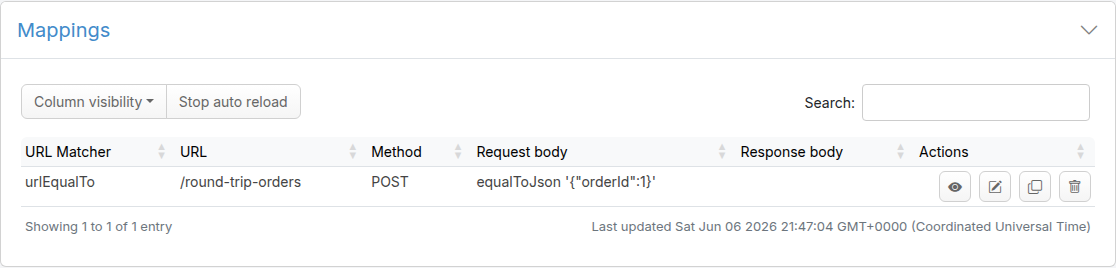
**Edit Mapping panel.** When you open a mapping whose request body matcher is file-backed, a blue note reading **Content from file: ``** appears above the request body area, naming the file the matcher value comes from. The request body field is pre-filled with the file's current contents (loaded from `__files`) so you can see what the matcher compares against. Because the list shows a matcher backed by a text file exactly as it shows an inline one, this note is the only place the GUI surfaces that such a matcher reads its value from a file. A matcher backed by a binary file also shows its file path in the list, as described above.
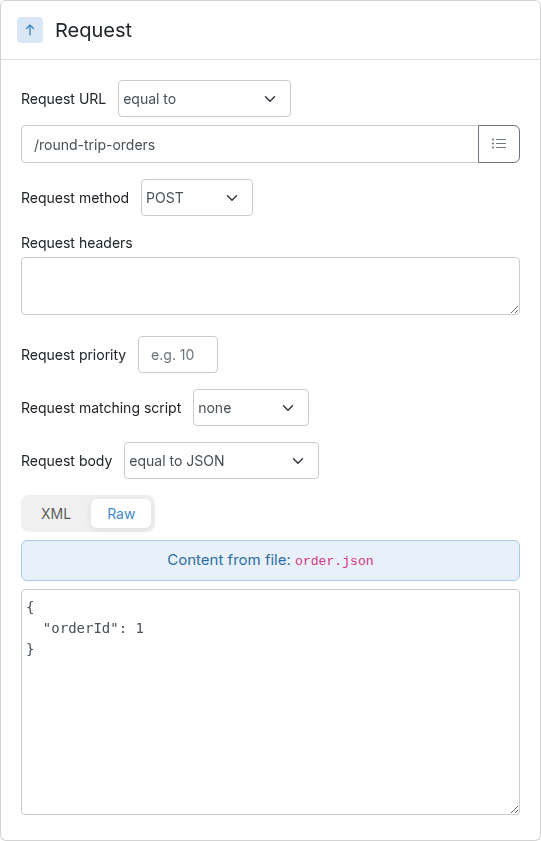
The pre-filled field is editable in place: edit it, click **Save**, and Traffic Parrot writes your change back to the file in `__files` while the matcher keeps its `bodyFileName` reference (no inlining, no orphaned file). A `binaryEqualTo` matcher, or a mapping with more than one request body matcher, keeps the field **read-only** with a banner instead, and is edited on disk.
When the matcher is a single file-backed text matcher (the editable case above), the request body area also shows a **Switch to inline** button, mirroring the same control for a [file-backed response](#file-backed-responses-gui). Clicking it detaches the `bodyFileName` reference and keeps the file's already-loaded contents as the inline matcher value, leaving the request body field editable. On **Save** the matcher is stored inline, with no `__files` reference and no orphaned file left behind; the file on disk is left untouched. A `binaryEqualTo`, multi-pattern, `any` or `absent` request body does not offer this button and keeps its read-only banner.
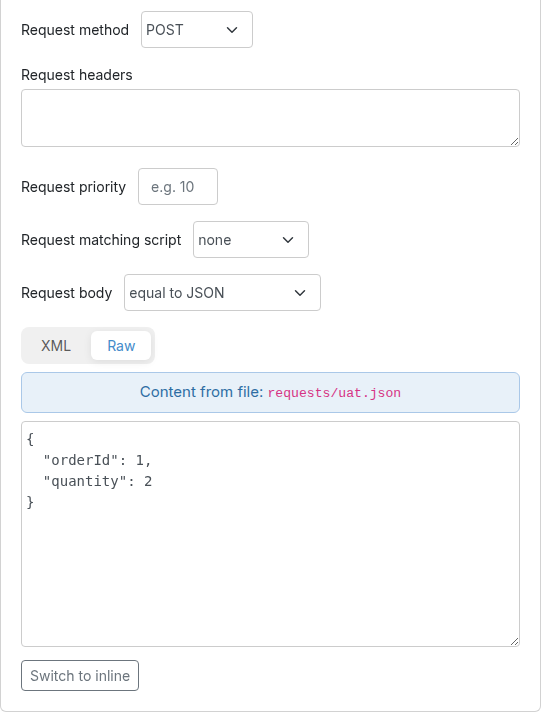
A **Switch to file** button beneath the field moves an inline body the other way, out to a file. It fills in a suggested file name, which you can edit and which may contain forward-slash subdirectories, and **Save** writes the body to that file under `__files` and rewrites the matcher to its `bodyFileName` form. The matcher you chose is kept: `matchesJson` is saved as `{"matchesJson": {"bodyFileName": "requests/example.json"}}`, not swapped for `equalToJson`, so externalising a body does not change what the mapping matches. If the name is already used by another mapping, a warning names how many mappings a save would change.
The button is offered on a mapping you are editing, not one being added for the first time, and for a single request body matcher that takes a value: not `any` or `absent`, the **NOT**, **AND** and **OR** composites, `binaryEqualTo`, or a mapping with more than one request body matcher. The same control is on the [gRPC mapping editor](https://trafficparrot.com/documentation/5.65.x/grpc.html#request-body-matchers) for a gRPC request payload.
## Simulating identical URLs
When using Traffic Parrot to simulate multiple HTTP services at the same time, you may encounter namespace issues if the services have name clashes in the context path.
For example, you may have two services that both have a `GET /api/resources` endpoint, and one might be hosted at `http://service1/api/resources` and the other at `http://service2/api/resources`.
The Traffic Parrot virtual service `http://localhost:8081/api/resources` would have two mappings associated with it.
There are a number of ways to deal with this situation, one of which [is detailed below](#custom-headers).
### Using custom headers
One solution to having the same name resource URL `/api/resources` for different services is to make a change the system under test and start sending a custom header when communicating with those services. For example, a request to `http://service1/api/resources` could include a HTTP header `Service-Name: service1`, and a request to `http://service2/api/resources` could include a HTTP header `Service-Name: service2`. That way the HTTP requests are different and Traffic Parrot can map them to different responses.
If you would like to capture those headers during a recording, you need to tell Traffic Parrot to [record those headers](#recording-headers).
You can also add those headers manually by [editing the mapping](#add-edit-http-mappings).
## File-backed responses (bodyFileName and the \_\_files directory)
Instead of pasting a response body inline into a mapping, you can keep the body in a separate file and point the mapping at it with the `bodyFileName` attribute. This is useful when you want to:
- Serve large or binary bodies (a PDF, an image, a multi-kilobyte JSON or XML document) that would clutter the mapping if inlined
- Reuse the same body across more than one mapping
- Keep your `mappings/*.json` files small and readable, with the payload stored alongside them
- Edit the response body in your editor of choice, or generate it from a build step, without touching the mapping
The same `bodyFileName` / `__files` convention also externalises a **request** body matcher; see [Request body file](#request-body-file).
**Coming from WireMock?** Traffic Parrot is a WireMock-compatible virtual service, so the `bodyFileName` response attribute and the `__files` directory convention work unchanged. Mappings you already have that use `bodyFileName` (including those you [import as a WireMock ZIP](#import-export-http-mappings)) load and serve in Traffic Parrot without modification. This page is the Traffic Parrot equivalent of WireMock's "response from a file" / "body file location" documentation.
### The \_\_files directory and how bodyFileName is resolved
A `bodyFileName` is resolved relative to the `__files` directory that sits **next to the directory the mapping lives in** (a sibling of `mappings`), not relative to the mapping file itself. A mapping in `mappings/foo.json` with `"bodyFileName": "data.json"` loads `__files/data.json`.
The default layout looks like this:
```
trafficparrot-x.y.z/
├── mappings/
│ └── foo.json ← "response": { "bodyFileName": "data.json" }
└── __files/
└── data.json ← the response body that is returned
```
Nested paths are allowed. A `bodyFileName` may contain forward-slash subdirectories, which resolve under `__files`:
```
"response": { "bodyFileName": "sub/data.json" } → __files/sub/data.json
```
Text bodies are read as UTF-8. Binary bodies (images, PDFs, archives) are read as bytes, so the file is returned exactly as stored; see [Binary file in response](#binary-file-in-response) and [Serving static images](#static-images) for binary examples.
### Step by step: a plain text file-backed response
This walkthrough creates a stub for `GET /greeting` whose response body comes from a file.
1. Create the body file `__files/body.txt` with the text you want to return:
```
Hello from a file-backed response!
```
2. Create the mapping `mappings/greeting.json` that references it through `bodyFileName`:
```
{
"request": {
"method": "GET",
"url": "/greeting"
},
"response": {
"status": 200,
"bodyFileName": "body.txt",
"headers": {
"Content-Type": "text/plain"
}
}
}
```
3. Start Traffic Parrot (or, if it is already running, the mapping is picked up automatically). Then call the stub on the virtual service port (`trafficparrot.virtualservice.http.port`, `8081` by default):
```bash
curl http://localhost:8081/greeting
```
The response body is the contents of `__files/body.txt`:
```
Hello from a file-backed response!
```
When you open this mapping in the Add/Edit page, a note above the response body field tells you the body is served from a file rather than typed inline, and the field is pre-filled with the file's contents so you can edit it in place (see [Editing a file-backed response in the UI](#file-backed-responses-gui)).
### Editing a file-backed response in the UI
When you open a mapping whose response uses `bodyFileName` on the Add/Edit page, Traffic Parrot shows an information note directly above the response body field reading **Response from file:** followed by the file name. The response body field is pre-filled with the file's current contents (loaded from `__files`) and is editable in place, so you can change a file-backed response without leaving the form.
When you edit the body and click **Save**, Traffic Parrot writes your changes back to the body file in `__files` (through its file source, so the in-memory mapping cache stays in sync). The mapping keeps its `bodyFileName` reference; only the file's contents change. If the file cannot be read or written, see [Troubleshooting: missing body file](#file-backed-responses-troubleshooting).
When the body file is an **image** (PNG, JPEG, GIF, SVG, WebP, BMP, ICO, APNG or AVIF), Traffic Parrot renders the image **inline** below the *Response from file* note, so you can see at a glance which image the mapping serves without opening the Static Files browser or the file on disk. Because an image is binary, the body field stays read-only and is edited on disk; the preview shows *what* the response is, while the file name in the note tells you *which* file to change. The same inline rendering is used in the [Static Files browser preview](#static-files-browser-preview). Non-image binary files (a PDF, an archive) keep the read-only body field with no preview.
If the same body file is referenced by more than one mapping, Traffic Parrot shows a warning above the field. Editing a shared file changes the response for every mapping that uses it, so the warning names how many other mappings are affected.
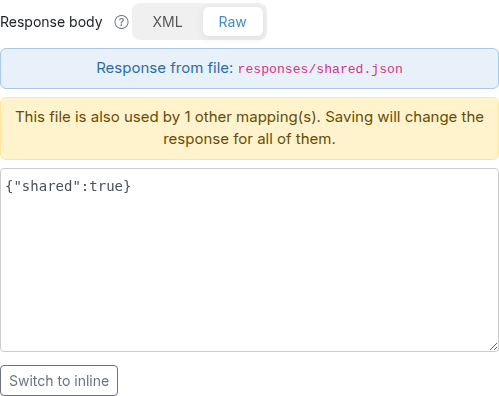
You can switch a response between inline and file-backed from the same form:
- **Switch to inline** detaches the `bodyFileName` and keeps the current body as an inline response. The file on disk is left untouched.
- **Switch to file** externalises an inline body to a file in a single click: the response body becomes file-backed straight away, a file name field appears pre-filled with a suggested name (for example `responses/.json`), and the *Response from file* note is shown. There is no separate confirm step: clicking **Save** writes the body to that file under `__files` using the current file name (the suggested default, or whatever you typed) and points the mapping at it. The file name field stays editable; clearing it keeps the body inline.
When the file name field is shown (after **Switch to file**), a **Choose an existing file...** dropdown appears beside it, listing the files already in the scenario's `__files` directory (including any nested `responses/.` files). Selecting an entry fills the file name field with that path, so you can point the response at an existing body file without typing, useful when you want to reuse a payload that another mapping already serves. The dropdown is a convenience only: the file name field stays editable, so typing the name by hand still works exactly as before, and clearing the field keeps the body inline. Picking an existing file does **not** load its contents into the editor; just as when you type the file name, clicking **Save** writes the response body currently in the editor to that file, so if the body differs from the file's existing contents Save overwrites the file.
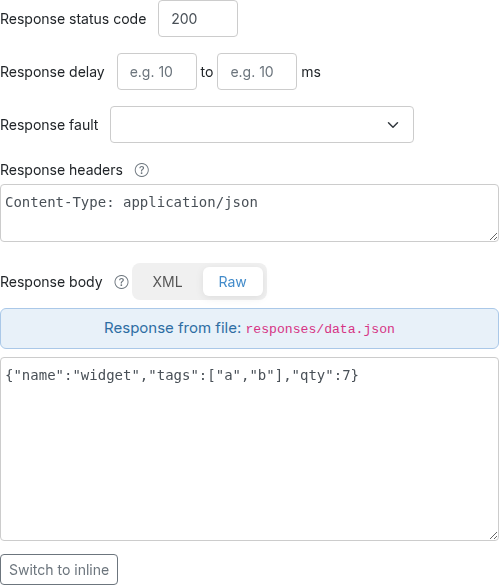
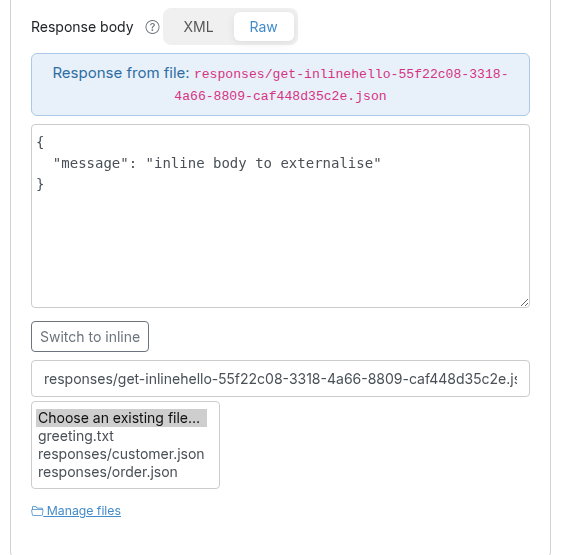
A **Manage files** link in the response body area opens the [Static Files browser](#static-files-browser) in a **new browser tab**, so you can list, create, rename or delete the files in the `__files` directory without leaving, or losing, the mapping you are editing. The link is always shown, whether the response is inline or already file-backed.
### File-backed responses in the mappings list
In the HTTP [Add/Edit mappings](#add-edit-http-mappings) list, the **Response body** column normally shows the response body content itself, whether the body is inline, recorded, or kept in a [text body file](#file-backed-responses-convention) whose contents are read as text. For these rows the column reads exactly the same as if the body had been pasted inline.
A **binary** body file is different: its bytes are not text (an image, a PDF, an archive; see [Templating vs byte-for-byte](#response-body-file-templating)), so there is no readable body to show in the column. For such a row the **Response body** column shows the `bodyFileName` path the body is served from (for example `responses/sample-image.jpg`) instead. Long paths are truncated to fit the column; hover over the cell to see the full path in a tooltip.
When the binary body file is an **image** (PNG, JPEG, GIF, WebP, BMP, ICO, APNG or AVIF), hovering the cell goes one step further: instead of the full-path tooltip it pops a small **rendered preview** of the image itself, so you can recognise which picture a mapping serves without opening the editor or the file on disk. The cell still shows the truncated `bodyFileName` path; the preview only replaces what the hover shows. The image is loaded on the first hover and capped to a small thumbnail; if it cannot be read the cell falls back to the plain full-path tooltip. This is the same image that is rendered inline when you open the mapping (see [Editing a file-backed response in the UI](#file-backed-responses-gui)). Non-image binary rows (a PDF, an archive) keep the full-path tooltip.
This lets you tell at a glance which mapping serves which binary file without opening each one. Only binary file-backed rows change; inline, recorded, and text file-backed rows show their body content as before.
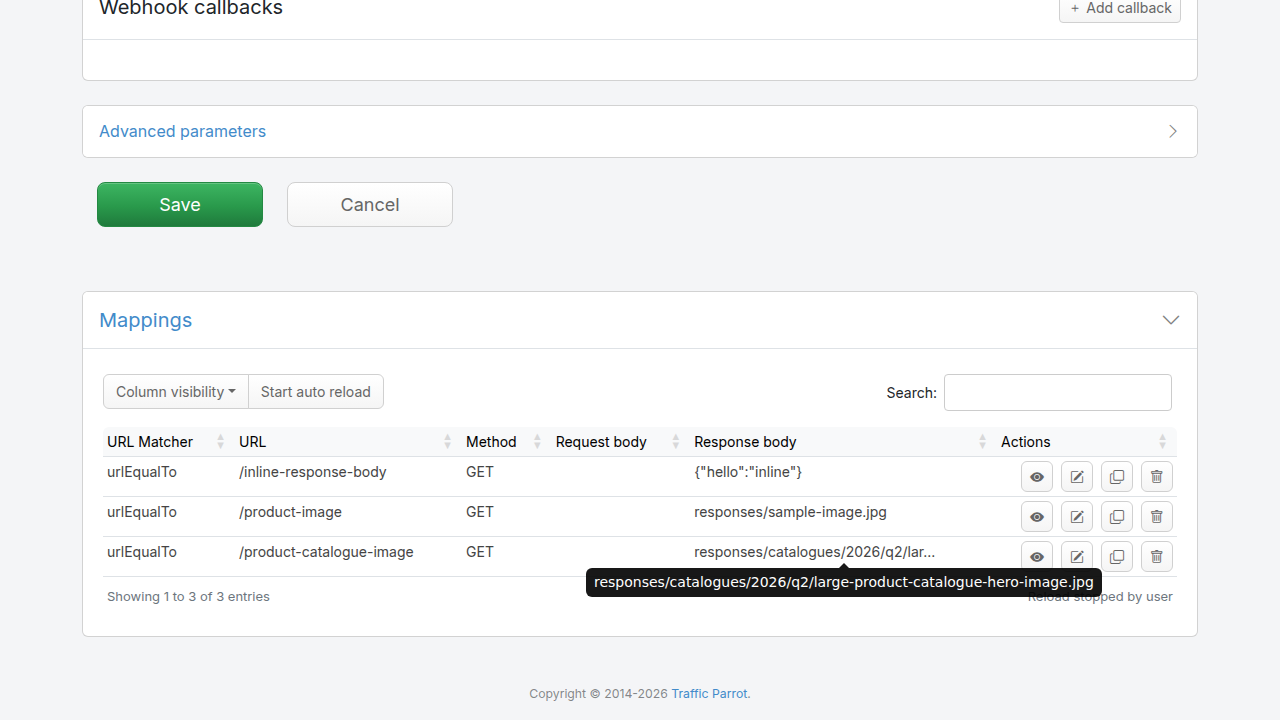
### Per-scenario \_\_files
If you organise mappings into scenarios, each scenario has its own `__files` directory alongside its `mappings` directory. A `bodyFileName` on a scenario's mapping resolves against that scenario's `__files`:
```
scenarios/
└── my-scenario/
├── mappings/
│ └── greeting.json ← "bodyFileName": "body.txt"
└── __files/
└── body.txt ← scenario-scoped response body
```
This keeps each scenario self-contained, so the bodies a scenario depends on travel with the scenario when you copy or share it.
### Using a \_\_files location other than the default
By default the files root is the Traffic Parrot working directory (`file:.`), so body files live under `__files` in the Traffic Parrot install directory (and under each scenario for scenario-scoped mappings). If you want your body files and mappings to live somewhere else (for example a shared data directory under version control, or a mounted volume), set the files root with a property in [`trafficparrot.properties`](https://trafficparrot.com/documentation/5.65.x/properties.html#virtualservice-properties):
```
trafficparrot.virtualservice.trafficFilesRootUrl=file:/path/to/data
```
The value is a `file:` URL pointing at the directory that contains your `mappings` and `__files` directories. Its default is `file:.` (the current working directory). With the files root pointed at `/path/to/data`, a mapping's `bodyFileName` resolves under `/path/to/data/__files` (or the matching scenario's `__files`). See the property reference for [`trafficparrot.virtualservice.trafficFilesRootUrl`](https://trafficparrot.com/documentation/5.65.x/properties.html#virtualservice-properties) for the full description and further examples.
### Templated file-backed responses
A body file is not limited to a fixed payload. It can contain the same Handlebars templating helpers you can use in an inline response body, so a single file-backed response can vary with the incoming request. This combines the readability of an external file with the flexibility of [dynamic responses](https://trafficparrot.com/documentation/5.65.x/dynamic.html#extensions).
For example, a mapping that echoes back a list of ids from the request body:
```
{
"request": {
"urlPath": "/requestJsonPathList",
"method": "ANY",
"bodyPatterns": [ {
"matchesJsonPath": "$.items"
} ]
},
"response": {
"status": 200,
"bodyFileName": "requestJsonPathList.json"
}
}
```
with the body file `__files/requestJsonPathList.json` using Handlebars to iterate over the request's `items` array:
```
{
"type": "response",
"items": [
{{#each (jsonPathList request.body '$.items') }}
{ "id": {{ jsonPath this '$.id' }}, "status": "OK" }{{#unless @last}},{{/unless}}
{{/each}}
]
}
```
A ready-to-run version of this example ships in the [examples project](https://trafficparrot.com/documentation/5.65.x/downloads/trafficparrot-examples-5.65.x.zip). For the full list of helpers and request data you can reference from a templated body (whether inline or file-backed), see [Generate responses](https://trafficparrot.com/documentation/5.65.x/dynamic.html#extensions) and [Use request data in response](https://trafficparrot.com/documentation/5.65.x/dynamic.html#request-data).
### One mapping for a directory of responses
A `bodyFileName` can itself be a template, so one mapping can serve a directory of files, one per key: `__files/products/p1.json` for `GET /products/p1`, `p2.json` for `p2`, and so on, with no mapping per product. On its own such a mapping answers `500` for a key with no file, because matching ends before the file is read. The `{{bodyFileExists}}` helper checks for the file in a [request matcher script](#add-edit-request-matcher-script), so a key with no file does not match this mapping and reaches a lower-priority one:
```
{
"priority": 5,
"request": {
"method": "GET",
"urlPathPattern": "/products/[a-z0-9-]+",
"customMatcher": {
"name": "requestMatchers",
"parameters": {
"matchesScript": {
"type": "handlebars",
"script": "{{bodyFileExists (stringFormat 'products/%s.json' request.pathSegments.[1])}}"
}
}
}
},
"response": {
"status": 200,
"headers": { "Content-Type": "application/json" },
"bodyFileName": "products/{{request.pathSegments.[1]}}.json"
}
}
```
and the fallback that answers an unknown key:
```
{
"priority": 10,
"request": { "method": "GET", "urlPathPattern": "/products/.*" },
"response": { "status": 404, "body": "no such product" }
}
```
The guard and the `bodyFileName` must name the same file. `GET /products/p1` answers the file; `GET /products/p2`, with no `p2.json`, answers the fallback's `404`, and nothing is logged for the miss. The helper only checks that the file exists under `__files`; it never reads or renders it. See [`{{bodyFileExists}}`](https://trafficparrot.com/documentation/5.65.x/dynamic.html#body-file-exists) for what it accepts.
### Response body files: templating vs byte-for-byte
When HTTP Handlebars response templating is enabled (the default, [`trafficparrot.http.handlebars.enabled=true`](https://trafficparrot.com/documentation/5.65.x/properties.html#extension-system-properties)), Traffic Parrot classifies each `bodyFileName` response as **binary** or **text** and treats the two differently:
- **Binary body files are served byte-for-byte and are never run through Handlebars.** A body file is treated as binary when there is *positive binary evidence*: either the response `Content-Type` is a binary type (`image/*`, `audio/*`, `video/*`, `font/*`, `application/pdf` or `application/octet-stream`), **or** the body file has a known binary extension (`jpg`, `png`, `gif`, `pdf`, `zip`, `woff`, `mp4`, …). The bytes are returned exactly as stored, so an image or PDF is never corrupted by being read and re-encoded as text.
- **Everything else is treated as text and rendered through Handlebars.** Text formats such as JSON, XML, plain text and SVG (SVG is XML, so it is text) are templated as before, and so is any body file with no recognised binary `Content-Type` and no binary extension.
This means a template body file with no `Content-Type` (for example a `.hbs`, `.tpl` or `.md` file that contains `{{…}}` placeholders) is still rendered, while a binary file such as `sample-image.jpg` is served byte-for-byte whether or not it has an `image/jpeg` `Content-Type`. No per-mapping configuration is needed for either case.
#### Forcing byte-for-byte for a file Traffic Parrot cannot auto-detect
If you serve a binary file with an unusual extension **and** no `Content-Type`, Traffic Parrot has no positive binary evidence, so it defaults to treating the file as text and running it through Handlebars (which can corrupt it). To force such a file to be served byte-for-byte, do either of the following:
- Set `"disableBodyFileTemplating": true` in the response's `transformerParameters`, which turns off templating for that response:
```
{
"response": {
"status": 200,
"bodyFileName": "payload.dat",
"transformerParameters": {
"disableBodyFileTemplating": true
}
}
}
```
- Give the response a binary `Content-Type` (for example `application/octet-stream`) in its `headers`, which Traffic Parrot recognises as positive binary evidence:
```
{
"response": {
"status": 200,
"bodyFileName": "payload.dat",
"headers": {
"Content-Type": "application/octet-stream"
}
}
}
```
> Handlebars **partials** referenced with `{{>name}}` (for example a `.hbs` partial) are always rendered as part of templating; they are not `bodyFileName` responses, so this binary/text classification does not apply to them.
#### Per-file-type reference
The table below shows how some common body files are classified.
| Body file | Content-Type | Result |
| --- | --- | --- |
| `.json` / `.xml` / `.txt` | any text type or none | Templated |
| `.jpg` / `.png` / `.pdf` | `image/*`, `application/pdf`, or none | Served byte-for-byte |
| `.bin` | `application/octet-stream` or none | Served byte-for-byte |
| `.svg` | `image/svg+xml` or none | Templated (SVG is text) |
| `.hbs` / `.tpl` / `.md` (with `{{…}}`) | none | Templated |
| binary file, unusual extension | none | Templated: set `disableBodyFileTemplating:true` or a binary `Content-Type` to force byte-for-byte |
### Troubleshooting: missing body file
If a mapping references a `bodyFileName` that does not exist under the resolved `__files` directory, Traffic Parrot reports the problem rather than silently returning an empty body: the matched request returns an `HTTP 500` error and a `FileNotFoundException` naming the expected path is logged. Check that:
- The file name in `bodyFileName` matches the file on disk exactly, including case and any subdirectory prefix
- The file is in the `__files` directory that is a sibling of the mapping's `mappings` directory (or the scenario's `__files` for scenario-scoped mappings)
- If you have set [`trafficparrot.virtualservice.trafficFilesRootUrl`](https://trafficparrot.com/documentation/5.65.x/properties.html#virtualservice-properties) to a non-default location, the `__files` directory is under that location
The same "resolve relative to the sibling `__files`" rule also applies when you externalise a *request* body to a file for matching, so request- and response-side body files live side by side under the same `__files` directory. (A missing *request* body file is reported earlier still, when the mapping is loaded, rather than at request time.)
### Next steps
- [Binary file in response](#binary-file-in-response): return a PDF or other binary file from `__files`
- [Serving static images](#static-images): serve images from `__files`, including with URL patterns
- [Dynamic responses](https://trafficparrot.com/documentation/5.65.x/dynamic.html#extensions): the Handlebars helpers you can use inside a templated body file
- [Import and export HTTP mappings](#import-export-http-mappings): import WireMock ZIP mappings that use `bodyFileName` unchanged
- [Editing a file-backed response in the UI](#file-backed-responses-gui): the "Response from file" note and editable body on the Add/Edit page
## Static Files browser
The **Static Files** browser is an admin-UI page for the [`__files` directory](#file-backed-responses-convention) that holds your [file-backed response bodies](#file-backed-responses). Instead of dropping to the filesystem, you can list, preview, create, edit, rename, upload and delete the files that mappings refer to with `bodyFileName`, all from the browser, against the same files Traffic Parrot serves at run time.
Open it from the Traffic Parrot admin UI: **HTTP** menu → **Static Files** (the page is served at `/http/files.html`). This is a different menu item from the top-level **Files** entry, which is the [file-based message](https://trafficparrot.com/documentation/5.65.x/filemessage.html) protocol.
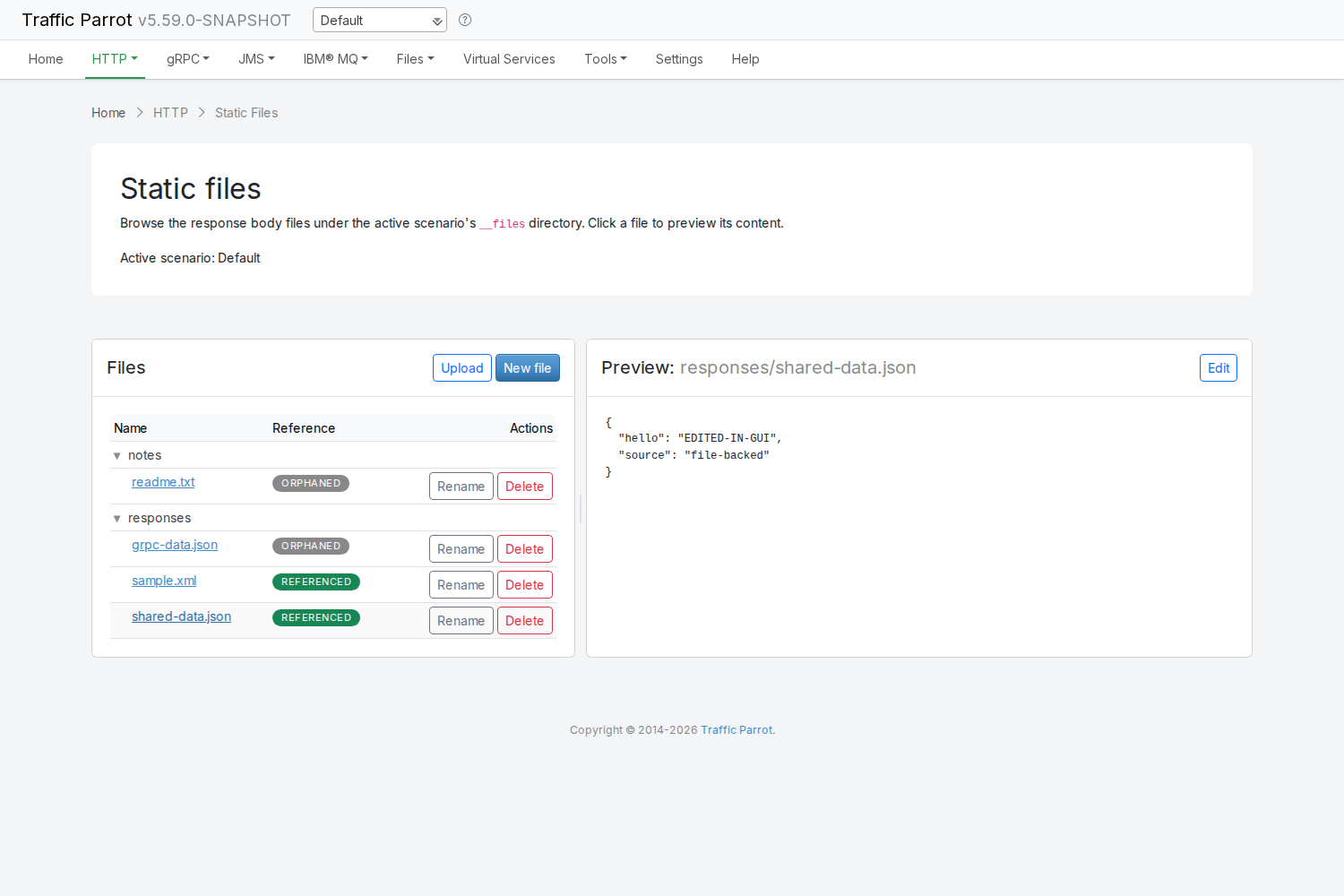
### Which files you see: the active scenario
The browser lists the files under the **active scenario's** `__files` directory, the same directory a mapping's `bodyFileName` [resolves against](#file-backed-responses-convention) at serve time. The active scenario name is shown at the top of the page, so the file list always matches the files the current scenario's mappings actually read from. If you switch scenarios, the browser shows that scenario's [own `__files`](#file-backed-responses-per-scenario).
Files in sub-directories of `__files` are grouped under expandable **folder rows** rather than listed by their full relative path. Each folder has a caret you can click to collapse or expand its contents (all folders are expanded by default), and each file is labelled by its own name and indented under its folder. When the directory has no files, the browser shows an empty-state message instead of the table.
### Referenced and orphaned files
The **Reference** column tells you, at a glance, whether each file is still in use. A file is marked *referenced* when at least one mapping in the active scenario serves it as a response body (the mapping's `response.bodyFileName` equals the file's relative name), and *orphaned* when no mapping serves it. This helps you spot body files that are safe to clean up and ones that a response depends on.
> The badge inspects only **response** references. A file used as a [request body matcher](#request-body-file) can therefore show as *orphaned* even though a mapping still depends on it. The [delete](#static-files-browser-delete) and [rename](#static-files-browser-rename) safety checks are **more complete** than the badge (they also consider request-body references), so a file the badge calls orphaned can still be refused for deletion or rename when it is genuinely in use.
### Previewing a file
Click a file to preview its content in the right-hand **Preview** pane:
- **Text, JSON and XML** files are shown as text; JSON and XML are pretty-printed so they are easy to read. A JSON file is laid out from its text, so its numbers, escapes and key order show as written; a JSON file over 1,000,000 characters, or nested deeper than 1000 levels, is shown as stored.
- **Image** files (PNG, JPEG, GIF, SVG, WebP, BMP, ICO, APNG and AVIF) are rendered **inline**, so you can see at a glance which image a mapping serves.
- Any other **binary** file shows a short note with its content type and size (for example `Binary file - application/octet-stream, 2.3 KB`) rather than dumping raw bytes.
You can drag the divider between the Files and Preview panes to widen either side to suit the file you are reading (the split stays between 20% and 80% so neither pane collapses), and double-click the divider to snap back to the default split. The split you choose is remembered in your browser across page reloads. On narrow screens the panes stack vertically.
### Creating a file
Click **New file** to create a text file under the active scenario's `__files` directory without leaving the page. Enter a **relative file name** (for example `responses/example.json`; any forward-slash sub-directories are created for you) and the file content, then click **Create**. The new file appears in the list with an *orphaned* badge until a mapping references it. A name that already exists, or one that would escape the `__files` directory (an absolute path or a path containing `..`), is rejected with an error rather than silently overwriting or escaping the root.
### Uploading a file
Click **Upload** to add an existing file from your computer to the `__files` directory. Both **text and binary** files are accepted and their bytes are stored verbatim, so an uploaded image is listed and rendered inline in the preview pane, and any other uploaded binary file is listed with its content type and size. Uploading a file whose name already exists is refused so you never silently overwrite another file, and unsafe file names are rejected just as for [New file](#static-files-browser-create).
The upload has a configurable size limit, set by the [`trafficparrot.multipart.upload.max.size.mb`](https://trafficparrot.com/documentation/5.65.x/properties.html#virtualservice-properties) property (default `10` MB, shared by all admin-UI file uploads). A file larger than the limit is rejected with `HTTP 413` and the message `File exceeds the maximum upload size of N MB` shown in the upload form. The limit applies only to file uploads through the admin UI and does not affect recorded traffic or mapping sizes.
### Editing a text file
Select a text file and click **Edit** to replace the preview with an editable text area and **Save** / **Cancel** buttons. Saving overwrites the file's content in the `__files` directory. If the file is referenced by one or more mappings, a warning is shown above the editor, because saving changes the response for every mapping that serves it. Image and other binary files stay read-only and are edited on disk.
This is the same body file you can edit from the Add/Edit mapping form; see [Editing a file-backed response in the UI](#file-backed-responses-gui). The Static Files browser lets you edit the file directly, even when you do not have the mapping open.
### Renaming a file
Each row has a **Rename** button that reveals an inline editable target-name field with **Confirm** / **Cancel** (no browser pop-up). Renaming a file moves it to the new name, creating any intermediate sub-directories the new name implies. Renaming onto a name that already exists is refused, so you never silently overwrite another file.
Rename is **reference-safe**: if the file still backs a mapping, the rename is refused, a banner lists the referencing mapping(s), and the file keeps its old name, because renaming it would leave the mapping pointing at a name that no longer exists. The reference check covers both a file used as an HTTP response body (`response.bodyFileName`) and one used as a [request body matcher](#request-body-file). To rename a referenced file, first remove or repoint the mapping(s) that use it; Traffic Parrot does not automatically rewrite the referencing mappings to the new name.
### Deleting a file
Each row has a **Delete** button that reveals an inline **Confirm** / **Cancel** step (no browser pop-up). Confirming the deletion of an unreferenced file removes it from disk and the row disappears.
Delete is **reference-safe**: if the file still backs a mapping, the deletion is refused, a banner lists the referencing mapping(s), and the file stays listed, so you cannot silently break a response or a request matcher by deleting the file it serves. As with rename, the check considers both `response.bodyFileName` and [request-body](#request-body-file) references, so a file the *orphaned* badge reports as unreferenced can still be blocked from deletion when it is genuinely in use. To delete a referenced file, first remove or repoint the mapping(s) that use it.
## CORS for stub responses
When a browser application (a single-page app, a front-end calling your mock from `fetch`/`XMLHttpRequest`) calls a mocked endpoint on a different origin, the browser enforces the **same-origin policy**: it first sends a **CORS preflight** (an HTTP `OPTIONS` request) and then expects the response to carry `Access-Control-*` headers, notably `Access-Control-Allow-Origin`. If those headers are missing, the browser blocks the call and you see a *“blocked by CORS policy”* error in the console, even though the request reached the mock and a response came back.
**Traffic Parrot's virtual service is CORS-friendly out of the box.** There is no flag to set and no manual stub to add: for **every** path on the virtual service (the port your browser app calls), Traffic Parrot automatically answers the CORS preflight and reflects the request's `Origin` into `Access-Control-Allow-Origin` on the actual response. Your browser clients are not blocked by the same-origin policy with no configuration at all.
> This section is about **stub / mock-response CORS**: the CORS headers the **virtual service** sends to the browser apps that call your mocks. It is independent of the Traffic Parrot management API and web UI.
### What you get out of the box
The behaviour below applies to the whole virtual service. It is **global**, not per-stub: an un-stubbed path returns the same CORS preflight as a stubbed one, so you do not have to remember to add CORS to each mapping.
- **CORS preflight is answered automatically.** An `OPTIONS` request to any path that carries an `Origin` and an `Access-Control-Request-Method` header (what a browser sends as a preflight) is answered with `HTTP 200` and the following headers:
- `Access-Control-Allow-Origin`: set to the **request's `Origin`**, reflected back verbatim (for example a request `Origin: http://localhost:3000` yields `Access-Control-Allow-Origin: http://localhost:3000`)
- `Vary: Origin`
- `Access-Control-Max-Age: 60`
- `Access-Control-Allow-Methods`: the methods `OPTIONS`, `GET`, `POST`, `PUT`, `PATCH` and `DELETE`
- `Access-Control-Allow-Headers`: the request headers `X-Requested-With`, `Content-Type`, `Accept`, `Origin` and `Authorization`
The `Access-Control-Allow-Methods` and `Access-Control-Allow-Headers` values are returned as a *set*: all of the entries above are present, but do not rely on a fixed comma order, which is not guaranteed between runs.
- **The actual response reflects the `Origin` too.** A real request (for example a `GET`) that carries an `Origin` header gets `Access-Control-Allow-Origin: ` and `Vary: Origin` added to its response, **even when the matched stub sets no CORS headers itself**. You do not have to add CORS headers to your mappings for browser clients to work.
- **No `Origin`, no reflection.** A request that does *not* carry an `Origin` header (a server-to-server call, a `curl` without `-H 'Origin: …'`) gets only `Vary: Origin` and **no** `Access-Control-Allow-Origin`. This is standard CORS: the header is reflected only when the caller is a browser sending an `Origin`.
### Try it
You can reproduce the browser's two-step CORS exchange with `curl` against any path on the virtual service port (`trafficparrot.virtualservice.http.port`, `8081` by default). The path does not need a stub for the preflight to be answered; replace `/your/path` with one of your mapped endpoints.
**1. The preflight.** This is the `OPTIONS` request a browser sends first:
```bash
curl -i -X OPTIONS http://localhost:8081/your/path \
-H 'Origin: http://localhost:3000' \
-H 'Access-Control-Request-Method: GET'
```
Traffic Parrot answers it automatically (abbreviated):
```
HTTP/1.1 200 OK
Access-Control-Allow-Origin: http://localhost:3000
Vary: Origin
Access-Control-Max-Age: 60
Access-Control-Allow-Methods: OPTIONS, GET, POST, PUT, PATCH, DELETE
Access-Control-Allow-Headers: X-Requested-With, Content-Type, Accept, Origin, Authorization
```
The `Access-Control-Allow-Origin` echoes the `Origin` you sent. (The exact order of the methods and headers lists may differ between runs; treat them as sets.)
**2. The actual request.** This is the real call the browser makes once the preflight passes:
```bash
curl -i http://localhost:8081/your/path \
-H 'Origin: http://localhost:3000'
```
The response carries the reflected origin and `Vary` alongside your stub's body:
```
HTTP/1.1 200 OK
Access-Control-Allow-Origin: http://localhost:3000
Vary: Origin
… (your stub's body and other headers) …
```
Drop the `-H 'Origin: …'` and you will see only `Vary: Origin` with no `Access-Control-Allow-Origin`; the reflection is keyed on the `Origin` a browser sends.
### Pinning a specific origin instead of reflecting any
Reflecting any `Origin` is what makes mocks work for any browser client without configuration. If you would rather return a **fixed** `Access-Control-Allow-Origin` (a single allowed origin, or the wildcard `*`), set `Access-Control-Allow-Origin` yourself in the stub's response headers. When a stub supplies its own `Access-Control-Allow-Origin`, that value wins: the response carries **exactly one** `Access-Control-Allow-Origin` (your stub's value), and the auto-reflected one is suppressed, so the response stays CORS-compliant.
In a mapping JSON, set it under `response.headers`:
```
{
"request": {
"method": "GET",
"url": "/your/path"
},
"response": {
"status": 200,
"headers": {
"Access-Control-Allow-Origin": "https://app.example.org"
},
"body": "..."
}
}
```
A request from any browser now receives `Access-Control-Allow-Origin: https://app.example.org` rather than its own reflected origin. Use `"*"` as the value to allow all origins explicitly.
You can set the same header from the GUI: open the mapping on the [Add/Edit mappings](#add-edit-http-mappings) page and add `Access-Control-Allow-Origin` in the response **Headers** field (the same field you use for any other response header). It serialises to the `response.headers` object shown above.
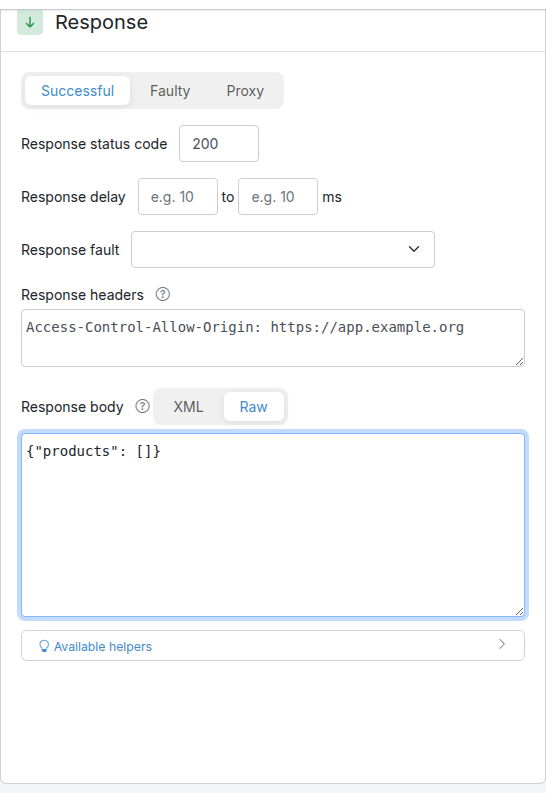
### Note: this is not the `optionsResponse.enabled` property
The [`trafficparrot.http.optionsResponse.enabled`](https://trafficparrot.com/documentation/5.65.x/properties.html#extension-system-properties) property (described under [Extension System Properties](https://trafficparrot.com/documentation/5.65.x/properties.html#extension-system-properties)) is a **separate** mechanism. It controls an automatic HTTP `OPTIONS` response that emits the standard `Allow` header (the list of methods a resource supports); it does **not** emit the `Access-Control-*` headers a browser CORS preflight needs. The out-of-the-box CORS behaviour described on this page is **not provided by, and does not depend on, that property**: your stub responses are CORS-friendly regardless of how `optionsResponse.enabled` is set.
### Security note
By default the virtual service **reflects any `Origin`**. This is appropriate for a test double serving mock data (it lets any browser client call your mocks without configuration), but it is permissive. If you want to restrict which origins are allowed, set an explicit `Access-Control-Allow-Origin` (a specific origin) on the stub response, as shown in [Pinning a specific origin](#cors-friendly-stub-responses-pin-origin) above.
### Next steps
- [Request matching](https://trafficparrot.com/documentation/5.65.x/request_matching.html#matching): how Traffic Parrot picks a stub for an incoming request
- [Dynamic responses](https://trafficparrot.com/documentation/5.65.x/dynamic.html#extensions): vary a stub response (including its headers) with the incoming request
- [Add/Edit HTTP mappings](#add-edit-http-mappings): set response headers such as `Access-Control-Allow-Origin` in the GUI
- [`trafficparrot.properties` reference](https://trafficparrot.com/documentation/5.65.x/properties.html#extension-system-properties): the `optionsResponse.enabled` property and other HTTP options
## Binary file in response
The simplest way to create a mock in Traffic Parrot that returns a binary file in the response is to create that mock by doing a recording. That assumes you have a real service that you can record. Refer to the [recording section](#recording-http) on how to create HTTP mocks using the recorder.
If you don't have a real service that returns the binary file in the response, you can create a mapping manually. This is a binary example of the general [file-backed response](#file-backed-responses) mechanism.
To create a mock that returns a binary file in a response manually, for example a PDF file:
1. Create a file in `trafficparrot-x.y.z/mappings` directory called, for example `mappings/mapping-dummy-file.json`
2. The `mapping-dummy-file.json` should contain the following (notice the reference to `body-dummy-file.pdf`):
```
{
"id": "5d6a8f32-914c-4b67-ae15-f2c9d7b3e091",
"name": "mapping-dummy-file.json",
"request": {
"url": "/dummy.pdf",
"method": "GET"
},
"response": {
"status": 200,
"bodyFileName": "body-dummy-file.pdf",
"headers": {
"Content-type": "application/pdf"
}
}
}
```
3. Create the binary response body file `body-dummy-file.pdf` in `trafficparrot-x.y.z/__files`. You can use any PDF file just make sure the filename is specified in the mapping json file in `bodyFileName` attribute as we already did above.
4. Now if you visit `http://localhost:8081/dummy.pdf` then a PDF binary file will be returned.
## Serving static images
Here are three options you have if you would like to serve static images in Traffic Parrot.
You can download sample mappings here: [static_images_sample_mappings.zip](https://trafficparrot.com/documentation/5.65.x/downloads/static_images_sample_mappings.zip)
### Generic Dummy Image (Simplest approach)
Use a single placeholder image for all image requests. This is ideal for basic testing where the actual image content doesn't matter (e.g., `http://localhost:8080/images/any-skirt.jpg`).
```
{
"id": "a1b2c3d4-e5f6-7890-abcd-ef1234567890",
"name": "Generic Image Response",
"request": {
"method": "GET",
"urlPattern": "/images/.*"
},
"response": {
"status": 200,
"bodyFileName": "sample-image.jpg",
"headers": {
"Content-Type": "image/jpeg",
"Cache-Control": "public, max-age=3600"
}
},
"uuid": "a1b2c3d4-e5f6-7890-abcd-ef1234567890",
"priority": 5
}
```
### Size-Specific Dummy Images (More realistic)
Serve different images based on URL patterns, useful when your application expects images of specific dimensions. You can create these using tools like ImageMagick on a Mac or any image editor (e.g., `http://localhost:8080/images/320x240-skirt.jpg`).
```
{
"id": "b2c3d4e5-f6a7-8901-cdef-012345678902",
"name": "320x240 Image Response",
"request": {
"method": "GET",
"urlPattern": "/images/320x240.*"
},
"response": {
"status": 200,
"bodyFileName": "sample-image-320x240.jpg",
"headers": {
"Content-Type": "image/jpeg",
"Cache-Control": "public, max-age=3600"
}
},
"uuid": "b2c3d4e5-f6a7-8901-cdef-012345678902",
"priority": 1
}
```
```
{
"id": "b1c2d3e4-f5a6-7890-bcde-f12345678901",
"name": "640x480 Image Response",
"request": {
"method": "GET",
"urlPattern": "/images/640x480.*"
},
"response": {
"status": 200,
"bodyFileName": "sample-image-640x480.jpg",
"headers": {
"Content-Type": "image/jpeg",
"Cache-Control": "public, max-age=3600"
}
},
"uuid": "b1c2d3e4-f5a6-7890-bcde-f12345678901",
"priority": 1
}
```
### Real Recorded Images (Most realistic)
Use actual images from your application, either recorded during a session or manually configured. This provides the most accurate simulation (e.g., `http://localhost:8080/images/product-123.jpg`).
```
{
"id": "c1d2e3f4-a5b6-7890-def1-123456789012",
"name": "Product 123 Image Response",
"request": {
"method": "GET",
"url": "/images/product-123.jpg"
},
"response": {
"status": 200,
"bodyFileName": "images/product-123.jpg",
"headers": {
"Content-Type": "image/jpeg",
"Cache-Control": "public, max-age=86400",
"ETag": "\"3e25960a79dbc69b674cd4ec67a72c62\""
}
},
"uuid": "c1d2e3f4-a5b6-7890-def1-123456789012",
"priority": 1
}
```
### Key Points serving static images
- Store image files in the `__files` directory or `__files/images`
- Use `bodyFileName` to reference the files
- Set appropriate Content-Type headers (`image/jpeg`, `image/png`, etc.)
- Consider adding Cache-Control headers for better performance
- Use priorities when combining multiple approaches
## HTTP Passthrough Proxy
### Overview
The HTTP passthrough proxy lets you forward requests that do not match any stub mapping to a real backend service. This is useful during development when you want to selectively mock only certain endpoints while letting all other traffic pass through to the real system.
When passthrough is enabled, Traffic Parrot automatically creates a low-priority catch-all proxy mapping on startup. Any request that does not match a higher-priority stub is forwarded to the configured target URL, and the real response is returned to the caller.
You can then inspect proxied requests in the [Request Log](#request-log) and create stubs from them with a single click, allowing you to incrementally build up your virtual service.
### Setting up passthrough
To enable passthrough proxy mode, set the `trafficparrot.virtualservice.proxy.defaultTargetUrl` property to the base URL of the real backend service. You can set this in `trafficparrot.properties` or as a system property (e.g. via `-Dtrafficparrot.virtualservice.proxy.defaultTargetUrl=http://backend:8080`).
For example:
```
trafficparrot.virtualservice.proxy.defaultTargetUrl=http://my-backend:8080
```
On startup, Traffic Parrot creates a catch-all proxy mapping named "Default proxy to http://my-backend:8080" with priority `10`. Because user-created stubs use default priority `5` (which is higher), any stub you create will automatically take precedence over the proxy.
The auto-created proxy mapping is visible in the HTTP Add/Edit mappings list. It cannot be edited or deleted from the UI because it is managed by the property. An info button appears in the actions column explaining the configuration.
To change the target URL, update the property value and restart Traffic Parrot. To remove passthrough entirely, clear the property value and restart.
### Disabling passthrough
To temporarily disable passthrough without removing the target URL configuration, set the `trafficparrot.virtualservice.proxy.enabled` property to `false`:
```
trafficparrot.virtualservice.proxy.enabled=false
```
When disabled, the auto-proxy mapping is not created on startup even if `defaultTargetUrl` is set. Requests that do not match any stub will return an unmatched response (status 900) instead of being forwarded.
The default value is `true`, so passthrough is enabled whenever `defaultTargetUrl` is configured.
### Proxied requests in the request log
When passthrough proxy mode is active, proxied requests appear in the [Request Log](#request-log) with a blue "Proxied" badge in the Matched column instead of the green "Yes" badge. Hovering over the badge shows a tooltip with the proxy target URL (e.g. "Proxied to http://my-backend:8080").
This visual distinction makes it easy to see which requests were handled by stub mappings and which were forwarded to the real backend.
### Creating stubs from proxied requests
Each proxied request in the request log has a "Create Stub" button in its expanded detail view. Clicking it creates a new stub mapping based on the captured request and the actual response from the backend.
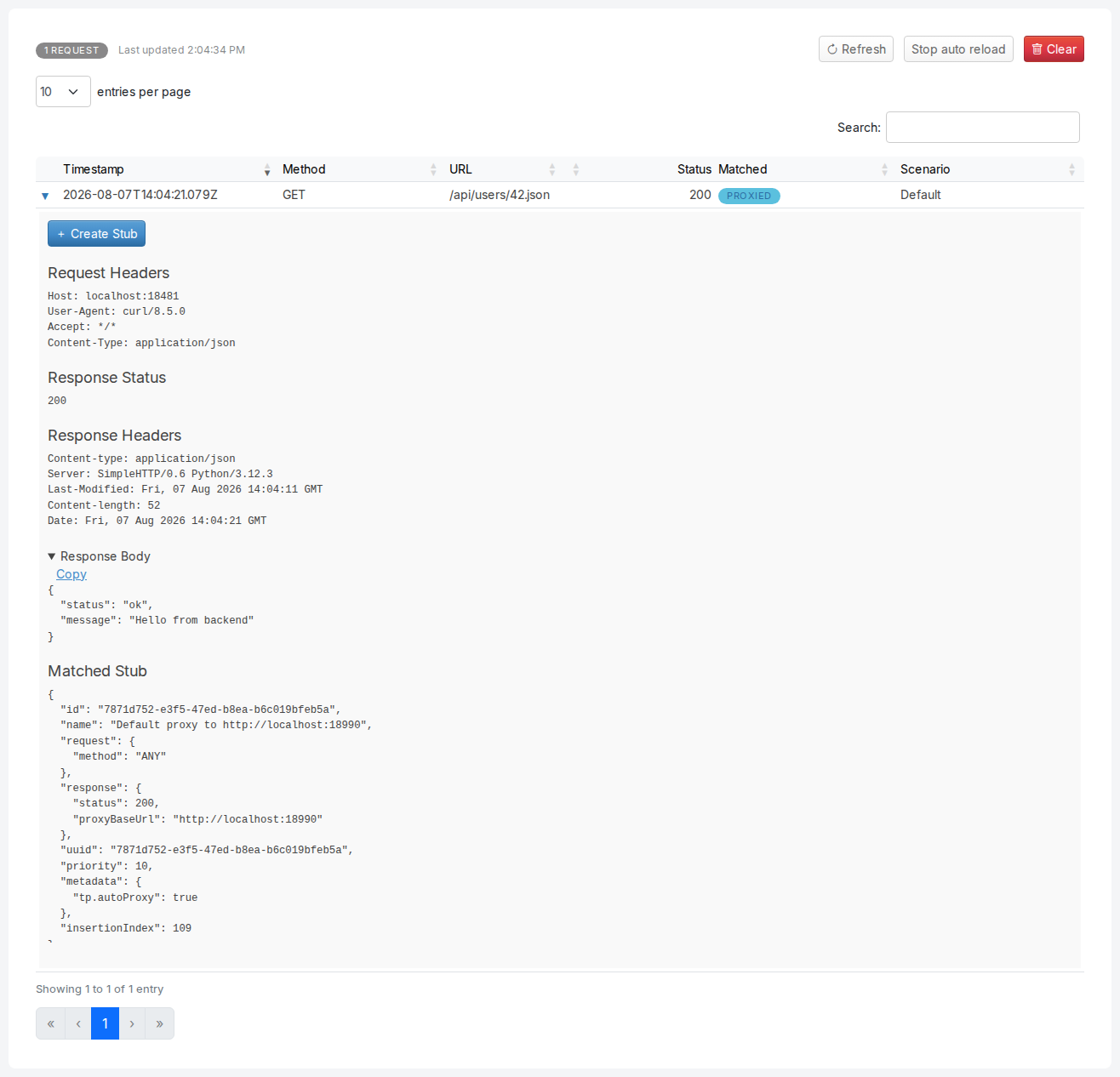
The created stub uses:
- The request HTTP method and an exact URL match (`urlEqualTo`)
- An exact request body match (when a request body is present)
- The actual response status code, headers, and body from the backend
Transport-specific headers such as `Host`, `Connection`, `Transfer-Encoding`, and `Content-Length` are automatically excluded from the stub because they are managed by the HTTP transport layer.
After the stub is created, a green notification appears with the message "Stub created for GET /your-path" (showing the actual method and URL). The notification includes a "View in Add/Edit" link that takes you to the HTTP Add/Edit page and opens the mapping editor for the new stub, where you can review and adjust the stub before use.
Once the stub is saved, subsequent requests to the same URL will be served by the static stub instead of being proxied to the backend. This allows you to incrementally build up your virtual service by exercising your application normally and converting real responses into stubs one at a time.
The "Create Stub" button only appears for proxied requests. It is not shown for requests that matched an existing stub or for unmatched requests.
## HTTP Proxy
A HTTP proxy is a browser or operating system level configuration that routes HTTP traffic via a configured HTTP proxy server.
To use Traffic Parrot as a HTTP proxy you need to install the Traffic Parrot CA certificate in your system.
### How to configure a HTTP proxy
Traffic Parrot HTTP proxy can be set to record or replay mode. Both run on the virtual service HTTP port (`trafficparrot.virtualservice.http.port`, `8081` by default). It is enabled on demand from the HTTP proxy page in the admin UI; there is no separate proxy listener port.
In record mode, HTTP requests and responses that pass through the proxy to remote hosts will be saved in mapping files.
In replay mode, mappings previously recorded will be used to provide HTTP responses for any incoming requests.
Please consult your browser or operating system documentation for instructions on how to configure a HTTP proxy, including how to trust CA certificates and disable security such as HSTS that usually protects against MITM proxy usage.
You can use the hostname `localhost` and the virtual service HTTP port (`8081` by default) to configure a local HTTP proxy with a local Traffic Parrot.
### CA certificate
##### Install CA certificate on a Mac
1. Download the (right click and "Save as") [virtual service CA certificate](https://trafficparrot.com/documentation/files/virtualservice-CA-certificate.pem)
2. Open "Keychain Access" application on your Mac
3. Click "File" -> "Add Keychain"
4. Locate and choose virtualservice-CA-certificate.pem you have just downloaded
5. Navigate to "System" and find "Traffic Parrot" on the list
6. Double click "Traffic Parrot"
7. Expand "Trust" and choose "Always trust" like on the image below and then close all windows and Keychain application for the changes to take effect. 
##### Install CA certificate on a Genymotion android
1. Download the (right click and "Save as") [virtual service CA certificate](https://trafficparrot.com/documentation/files/virtualservice-CA-certificate.pem)
2. Drag and drop the file virtualservice-CA-certificate.pem to the running Genymotion simulator android window
3. You should see a message that the file has been saved to "sdcard/Downloads"
4. Follow the [google "Install the certificate"](https://support.google.com/nexus/answer/2844832?hl=en-GB#install) instructions.
1. When asked to browse for the certificate file go to "Internal storage"->"Downloads".
2. When asked for a name type "TrafficParrotCA"
#### Local iOS HTTPS testing
To test an iOS app against a Traffic Parrot HTTPS virtual service on your local machine, the app has to trust the Traffic Parrot certificate authority (CA) and has to connect to Traffic Parrot using a hostname or IP address that is listed in the server certificate. The subsections below cover installing and trusting the CA on the iOS Simulator and on a physical device, pointing the app at the right address, troubleshooting the most common HTTPS errors, and verifying the setup.
> **Verified against:** these steps were prepared against Traffic Parrot's shipped certificate properties and Apple's published certificate-trust procedure for iOS. The exact Settings navigation can vary between iOS versions; if the menu path differs on your device, confirm it against the documentation for your iOS version. The steps were not exercised live on a specific iOS build.
##### Install and trust the Traffic Parrot CA certificate on iOS
**Get the CA certificate.** The most reliable way to obtain the CA is to export it from the keystore inside your own running Traffic Parrot installation, so it always matches the server certificate your app will connect to. The keystore ships inside the install and the CA is stored under the alias `trafficparrot-ca`:
```bash
keytool -exportcert -alias trafficparrot-ca \
-keystore /certificates/trafficparrot-keystore-and-truststore.jks \
-storepass trafficparrot \
-rfc -file trafficparrot-ca.pem
```
> A copy of the CA is also available to download from [https://trafficparrot.com/documentation/files/virtualservice-CA-certificate.pem](https://trafficparrot.com/documentation/files/virtualservice-CA-certificate.pem). This download must match the CA in your installed version; if trust still fails, export the CA from your install's keystore as shown above and use that instead.
**iOS Simulator.** Install the CA into the booted simulator using either of these:
1. Drag the `trafficparrot-ca.pem` file onto the booted Simulator window, or
2. Run `xcrun simctl keychain booted add-root-cert trafficparrot-ca.pem` from a terminal on the Mac.
For the current procedure and any version-specific differences, see Apple's [developer documentation on installing a configuration profile on a device](https://developer.apple.com/documentation/security/installing-a-configuration-profile-on-your-device).
**Physical iOS device.** Trusting a CA on a device is a two-step process (installing the profile and then enabling full trust):
1. Transfer the `trafficparrot-ca.pem` file to the device (for example using AirDrop, email, or your MDM solution).
2. Install the configuration profile via `Settings → General → VPN & Device Management` and tap the Traffic Parrot profile to install it.
3. Enable full trust for the certificate under `Settings → General → About → Certificate Trust Settings` and turn on the toggle for the Traffic Parrot root certificate. **This last step is the one most people miss**: installing the profile alone does not make iOS trust the CA for TLS; the full-trust toggle must be on.
For the current procedure, see Apple's support article [About Certificate Trust Settings in iOS (HT204477)](https://support.apple.com/en-us/HT204477).
##### Point your iOS app at Traffic Parrot
Your app must connect to a hostname or IP address that is in the server certificate's Subject Alternative Names (SAN). Since iOS 13, iOS applies RFC 6125 strict SAN matching with **no fall-back to the certificate's Common Name (CN)**, so connecting to any name or address that is not in the SAN fails the TLS handshake even when the CA is trusted.
The Traffic Parrot server certificate ships with the following SAN entries:
- DNS names: `localhost`, `*.local`, `*.localhost`
- IP addresses: `127.0.0.1`, `::1`, `10.0.2.2`, `10.0.3.2`
In practice:
- **iOS Simulator on the same Mac** as Traffic Parrot: connect to `localhost` or `127.0.0.1`.
- **Physical device on the same LAN**: connect using a hostname that ends in `.local` (covered by the `*.local` SAN entry), not a bare LAN IP address such as `192.168.x.x` (which is not in the SAN and will fail the handshake).
##### Troubleshooting HTTPS connectivity errors
Most local iOS HTTPS failures fall into one of the cases below. Match the symptom to the cause to find the fix.
| Symptom | Cause | Fix |
| --- | --- | --- |
| "Certificate is not trusted" / the TLS handshake is rejected. | The Traffic Parrot CA is not installed, or (on a physical device) the full-trust toggle under `Certificate Trust Settings` is off. | Install the CA and, on a device, enable full trust under `Settings → General → About → Certificate Trust Settings`. |
| The handshake fails with a hostname / certificate-name mismatch. | The app is connecting to a name or IP address that is not in the certificate's SAN list. | Connect using a SAN-listed name or address: `localhost`, `127.0.0.1`, or a `*.local` hostname. |
| You suspect App Transport Security (ATS) is blocking the connection. | The shipped Traffic Parrot certificate already satisfies ATS: it uses TLS 1.2 or higher, a SHA-256 signature, and a validity period within Apple's 825-day ceiling. | ATS is not the blocker once the CA is trusted and the SAN matches. No `Info.plist` ATS exception is needed for a correctly-trusted Traffic Parrot certificate. |
##### Verify the setup
Before involving the app, confirm from the host machine that the certificate chain verifies against the CA. Run the following against the configured Traffic Parrot virtual-service HTTPS port (the HTTPS port is configured in your Traffic Parrot installation):
```bash
openssl s_client -connect localhost: -CAfile trafficparrot-ca.pem
```
Look for `Verify return code: 0 (ok)` in the output. A `0 (ok)` result confirms the server certificate chains up to the CA you exported. Once that succeeds, make the request from the app and confirm it connects.
## Verifying requests: was a request made (or NOT made)?
**Coming from WireMock's `verify(...)` DSL?** In a WireMock JUnit test you assert that your code under test called a stub by writing, in the same JVM, something like `verify(getRequestedFor(urlEqualTo("/x")))` or `verify(exactly(0), getRequestedFor(urlEqualTo("/x")))`. Traffic Parrot is a **standalone virtual service**, not an embedded library; there is **no in-JVM `WireMock.verify()` client API** to call. Instead you assert against the **running server's request journal**, the same `__admin/requests` journal WireMock's client calls under the hood.
You can do this two ways, and they read from the same journal:
- The [Request Log](#request-log-overview) GUI page (menu **HTTP → Requests**, served at `/http/requests.html`): browse every received request, expand a row to read its headers and body, and see why an unmatched request did not match. This is the interactive, point-and-click equivalent of `findAll(...)` and the near-miss report.
- The **admin REST API** under `/api/http/…`: copy-paste `curl` recipes you can run from a test, a CI step, or a terminal to assert a request *was* made, was made *exactly N times*, or was **NOT** made. This is the scriptable equivalent of `verify(...)` and `getAllServeEvents()`.
The admin API is reachable on the Traffic Parrot management port (`trafficparrot.gui.http.port`, `8080` by default) under the `/api/http/…` prefix, which the GUI proxies through to the virtual service's `/__admin/…` journal. The recipes below all use the `/api/http/…` form. This section reframes verification around the WireMock mental model and gives runnable recipes; for the full GUI walkthrough and screenshots, it cross-links the [Request Log](#request-log) section below rather than repeating it.
### WireMock verify() to Traffic Parrot translation table
Each WireMock JUnit-client call maps onto either an admin-API recipe or a place to look in the Request Log GUI:
| WireMock (JUnit client) | Traffic Parrot: admin REST API | Traffic Parrot: GUI (Request Log) |
| --- | --- | --- |
| `verify(getRequestedFor(urlEqualTo("/x")))` | `POST /api/http/requests/count` with `{"url":"/x"}` → expect `count >= 1` (or use `/requests/find`) | Row for `/x` present, **Matched** = Yes |
| `verify(exactly(0), getRequestedFor(urlEqualTo("/x")))` | `POST /api/http/requests/count` with `{"url":"/x"}` → expect `count == 0` | No matching row in the Request Log |
| `verify(exactly(3), getRequestedFor(...))` | `POST /api/http/requests/count` → expect `count == 3` | Three matching rows / request-count badge |
| `findAll(getRequestedFor(...))` | `POST /api/http/requests/find` with a request-matcher body → matching requests and their bodies | Expand the matching rows to read the body |
| `getAllServeEvents()` | `GET /api/http/requests` → `{"requests":[...],"meta":{"total":N}}` | The full Request Log table |
| `findUnmatchedRequests()` | `GET /api/http/requests/unmatched` | Rows with **Matched** = No |
| `findNearMissesForAllUnmatched()` | `GET /api/http/requests/unmatched/near-misses` | Near-miss diff on row-expand |
| `resetRequests()` / `reset()` | `DELETE /api/http/requests` | The **Clear** button |
**Note: count and find are `POST`, never `GET`.** The match criteria travel in the request body, so `/api/http/requests/count` and `/api/http/requests/find` are `POST` endpoints. A `GET` to `/requests/count` is interpreted as a lookup of a single request whose id is the literal string `count` and will not return a count.
### Assert a request was made
The equivalent of `verify(getRequestedFor(urlEqualTo("/x")))` is to count the journal entries that match a set of criteria and assert the count is at least one. Send a `POST` to `/api/http/requests/count` with the criteria in the body:
```bash
curl -X POST http://localhost:8080/api/http/requests/count \
-H 'Content-Type: application/json' \
-d '{"method":"GET","url":"/x"}'
```
The response is the number of journal entries that matched:
```json
{ "count": 1, "requestJournalDisabled": false }
```
A `count` of one or more means the request was made; your test asserts on the `count` field (the response also carries a `requestJournalDisabled` flag, which is `false` whenever the request journal is enabled, the default). The criteria body is a WireMock request pattern, so as well as `method` and `url` you can match on `urlPath`, `urlPattern`, `headers`, `queryParameters`, and `bodyPatterns`: the same matchers you use in a mapping (see [Request matching](https://trafficparrot.com/documentation/5.65.x/request_matching.html)). An empty body `{}` counts every request in the journal.
In the GUI, open the [Request Log](#request-log-overview) and look for the row: a matching request shows a green **Matched** = Yes badge.
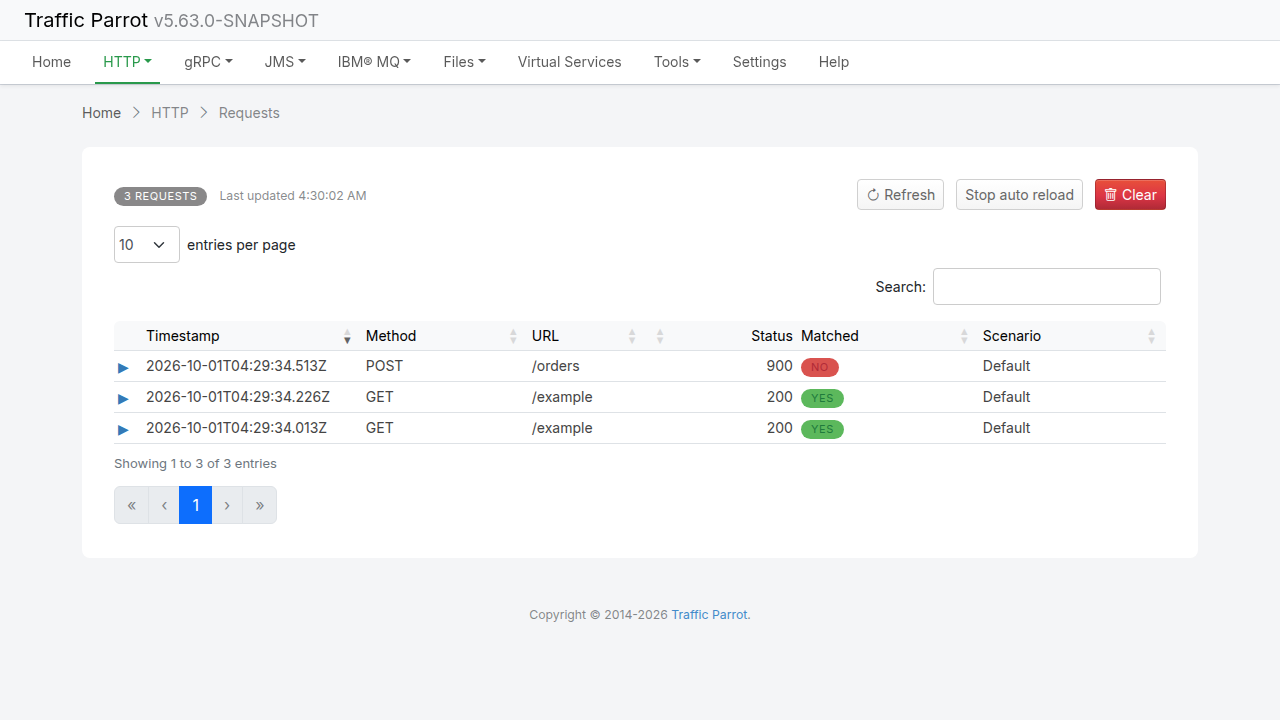
The Request Log above is a live verification result: the count badge reads **3 requests**, the two `GET /example` rows are **Matched = Yes**, and the unmatched `POST /orders` row is **Matched = No**. The **Status** column shows the status the client received: the unmatched row reads the configured no-match code `900` (see [near misses](#verifying-requests-near-misses) below), and a matched row reads the status that was served, even when a response template or a proxied backend set it after the mapping was matched.
### Assert a request was NOT made
This is the direct answer to the most common WireMock verification question: *"verify that a request of a given URL has NOT been made"*, the equivalent of `verify(exactly(0), getRequestedFor(urlEqualTo("/x")))`. Use the same `POST /api/http/requests/count` call and assert the count is **zero**:
```bash
curl -X POST http://localhost:8080/api/http/requests/count \
-H 'Content-Type: application/json' \
-d '{"method":"GET","url":"/x"}'
```
If the request was never received, the count is zero:
```json
{ "count": 0, "requestJournalDisabled": false }
```
A test can therefore assert "this endpoint was not called" by checking that `count` equals `0`. In the GUI, the same conclusion is that no row matching that method and URL appears in the [Request Log](#request-log-overview).
### Assert a request was made exactly N times
The equivalent of `verify(exactly(3), getRequestedFor(...))` is the same `POST /api/http/requests/count` call; you just assert the exact number returned:
```bash
curl -X POST http://localhost:8080/api/http/requests/count \
-H 'Content-Type: application/json' \
-d '{"method":"GET","url":"/x"}'
```
```json
{ "count": 3, "requestJournalDisabled": false }
```
There is one endpoint for "at least once", "exactly N", and "never": the assertion lives in your test (`count >= 1`, `count == 3`, or `count == 0`), not in a different URL.
### Inspect a captured request body or headers
When you need more than a count (the equivalent of `findAll(getRequestedFor(...))` followed by reading `request.getBodyAsString()`), use `find` to return the matching requests in full, including their bodies and headers. Send a `POST` to `/api/http/requests/find` with a request-matcher body:
```bash
curl -X POST http://localhost:8080/api/http/requests/find \
-H 'Content-Type: application/json' \
-d '{"method":"POST","url":"/orders"}'
```
The response lists each matching request with its method, URL, headers, and captured body, so you can assert on the exact payload your code under test sent. To pull back the whole journal (the equivalent of `getAllServeEvents()`) use:
```bash
curl http://localhost:8080/api/http/requests
```
```json
{ "requests": [ ... ], "meta": { "total": 7 }, "requestJournalDisabled": false }
```
In the GUI, click the expand arrow on a row to read the request headers and body (JSON and XML bodies are pretty-printed, with a Copy button for the original bytes); see [Viewing request details](#request-log-matched-details) and [Pretty-printed bodies](#request-log-body-formatting).
### Page or filter the journal (`limit` and `since`)
When the journal holds a lot of requests you can narrow what `GET /api/http/requests` returns with two optional query parameters. Both are off by default: a plain `GET /api/http/requests` with neither parameter returns the whole journal exactly as before, so existing scripts and integrations are unaffected.
- `limit`: a non-negative integer that bounds the response to the first *N* entries in journal order. `limit=0` returns no rows; a negative value is rejected with `HTTP 400`.
- `since`: an ISO-8601 timestamp (for example `2026-07-16T10:00:00Z`). Only requests recorded **strictly after** that instant are returned (the boundary instant itself is excluded), compared against each entry's recorded time. A value that is not a valid ISO-8601 timestamp is rejected with `HTTP 400`.
For example, to fetch only the first two entries in journal order, or only the requests received after a known point in time:
```bash
curl 'http://localhost:8080/api/http/requests?limit=2'
curl 'http://localhost:8080/api/http/requests?since=2026-07-16T10:00:00Z'
```
`limit` and `since` can be combined, and either may be used on its own. The `meta.total` field always reports the **full** number of entries in the journal *before* `limit` or `since` is applied (it is deliberately independent of both parameters), so it stays a reliable count of everything recorded even when the `requests` array has been trimmed:
```json
{ "requests": [ ...at most 2 rows... ], "meta": { "total": 7 }, "requestJournalDisabled": false }
```
### Why didn't my request match? (near misses)
If a request did not match any mapping, Traffic Parrot serves an `HTTP 900` response ("No responses matched") rather than throwing an exception, and records the request as unmatched in the journal. To list the unmatched requests, the equivalent of `findUnmatchedRequests()`:
```bash
curl http://localhost:8080/api/http/requests/unmatched
```
To find out *why* each unmatched request missed (the equivalent of `findNearMissesForAllUnmatched()`), ask for the near misses, which report the closest mappings and a per-field comparison of expected vs actual:
```bash
curl http://localhost:8080/api/http/requests/unmatched/near-misses
```
The GUI presents the same near-miss diagnosis interactively: expand an unmatched row in the Request Log to see a field-by-field comparison table (Method, URL, Headers, Body) with match/mismatch indicators, the closest stub's name and match percentage, and a link to edit that stub; see [Near misses for unmatched requests](#request-log-near-misses).
### Reset the journal between tests
So that each test verifies only the requests it made, clear the journal first, the equivalent of `resetRequests()`. Send a `DELETE` to `/api/http/requests`:
```bash
curl -X DELETE http://localhost:8080/api/http/requests
```
In the GUI, the red **Clear** button on the Request Log does the same thing (with a confirmation prompt); see [Clearing the request log](#request-log-clear).
### Admin API endpoint reference
The verification endpoints, all on the management port (`8080` by default) under the `/api/http/…` prefix:
| Method & path | What it does |
| --- | --- |
| `GET /api/http/requests` | List the whole journal as `{"requests":[...],"meta":{"total":N}}`. Accepts optional `limit` and `since` query parameters to [page or filter](#verifying-requests-paging) the result |
| `GET /api/http/requests/{id}` | Fetch a single journal entry by id |
| `POST /api/http/requests/count` | Count journal entries matching a request pattern body → `{"count":N}` |
| `POST /api/http/requests/find` | Return journal entries (with bodies) matching a request pattern body |
| `GET /api/http/requests/unmatched` | List requests that matched no mapping |
| `GET /api/http/requests/unmatched/near-misses` | List the closest mappings for each unmatched request |
| `DELETE /api/http/requests` | Clear the journal |
These are reachable through the management port's `/api/http/…` write-through prefix shown above. The corresponding raw journal routes on the virtual service port are `/__admin/requests` and friends; prefer the `/api/http/…` form, which is the supported management surface. For an interactive catalogue of the management APIs, see [Management APIs](https://trafficparrot.com/documentation/5.65.x/user_guide.html#management-apis) in the user guide (Postman workspace and OpenAPI specification).
### Next steps
- [Request Log](#request-log-overview): the GUI page that shows every received request, with screenshots of the table, expandable details, and near-miss diagnosis
- [Request matching](https://trafficparrot.com/documentation/5.65.x/request_matching.html): the matchers (URL, headers, query parameters, body patterns) you can put in a `count` or `find` criteria body, the same ones you use in a mapping
- [Management APIs](https://trafficparrot.com/documentation/5.65.x/user_guide.html#management-apis): the Postman workspace and OpenAPI specification for the full set of Traffic Parrot management endpoints
## Request Log
### Overview
The Request Log page shows all HTTP requests received by the virtual service. You can access it from the HTTP dropdown menu in the top navigation bar by clicking "Requests".
Each row in the table displays the request timestamp, HTTP method, URL, response status code, whether the request was matched to an existing stub mapping, and the scenario the request was served under. Matched requests show a green "Yes" badge, unmatched requests show a red "No" badge, and proxied requests show a blue "Proxied" badge (see [HTTP Passthrough Proxy](#passthrough-proxy)).
The **Scenario** column shows the name of the scenario the request was served under. Requests served under the default scenario are shown as "Default".
The page header shows the total number of requests and a "Last updated" timestamp indicating when the data was last refreshed.
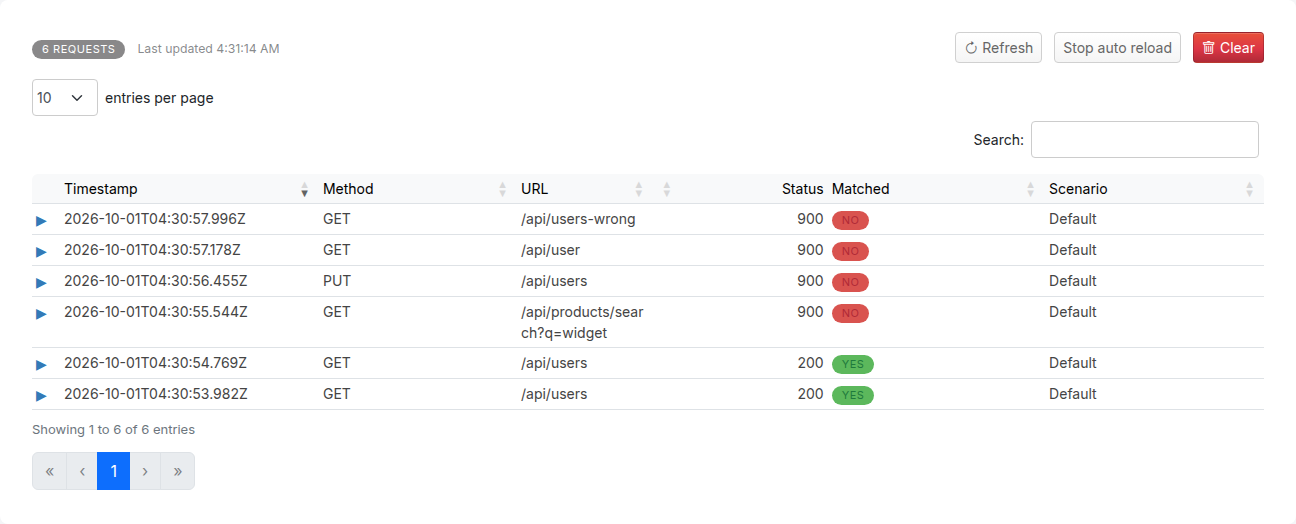
### Viewing request details
Click the expand arrow on any row to view full details of the request and its response. The expanded section shows the request headers, request body, response status, response headers, and response body.
For matched requests, a "Matched Stub" section displays the full JSON definition of the stub mapping that was used to generate the response. This is useful for understanding which mapping handled the request.
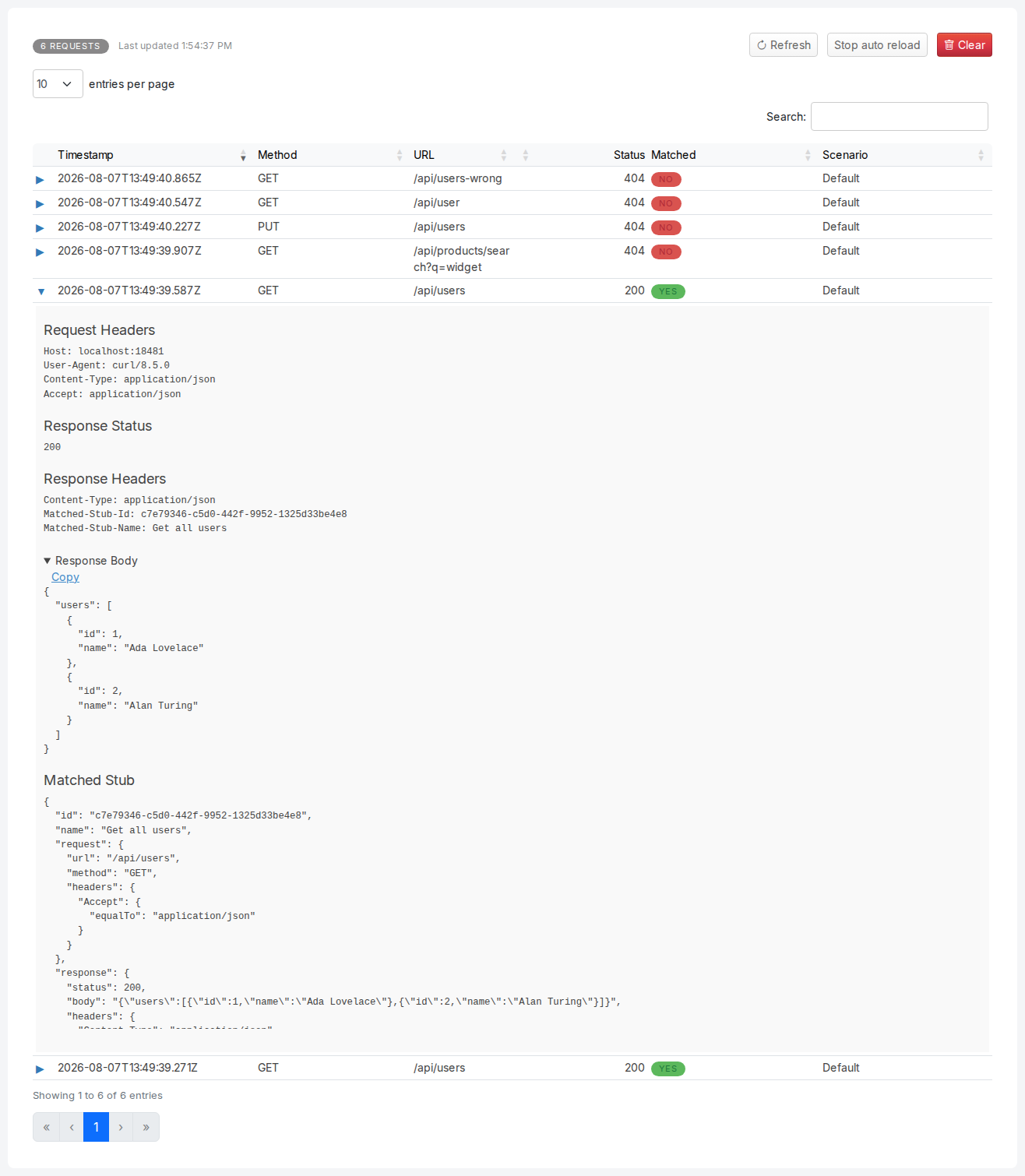
### Pretty-printed request and response bodies
When a request or response body is JSON or XML, it is automatically pretty-printed (indented and shown over multiple lines) in the expanded detail section, so that you can read the structure at a glance instead of scanning a single long line. Formatting changes only the layout: a JSON body is laid out from the text it was received with, so numbers such as `1500.00` or `0.0000001`, escapes, duplicate keys and key order show as sent.
Each body block is collapsible: click the heading ("Request Body" or "Response Body") to fold it away when you want to focus on the rest of the detail panel. A **Copy** button next to each body copies the **original, unformatted** body to your clipboard, so what you paste matches the bytes that were actually sent or received, not the pretty-printed version shown on screen.
The same pretty-printing and Copy button are available wherever request bodies are logged, including the gRPC requests page and the JMS, IBM MQ, and file messaging requests pages. On the three messaging pages the list holds the first 500 characters of each message; expanding a row loads the whole message, up to 1,000,000 characters, and its heading reads `Request Body (cut short)` while it loads or past that ceiling.
Bodies are shown exactly as received (raw, on a single line) when they cannot be safely formatted, for example when the body is not well-formed JSON or XML, is not a JSON or XML content type, or is large enough to be truncated for display (bodies over 10 KB are truncated, with a note showing the total size).
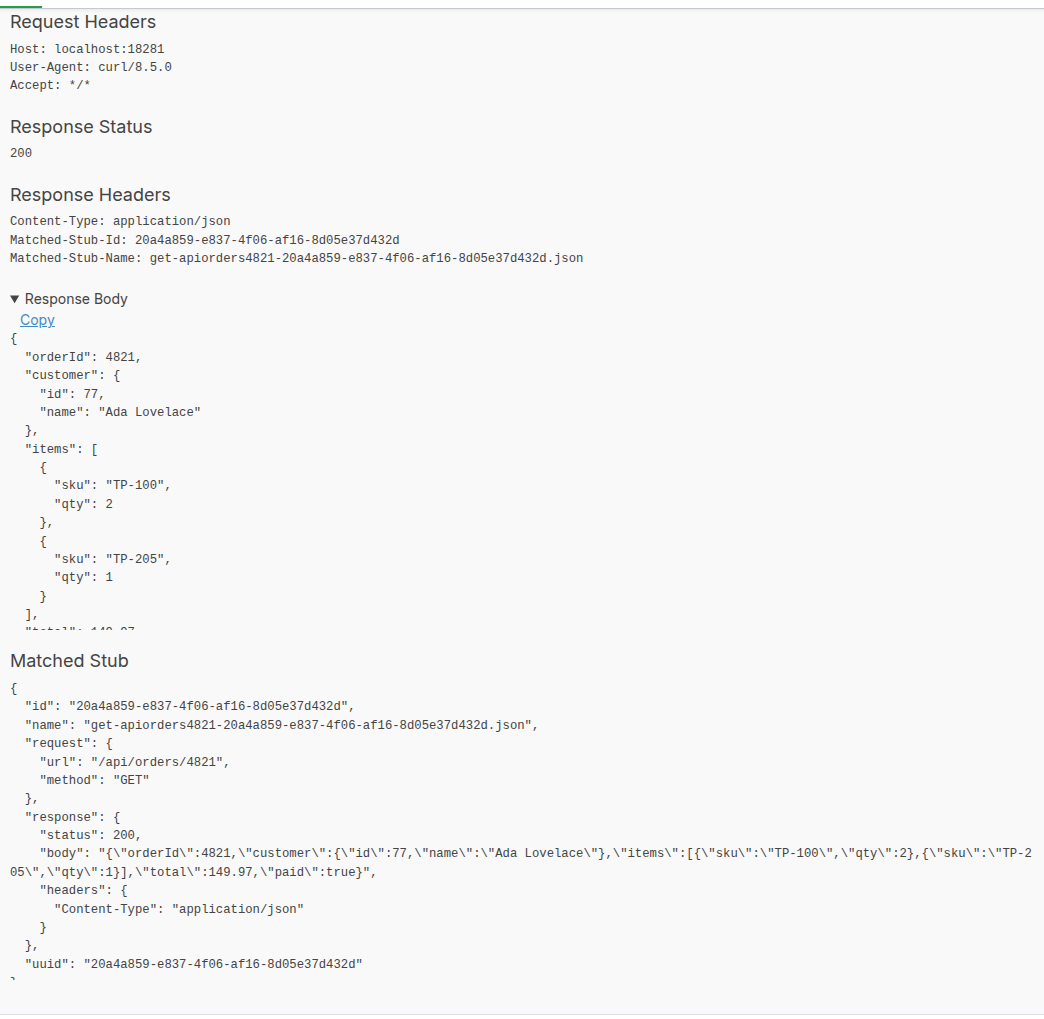
### Near misses for unmatched requests
When you expand an unmatched request (one with a red "No" badge), the detail section shows a "Near Misses" list instead of a matched stub. Near misses are the existing stub mappings that came closest to matching the request, along with a percentage indicating how close each match was.
Each near miss displays a **per-field comparison table** that shows exactly which fields matched and which did not. The table compares the stub's expected values against the actual request values for each field: Method, URL, Headers, and Body.
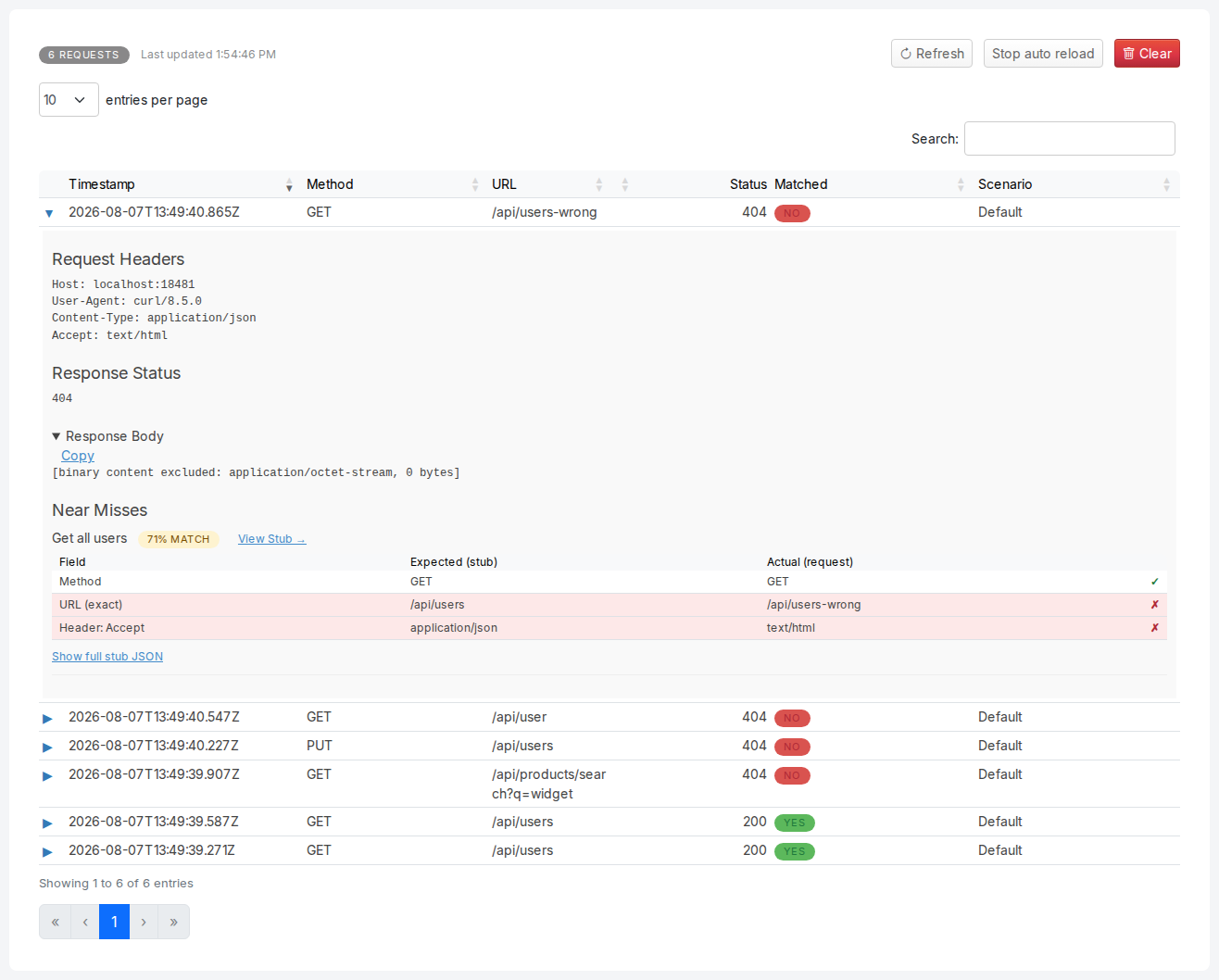
Each row in the comparison table has an indicator on the right:
- A **green checkmark** means the field matched the stub's expected value
- A **red cross** means the field did not match; mismatched rows are highlighted with a red background so you can quickly spot the problem
- A **grey question mark** means the match could not be evaluated in the browser (for example, JSONPath, XPath, or XML body patterns)
In the example above, a request to `GET /api/users-wrong` with an `Accept: text/html` header is compared against a stub expecting `GET /api/users` with `Accept: application/json`. The Method matches (green checkmark), but both the URL and Accept header are mismatched (red crosses), making it immediately clear why the request was not matched.
### Near miss stub name and match percentage
Each near miss entry shows the stub's human-readable name as its heading, when one has been set. If the stub does not have a name, the heading displays the stub's method and URL pattern instead. Next to the name, an orange badge shows the match percentage (for example, "92% match"), which indicates how closely the request matched that stub.
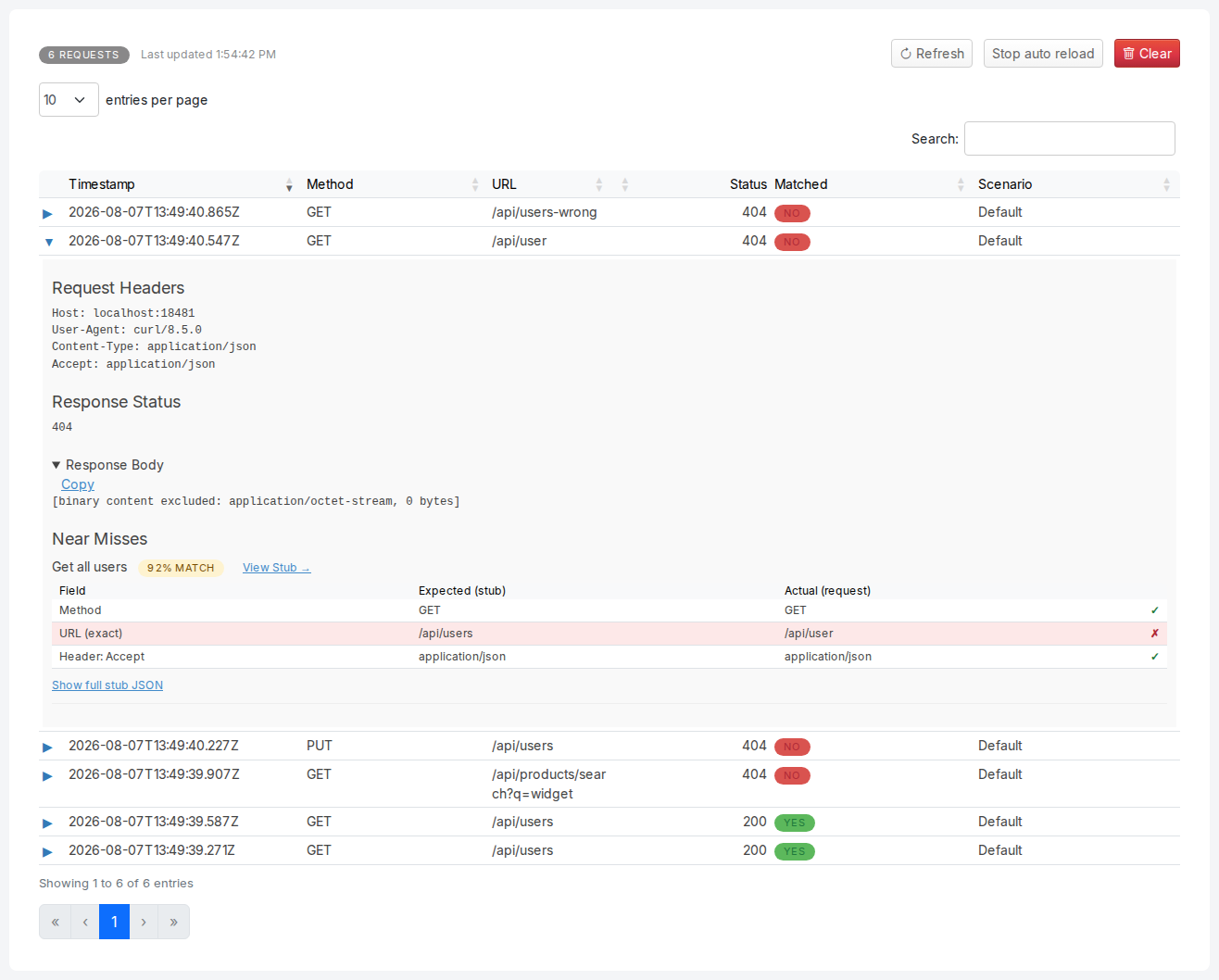
### View Stub link
Each near miss entry includes a "View Stub" link next to the stub name. Clicking this link navigates directly to the HTTP Stubs page and opens the edit dialog for that specific stub mapping. This allows you to quickly fix the stub's request pattern when you can see which field did not match.
### Viewing the full stub JSON
Below the comparison table, a "Show full stub JSON" link is available for users who need to see the complete stub mapping definition. Clicking this link toggles a collapsible section that displays the raw JSON of the stub, including the response body, metadata, and UUID. This is hidden by default to keep the near miss display focused on the comparison table.
### Auto-refresh
The request log automatically refreshes every second, so new requests appear in the table without requiring a manual page reload. This is useful when monitoring live traffic to the virtual service.
You can pause auto-refresh by clicking the "Stop auto reload" button. When paused, the button changes to "Start auto reload" and no further automatic updates occur until you resume. The manual "Refresh" button continues to work at any time.
Auto-refresh also pauses automatically when you expand a detail row, select text in the table, or hover over a tooltip. This prevents the data from changing while you are inspecting it.
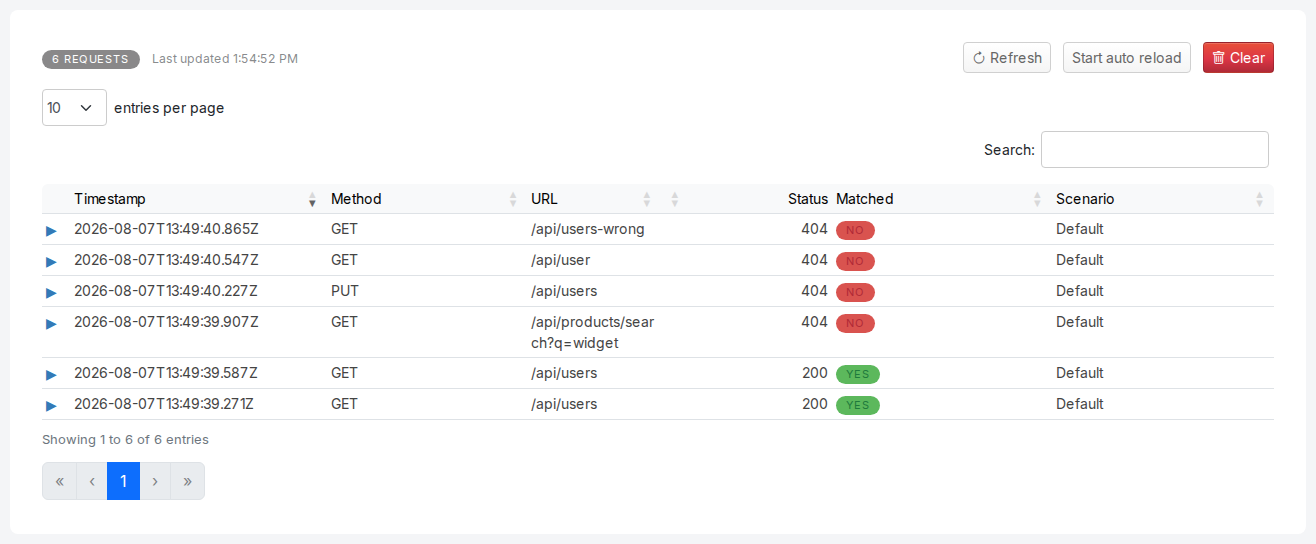
### Clearing the request log
Click the red "Clear" button to delete all recorded requests from the journal. A confirmation dialog appears asking you to confirm before the requests are permanently removed.
## Configuration
See [configuration](https://trafficparrot.com/documentation/5.65.x/user_guide.html#configuration) in the user guide.
## Typical environments
See [typical environments](https://trafficparrot.com/documentation/5.65.x/user_guide.html#how-to-videos) in the user guide.
## Proof of concept with on-premises installation at a large enterprise
See [proof of concept](https://trafficparrot.com/documentation/5.65.x/user_guide.html#poc) in the user guide.
## Dynamic responses and custom extensions
Have a look at [available custom extensions and how to generate responses dynamically](https://trafficparrot.com/documentation/5.65.x/dynamic.html)
## FAQ
Have a look at [FAQ](https://trafficparrot.com/documentation/5.65.x/faqs.html)