# Thrift
## Quick start
Have a look at the [quick start to Traffic Parrot](https://trafficparrot.com/documentation/5.65.x/start.html). It covers HTTP only, but it will show you how to install the tool and explain a few basic concepts.
You can view a Thrift [demo video](https://www.youtube.com/watch?v=pJTdDH20o3c) below:
[Video: Create Thrift service simulators in 6 minutes](https://www.youtube.com/watch?v=pJTdDH20o3c)
You can find more videos by subscribing to our [YouTube channel](https://www.youtube.com/channel/UCUZDkF7muiaBhZR9pLZHUlA?sub_confirmation=1) or visiting our [video library](https://trafficparrot.com/documentation/5.65.x/videos.html) in the documentation.
## Thrift virtual service architecture
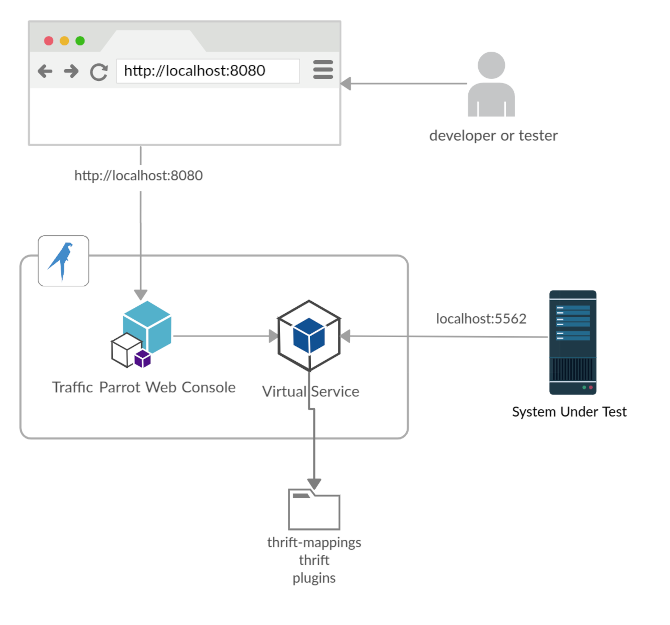
A developer or tester uses a web browser to access the console. The console manages the virtual service. The system under test (application under test) connects directly to the virtual service on different ports.
## Configuration
### Thrift binary
Traffic Parrot needs access to the [Thrift binary](https://thrift.apache.org/download). The file name is `thrift` on Linux/Mac and `thrift.exe` on Windows.
To do this, simply copy your Thrift binary to the `plugins` directory of Traffic Parrot.
Traffic Parrot will also search the system path for the binary.
On startup you will see logs in `trafficparrot.log` informing that the binary was found, for example:
```
2020-03-06 15:59:27,611 INFO main Thrift support enabled since there is a Java compiler and Thrift binary available.
```
You may see error logs in `trafficparrot.log` if the thrift binary is not found:
```
2020-03-06 15:59:27,611 WARN Thrift support disabled since Thrift compiler not available. Could not find 'thrift' binary in location(s): [/home/trafficparrot/plugins, /usr/local/bin]
```
### Thrift files
Traffic Parrot needs to know about the schema of your messages. Provide your [Thrift files](https://thrift-tutorial.readthedocs.io/en/latest/thrift-file.html) that contain the API definitions.
To do this, simply copy your `.thrift` files into the `trafficparrot-x.y.z/thrift` directory and Traffic Parrot will use these definitions during record/replay.
On startup you will see logs in `trafficparrot.log` displaying which services were found and compiled, for example:
```
2020-03-06 15:59:27,611 INFO main Thrift support enabled since there is a Java compiler and Thrift binary available.
----------------------------------------------------------------------
2020-03-06 15:59:28,343 INFO main Compiling Thrift files in directory '/home/trafficparrot/./thrift' to temporary Java directory '/tmp/trafficparrot-thrift-java4691688603859252444' using binary '/home/trafficparrot/plugins/thrift': [shared.thrift, tutorial.thrift]
----------------------------------------------------------------------
2020-03-06 15:59:28,351 INFO main Compiled 2 Thrift files to Java successfully
----------------------------------------------------------------------
2020-03-06 15:59:28,353 INFO main Compiling Java classes from sources /tmp/trafficparrot-thrift-java4691688603859252444: [com.trafficparrot.example.InvalidOperation, com.trafficparrot.example.SharedService, com.trafficparrot.example.Calculator, com.trafficparrot.example.Work, com.trafficparrot.example.Operation, com.trafficparrot.example.SharedStruct]
----------------------------------------------------------------------
2020-03-06 15:59:29,656 INFO main Compiled 6 Java classes successfully
```
You may see error logs in `trafficparrot.log` if the JDK or thrift binary is not found:
```
2020-03-06 15:59:27,611 WARN Thrift support disabled since Java compiler not available. Please use a JDK not a JRE to enable Thrift support.
----------------------------------------------------------------------
2020-03-06 15:59:27,611 WARN Thrift support disabled since Thrift compiler not available. Could not find 'thrift' binary in location(s): [/home/trafficparrot/plugins, /usr/local/bin]
```
### SSL/TLS
Typically, Thrift is [secured](https://dzone.com/articles/how-secure-and-apache-thrift) using SSL/TLS
Traffic Parrot has the following properties that can be used to configure SSL/TLS:
- `trafficparrot.virtualservice.thrift.tls.port`
The port number to use when recording/replaying TLS traffic
- `trafficparrot.virtualservice.thrift.server.trust.pem.url`
X.509 certificate collection file in PEM format that will be trusted by the virtual Thrift server
- `trafficparrot.virtualservice.thrift.server.pem.url`
X.509 certificate chain file in PEM format that will be the public key of the virtual Thrift server
- `trafficparrot.virtualservice.thrift.server.key.url`
PKCS#8 private key file in PEM format that will be the private key of the virtual Thrift server
- `trafficparrot.virtualservice.thrift.client.trust.pem.url`
X.509 certificate collection file in PEM format that will be trusted by the virtual Thrift client
If client authentication is required use the following additional properties:
- `trafficparrot.virtualservice.thrift.client.pem.url`
X.509 certificate chain file in PEM format that will be the public key of the virtual Thrift server
- `trafficparrot.virtualservice.thrift.client.key.url`
PKCS#8 private key file in PEM format that will be the private key of the virtual Thrift server
The URL property values can be set to `classpath` entries e.g. `classpath:certificates/thrift/server.pem`
By default Traffic Parrot has properties that correspond to the certificates found in the `trafficparrot-x.y.z/certificates/thrift` directory.
Alternatively, you can specify `file` URL entries e.g. `file:///path/to/server.pem`
The property `trafficparrot.virtualservice.thrift.non.tls.port` specifies a port that can be used if SSL/TLS is not required.
### Performance
The following properties have a significant impact on Thrift performance during replay:
| Property | Description |
| --- | --- |
| trafficparrot.virtualservice.mapping.cache.milliseconds | Mapping files can be cached in memory during replay to improve performance. The default value of `0` means do not cache at all. |
## Recording and replaying Thrift
### Introduction
During recording, incoming and outgoing messages are matched up to provide mappings. Then upon playback receipt of a matching incoming message will trigger generation of an outgoing message.
This diagram shows how two production systems connect:
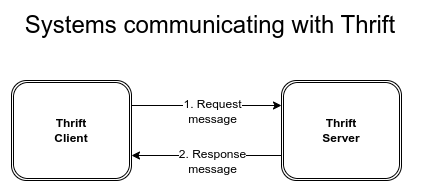
One system sends a Thrift request message to another system, which consumes the messages and returns a Thrift response message to the first system. If our goal is to test the system-under-test in isolation, we must record these interactions in order to replay them.
### Recording and replaying Thrift messages
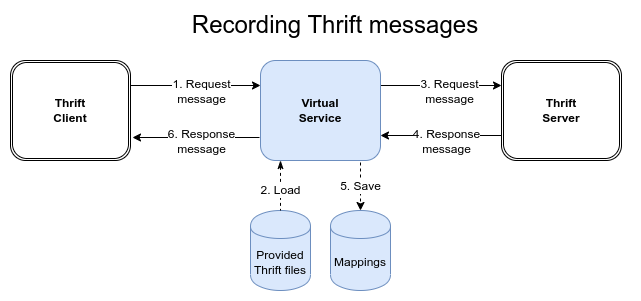
As you can see in the diagram below, the virtual service acts as a proxy between the Thrift client and Thrift server. The provided Thrift files are used to determine the message schema of the request and response messages for the requested Thrift method. Mappings are saved representing request/response pairs that have been recorded.
##### Steps to perform a recording using provided Thrift files
1. [Start](https://trafficparrot.com/documentation/5.65.x/user_guide.html#start-and-stop) Traffic Parrot
2. [Configure](#configure-thrift) Traffic Parrot with your Thrift files
3. Go to the [Thrift record page](http://localhost:8080/thrift/record.html)
4. Enter the host and port of the Thrift server to record
5. Click "Start recording"
6. Reconfigure your system under test to connect to the virtual service Thrift server (by default this is `localhost:5562`)
7. Execute a test case to allow Traffic Parrot to record requests and responses. They will appear on the Messages and Mappings lists on the web page as shown on [Mappings and messages lists during recording](#mappings-list-during-recording-provided) image.
8. Click "Stop recording"
As the system under test generates messages and receives responses they are paired into mappings and listed in the 'Mappings' table.

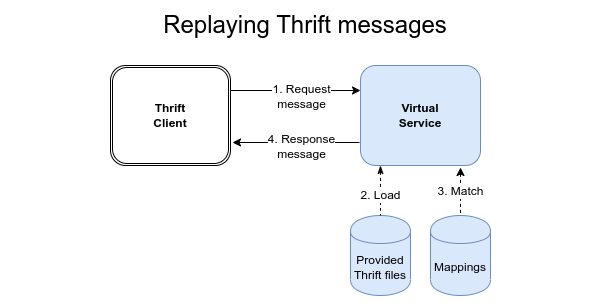
On replay, the provided Thrift files are again used to determine the schema of the requested Thrift method. The request is matched against the mappings to find the corresponding response message.
##### Steps to perform a replay using provided Thrift files
1. [Start](https://trafficparrot.com/documentation/5.65.x/user_guide.html#start-and-stop) Traffic Parrot
2. [Configure](#configure-thrift) Traffic Parrot with your Thrift files
3. Reconfigure your system under test to connect to the virtual service Thrift server (by default this is `localhost:5562`)
4. Traffic Parrot will replay recorded mappings when it is not in record mode
### Existing mappings
If there are existing mappings present before a recording starts, these mappings will **not** be used to return responses instead of recording a new response.
For example, if there is a mapping for method `Calculator/calculate` then any traffic to `Calculator/calculate` will record a new response and the existing mapping will not be considered.
Please contact [support@trafficparrot.com](mailto:support@trafficparrot.com) if you have a requirement for a mixed recording mode similar to [HTTP recording](https://trafficparrot.com/documentation/5.65.x/http.html#recording-existing-mappings) where existing mappings during recording are used to provide responses instead of recording a new response.
## Add/Edit Thrift mappings
### Usage
##### Thrift messages as JSON
Traffic Parrot uses JSON to represent Thrift message payloads. It stores the Thrift request and response message payloads as JSON.
This means, the request and response body can be edited as if they were a JSON body. You are free to change the JSON as you wish, so long as the edits are compatible with the underlying Thrift message schema that the JSON represents.
##### Editing a mapping
First, go to Thrift in the top navigation bar and click Add/Edit.
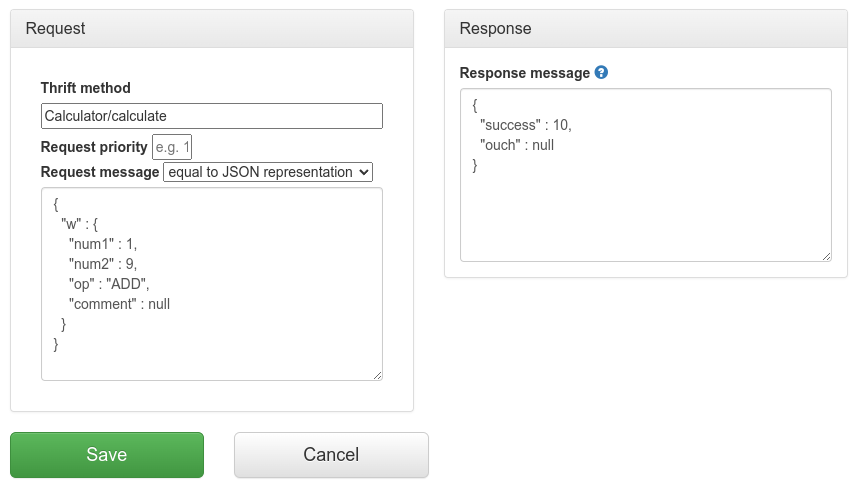
Fill in the Request/Response fields and click Save to configure a mapping.
After saving the mapping, it will appear in the list of mappings.

Clicking the edit button  will allow you to edit an existing mapping.
##### Supported features
- Edit response message values
- Edit response message structure (e.g. delete optional fields, add items to list, add nested fields)
- Edit exception message
- Use [helpers](https://trafficparrot.com/documentation/5.65.x/dynamic.html#extension-functions) in the response body
- Use parts of the request message in the response message by [extracting with JsonPath](https://trafficparrot.com/documentation/5.65.x/dynamic.html#extract-jsonpath)
- Match request messages using the request body matchers (e.g. JsonPath, contains, regexp) on the JSON representation of the message
- Use priority to set up a preference order for matching mappings
Currently, editing non-exception metadata is not yet possible. Please contact [support@trafficparrot.com](mailto:support@trafficparrot.com) to be notified of when this functionality is ready.
### Priority
The request priority can be set in order to set up a preference order for matching mappings.
The highest priority value is `1`. If two or more mappings both match a request, the mapping with the higher priority will be used to provide the response. The default priority is `5`.
This can be useful, if you want a "catch-all" mapping that returns a general response for most requests and specific mappings on top that return more specific responses.
## Thrift request matchers
When Traffic Parrot receives a request, it will try to simulate the system it is replacing by sending back a response to the client that sent the request. To decide which response to send, it will go through all the request to response mappings it has available to find the response to be returned. For more details how request matching works, see [Request matching](https://trafficparrot.com/documentation/5.65.x/request_matching.html).
There are several matchers available to match Thrift requests, depending on the attribute.
##### Thrift method
Will match only the selected Thrift method name. For example:
```
Calculator/calculate
```
##### Request message matchers
Traffic Parrot uses JSON to represent Thrift message payloads.
For example, if you define a service:
```
enum Operation {
ADD = 1,
SUBTRACT = 2,
MULTIPLY = 3,
DIVIDE = 4
}
struct Work {
1: i32 num1 = 0,
2: i32 num2,
3: Operation op,
4: optional string comment,
}
exception InvalidOperation {
1: i32 whatOp,
2: string why
}
service Calculator {
i32 calculate(1:Work w) throws (1:InvalidOperation ouch)
}
```
then, if you choose "equal to JSON representation" as the request body matcher and populate the request body with:
```
{
"w" : {
"num1" : 1,
"num2" : 9,
"op" : "ADD",
"comment" : null
}
}
```
then Traffic Parrot will match this request any time it receives a Thrift request message for the operation `1 ADD 9`
You can use not only the "equal to JSON representation" matcher but any of the ones described below.
- **Matcher name:** any
**Matcher Id:** any
**Description:** Any Thrift request payload will match.
- **Matcher name:** equal to JSON representation
**Matcher Id:** equalToJson
**Description:** Check that the received request payload has all attributes equal to the ones specified in the mapping as JSON.
- **Matcher name:** matches JSON representation
**Matcher Id:** matchesJson
**Description:** Check that the received request payload matches (allowing for special wildcard tokens) attributes specified in the mapping as JSON.
Tokens allowed:
- `{{ anyValue }}` - matches any value
- `{{ anyNumber }}` - matches any whole or decimal number
- `{{ anyElements }}` - matches any number of sub-elements (child-nodes)
For example a "matches JSON" request body matcher:
```
{
"name": "{{ anyValue }}",
"lastName": "{{ anyValue }}",
"age": "{{ anyNumber }}",
"children": "{{ anyElements }}"
}
```
will match a request payload JSON representation:
```
{
"name": "Bob",
"lastName": "Smith",
"age": 37,
"children": [{"name": "sam"}, {"name": "mary"}]
}
```
- **Matcher name:** matches JSONPath
**Matcher Id:** matchesJsonPath
**Description:** Check that the received request payload, when converted by Traffic Parrot to JSON, matches [JSONPath](https://restfulapi.net/json-jsonpath/) specified in the mapping. For example, given a Thrift message:
```
struct Work {
1: i32 num1 = 0,
2: i32 num2,
3: Operation op,
4: optional string comment,
}
```
when Traffic Parrot receives a "Work" request object it will convert it to JSON for matching purposes. A sample "Work" message, when received by Traffic Parrot and converted to JSON would look like this:
```
{
"w" : {
"num1" : 1,
"num2" : 9,
"op" : "ADD",
"comment" : null
}
}
```
And then, a sample "matches JSONPath" matcher to match the message above could look like this:
```
$.w[?(@.op == 'ADD' && @.num1 == 1 && @.num2 == 9)]
```
For more examples see the [request matching](https://trafficparrot.com/documentation/5.65.x/request_matching.html#request-matcher-examples) documentation.
- **Matcher name:** contains
**Matcher Id:** contains
**Description:** Check that the received request payload, when converted to JSON, contains the sequence of characters specified in the mapping
- **Matcher name:** does not contain
**Matcher Id:** doesNotContain
**Description:** Check that the received request payload, when converted to JSON, contains the sequence of characters specified in the mapping
- **Matcher name:** matches regex
**Matcher Id:** matches
**Description:** Check that the received request payload, when converted to JSON, matches the regexp specified in the mapping. For example, given a Thrift message:
```
struct Work {
1: i32 num1 = 0,
2: i32 num2,
3: Operation op,
4: optional string comment,
}
```
when Traffic Parrot receives a "Work" message it will convert it to JSON for matching purposes. A sample "Work" message, when received by Traffic Parrot and converted to JSON would look like this:
```
{
"w" : {
"num1" : 1,
"num2" : 9,
"op" : "ADD",
"comment" : null
}
}
```
And then, a sample "matches regex" matcher to match the message above could look like this:
```
.*"num1" : 1.*"num2" : 9.*"op" : "ADD".*
```
- **Matcher name:** does not match regexp
**Matcher Id:** doesNotMatch
**Description:** Check that the received request payload, when converted to JSON, does not match the regexp specified in the mapping. See "matches regexp" above for more details.
## Proof of concept with on-premises installation at a large enterprise
See [proof of concept](https://trafficparrot.com/documentation/5.65.x/user_guide.html#poc) in the user guide.
## Dynamic responses and custom extensions
Have a look at [available custom extensions and how to generate responses dynamically](https://trafficparrot.com/documentation/5.65.x/dynamic.html)
## FAQ
Have a look at [FAQ](https://trafficparrot.com/documentation/5.65.x/faqs.html)