
The license server allows Traffic Parrot instances to start up and make use of the licenses that were purchased.
Each Traffic Parrot instance will consume one of the purchased licenses until it is shut down.
There are 3 key states of a Traffic Parrot instance when connecting to the usage server:
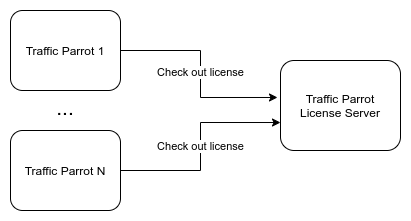
Traffic Parrot License Server has the following minimum requirements. Customers with a large number of Traffic Parrot instances or with intensive usage may exceed these minimum requirements.
user.interface.port=8050
user.interface.port.enabled=true
user.interface.https.port=8051
user.interface.https.port.enabled=true
user.interface.https.jks.path=certs/user-interface-https.jks
user.interface.https.jks.password=trafficparrot
license.usage.port=8040
license.usage.port.ssl.enabled=true
You may optionally use Docker to run the license server using the following steps:
FROM eclipse-temurin:21-jre

RUN apt-get update && apt-get install unzip -y

WORKDIR /opt
COPY trafficparrot-license-usage-*.zip trafficparrot-license-usage.zip
RUN unzip trafficparrot-license-usage.zip && rm trafficparrot-license-usage.zip && mv trafficparrot-license-usage-* trafficparrot-license-usage
COPY trafficparrot.usage.license /opt/trafficparrot-license-usage

RUN chgrp -R 0 /opt/trafficparrot-license-usage && chmod -R g=u /opt/trafficparrot-license-usage

WORKDIR /opt/trafficparrot-license-usage
VOLUME ["/opt/trafficparrot-license-usage/data"]
CMD ["./start.sh"]
FROM alpine:3

RUN apk add --no-cache openjdk21-jre bash libc6-compat gcompat

WORKDIR /opt
COPY trafficparrot-license-usage-*.zip trafficparrot-license-usage.zip
RUN unzip trafficparrot-license-usage.zip && rm trafficparrot-license-usage.zip && mv trafficparrot-license-usage-* trafficparrot-license-usage
COPY trafficparrot.usage.license /opt/trafficparrot-license-usage

RUN chgrp -R 0 /opt/trafficparrot-license-usage && chmod -R g=u /opt/trafficparrot-license-usage
ENV LD_LIBRARY_PATH=/usr/lib:/opt/trafficparrot-license-usage/jre/lib/amd64/server:/opt/trafficparrot-license-usage/jre/lib/amd64

WORKDIR /opt/trafficparrot-license-usage
VOLUME ["/opt/trafficparrot-license-usage/data"]
CMD ["./start.sh"]
docker build -t trafficparrot-license-usage:latest -t trafficparrot-license-usage:$(date '+%d-%b-%YT%H-%M-%S') .
docker run -p 8050:8050 -p 8040:8040 -v /opt/data:/opt/trafficparrot-license-usage/data trafficparrot-license-usage:latest
You may optionally use OpenShift to run the license server using the following steps:
We also have a sample Helm chart that can be used to help you get started, you can download it here and follow the included instructions.
For the latest examples, check out our Traffic Parrot Helm Examples GitHub repository.
Before Traffic Parrot instances can successfully connect to the license server, it must be activated.
Please note that this is a one time only operation that should only be performed on a production ready license server that has been assigned a permanent persistent data volume and the installation directory or Docker image will no longer be changing.
Please follow the steps below to perform activation:


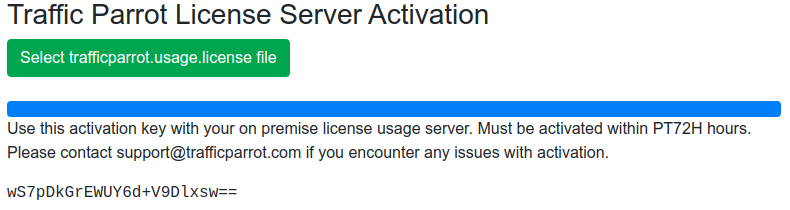

Now the license server is deployed, we can connect Traffic Parrot instances to it:
trafficparrot.license.usage.server=licensehost:8040
trafficparrot.license.usage.server=https://proxyhost/some/pathwith the proxy server routing to https://licensehost:8040 and license server licenseusage.properties
license.usage.port.ssl.enabled=true
trafficparrot.license.usage.server=https://proxyhost/some/pathwith the proxy server routing to http://licensehost:8040 and license server licenseusage.properties
license.usage.port.ssl.enabled=false
trafficparrot.license.usage.custom.headers=ExampleA:ValueA,ExampleB:ValueB
Checking out initial license usage token
Checked out initial license usage token PWEZWDW8S7E6EWOG with expiry 2020-11-15T13:37:54.465Z
License usage token PWEZWDW8S7E6EWOG renewed with expiry 2020-11-15T13:42:54.523Z
Checking in license usage token PWEZWDW8S7E6EWOG before shutdown
Checked in license usage token PWEZWDW8S7E6EWOG
./upgrade.sh /path/to/previous-trafficparrot
upgrade.exe "C:\path\to\previous-trafficparrot"
pkill -f ".*com.trafficparrot.licenseusage.api.LicenseUsageMain"
$filter = "commandline like '%com.trafficparrot.licenseusage.api.LicenseUsageMain%'"
Get-WmiObject Win32_Process -Filter $filter | ForEach-Object {
    $_.Terminate()
}The license server can serve its figures as Prometheus metrics, so your own Prometheus and Grafana can show which teams and projects use Traffic Parrot and how many licenses each holds. Metrics are off by default. To switch them on, set in licenseusage.properties:
metrics.enabled=true
The license server then serves GET /metrics on whichever user interface ports are enabled (user.interface.port, 8050 by default, and user.interface.https.port, 8051 by default), with no credentials, like the rest of the user interface. At start-up it logs Prometheus metrics available at http://localhost:8050/metrics for each port, and warns when metrics are on but both ports are off. With metrics off, /metrics answers 404. Until the first usage snapshot has been built after start-up, it answers 503 License usage is still loading.
The response is in Prometheus text format and carries these metrics:
| Metric | Type | Labels | Value |
|---|---|---|---|
| tp_licences_purchased | gauge | Licenses the license file allows. | |
| tp_licences_in_use | gauge | team tags, version | Licenses checked out now, by team tag and Traffic Parrot version. |
| tp_licence_rejections_total | counter | team tags | License check-outs refused because none was free, since the license server started. |
| tp_mappings | gauge | team tags, protocol (http, grpc, ibmmq, jms) | Mappings loaded on checked-out instances at instance start-up, summed, by protocol and team tag. |
The team tags are the trafficparrot.telemetry.<name> properties each Traffic Parrot instance sends with its license check-out and keep-alive; the Monitoring page of the Traffic Parrot documentation describes them. The project label is the instance's project tag, or the project name it reports when it sends no such tag, so licenses group by project before any instance is upgraded. Up to nine other tag names are used as labels, in the order the license server first sees them after it starts; a tag name beyond that is dropped and named in a warning. An instance that lacks a tag reads none for it. Refused check-outs beyond 1000 distinct label sets are counted under other. No host name, IP address or user name appears in any label.
An example Prometheus scrape configuration, with the license server as its own job (two license servers in one job would add up their licenses in use while showing one server's purchased):
scrape_configs:
  - job_name: traffic-parrot-license-server
    static_configs:
      - targets: ['licensehost:8050']
The home page of the license server's user interface has a Monitoring section, whether metrics are on or off. It shows:
Before you copy the example:
The License usage dashboard for Grafana shows the licenses purchased, in use and refused, by project and team. The license server serves it as a Grafana dashboard JSON file, whether metrics are on or off, so you can import it before you turn them on: use the Download license-usage.json link on the home page, or GET /api/monitoring/dashboards/license-usage.json on a user interface port.
Import the file into Grafana. At the top of the dashboard, choose your Prometheus data source, the license server (the Prometheus job that scrapes it) and whether to break the figures down by project, by team or by both. Its history starts when Prometheus first scrapes a license server that has metrics on. The Monitoring page of the Traffic Parrot documentation lists its panels.
Customers with an on premise license server are requested to provide usage reports to Traffic Parrot via email. To export a CSV report:

Date,Peak license usage in hour
2020-10-16-00,3
2020-10-16-01,2
2020-10-16-02,2
2020-10-16-03,0
2020-10-16-05,1
2020-10-16-06,4
...