
A tester or developer uses a web browser to access the console. The console manages the virtual service. The system under test (application under test) connects directly to the virtual service on different ports.
Here is an example of how that could look like for a scenario where the virtual service is replaying files.
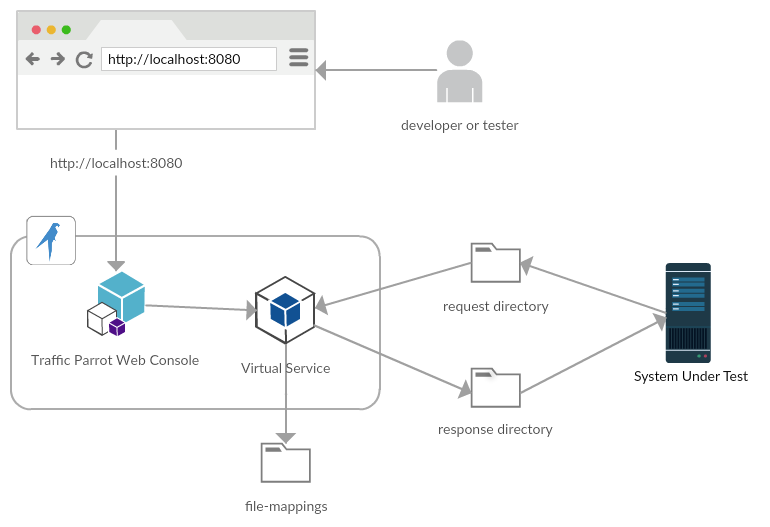 Virtual service replaying files from a request directory to a response directory
First, go to Files in the top navigation bar and then click Add/Edit.
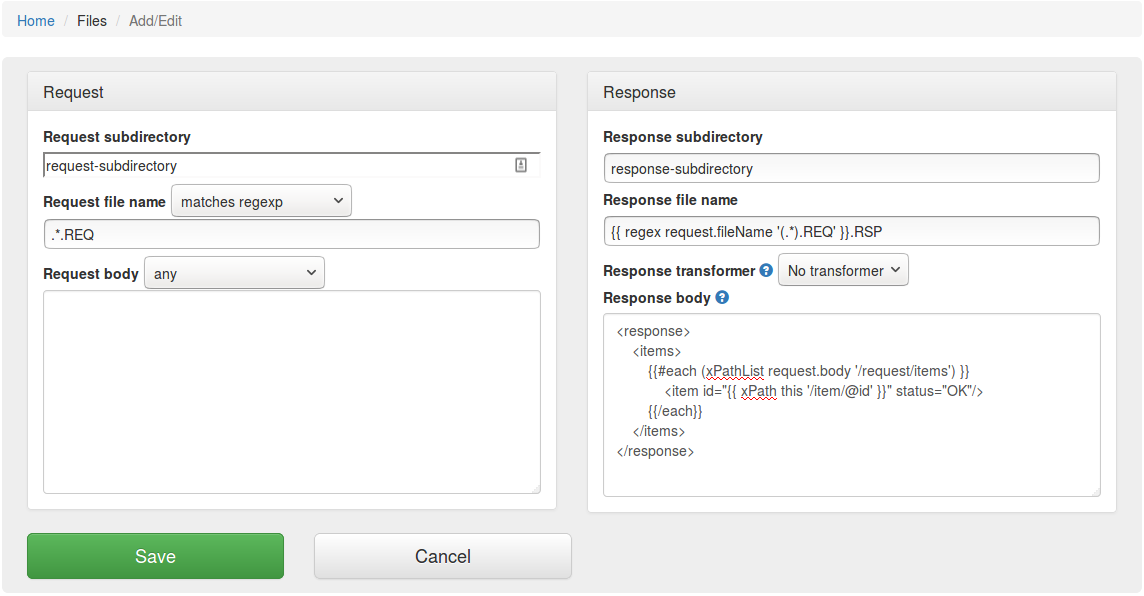
Fill in the Request/Response fields and click Save to configure a mapping.
After saving the mapping, it will appear in the list of mappings.

Clicking the edit button  will
allow you to edit an existing mapping.
will
allow you to edit an existing mapping.
The request priority can be set in order to set up a preference order for matching mappings.
The highest priority value is 1. If two or more mappings both match a request, the mapping with the higher priority will be used to provide the response. The default priority is 5.
This can be useful, if you want a "catch-all" mapping that returns a general response for most requests and specific mappings on top that return more specific responses.
When Traffic Parrot notices a request files, it will try to simulate the system it is replacing by creating a response file in the specified directory. To decide what is the name and content of the response file, it will go through all the request to response mappings it has available to find the response file definition. For more details how request matching works, see Request matching.
There are several matchers available to match request files, depending on the attribute.
| Matcher name | Matcher Id | Description |
|---|---|---|
| equal to | equalTo | Check that filename of the request file is equal to the one specified in the mapping |
| contains | contains | Check that the filename of the request file contains the sequence of characters specified in the mapping |
| does not contain | doesNotContain | Check that the filename of the request file does not contain the sequence of characters specified in the mapping |
| matches regex | matches | Check that the filename of the request file matches the regexp specified in the mapping |
| does not match regexp | doesNotMatch | Check that the filename of the request file does not match the regexp specified in the mapping |
The most common matchers are shown below. All other WireMock request body patterns are also supported.
| Matcher name | Matcher Id | Description |
|---|---|---|
| any | any | Any received request file contents will match. |
| equal to | equalTo | Check that the received request file contents is equal to the request body specified in the mapping |
| contains | contains | Check that the received request file contains the sequence of characters specified in the mapping |
| does not contain | doesNotContain | Check that the received request file does not contain the sequence of characters specified in the mapping |
| matches regex | matches | Check that the received request file contents matches the regexp specified in the mapping |
| does not match regexp | doesNotMatch | Check that the received request file contents does not match the regexp specified in the mapping |
| equal to JSON | equalToJson | Check that the received request file contents is JSON and that it is equal to the request body JSON specified in the mapping |
| matches JSON | matchesJson |
Check that the received request file contents matches (allowing for special wildcard tokens) JSON specified in the mapping.
Tokens allowed:
For example a "matches JSON" request body matcher:
{
  "name": "{{ anyValue }}",
  "lastName": "{{ anyValue }}",
  "age": "{{ anyNumber }}",
  "children": "{{ anyElements }}"
}
will match a request body:
{
  "name": "Bob",
  "lastName": "Smith",
  "age": 37,
  "children": [{"name": "sam"}, {"name": "mary"}]
}
|
| matches JSONPath | matchesJsonPath | Check that the received request file contents is JSON and that it matches JSONPath
specified in the mapping. For example, if we use the following expression as the request body matcher
$[?(@.xyz.size() == 2)]it will match this request body: {"xyz":[{"a":true}, {"b":false}]}
but will NOT match this one:
{"xyz":["a":true, "b":false, "c":true]}
For more examples see the request matching documentation.
|
| equal to XML | equalToXml | Check that the received request file contents is XML and that it is equal to the request body XML specified in the mapping |
| matches XML | matchesXml |
Check that the received request file contents matches (allowing for special wildcard tokens) XML specified in the mapping.
Tokens allowed:
For example a matches XML request body matcher:
<example>
  <name>{{ anyValue }}</name>
  <age>{{ anyNumber }}</age>
  <children><tp:AnyElements/></children>
</example>
will match a request body:
<example> <name>Sam</name> <age>29</age> <children><child name="bob"/></children> </example> |
| matches XPath | matchesXPath | Check that the received request file contents is XML and that it matches XPath
specified in the mapping. For example, if we use the following expression as the request body matcher
/xyz[count(abc) = 2]it will match this request body: <xyz><abc/><abc/></xyz>but will NOT match this one: <xyz><abc/></xyz> |
| matches SWIFT field | matchesSwiftField |
Match on a specific field within a SWIFT MT message file. Instead of writing a complex regular expression to match the entire file contents, you can target an individual field by its tag number and apply a regex to just that field's value. The matcher value is a JSON object with two properties:
For example, to match a SWIFT MT103 file where tag 20 (Transaction Reference) starts with TXNREF: {"field": "20", "matches": "TXNREF.*"}
This will match a file containing: :20:TXNREF001 but will NOT match: :20:OTHERREF The matcher handles both full SWIFT envelopes (with block structure) and bare field content. Multi-line field values (e.g., :59: address fields) are supported. If the specified tag appears multiple times, the match succeeds if any occurrence matches. If the tag is not present or the input is not a SWIFT message, the matcher returns no-match (not an error). The corresponding JSON mapping file format is: {
"bodyPatterns": [{
"matchesSwiftField": {
"field": "20",
"matches": "TXNREF.*"
}
}]
}
|
Go to Files in the top navigation bar and then click Export. Click the button to download a ZIP file that contains all of the File mappings and data files.
The ZIP file contains the following directories:
Go to Files in the top navigation bar and then click Import. Select a ZIP file that was previously exported and it will be uploaded and the mappings and data files will be restored.
Traffic Parrot supports three file transfer drivers for record and replay:
Connections are configured in the root-directories.json file located in the main Traffic Parrot directory. Each connection appears in the dropdown on the record and replay panels. All directories configured when adding a mapping are relative to the connection's root directory (local) or remote base path (SFTP/FTP).

All three drivers share the same mapping format, UI, and record/replay behavior. You select which connection to use from the dropdown — no separate pages are needed for different protocols.
The Local File System driver reads and writes files on the local disk or a mounted network share.
This is the default driver if no driver field is specified.
Example configuration with two local file system connections:
[
  {
    "connectionId": "1",
    "connectionName": "C Drive",
    "connectionData": {
      "driver": "LOCAL_FILE_SYSTEM",
      "rootDirectory": "C:\\some\\root\\directory"
    }
  },
  {
    "connectionId": "2",
    "connectionName": "Network Drive",
    "connectionData": {
      "driver": "LOCAL_FILE_SYSTEM",
      "rootDirectory": "\\\\network\\share"
    }
  }
]
Note that the \ character must be escaped as \\ in JSON.
| Field | Required | Description |
|---|---|---|
driver |
No | Set to LOCAL_FILE_SYSTEM. This is the default if omitted. |
rootDirectory |
Yes | Absolute path to the root directory on disk. All request/response directories in mappings are relative to this path. |
The SFTP driver connects to a remote SFTP server over SSH. It supports password authentication and private key authentication.
Example SFTP connection configuration:
[
  {
    "connectionId": "3",
    "connectionName": "My SFTP Server",
    "connectionData": {
      "driver": "SFTP",
      "hostname": "sftp.example.com",
      "port": 22,
      "username": "sftpuser",
      "password": "secret",
      "remoteBasePath": "/data/files"
    }
  }
]
| Field | Required | Default | Description |
|---|---|---|---|
driver |
Yes | Must be SFTP. |
|
hostname |
Yes | Hostname or IP address of the SFTP server. | |
port |
No | 22 |
SSH port number. |
username |
Yes | Username for authentication. | |
password |
No | Password for authentication. Either password or privateKeyPath (or both) must be provided. |
|
privateKeyPath |
No | Absolute path to an SSH private key file for key-based authentication. | |
remoteBasePath |
Yes | Base directory on the remote SFTP server. All request/response directories in mappings are relative to this path. |
You can also use private key authentication with a passphrase-protected key. In that case, set password to the passphrase for the private key.
The FTP driver connects to a remote FTP server. It supports passive mode, which is recommended when the server is behind a firewall or NAT.
Example FTP connection configuration:
[
  {
    "connectionId": "4",
    "connectionName": "My FTP Server",
    "connectionData": {
      "driver": "FTP",
      "hostname": "ftp.example.com",
      "port": 21,
      "username": "ftpuser",
      "password": "secret",
      "passiveMode": true,
      "remoteBasePath": "/data/files"
    }
  }
]
| Field | Required | Default | Description |
|---|---|---|---|
driver |
Yes | Must be FTP. |
|
hostname |
Yes | Hostname or IP address of the FTP server. | |
port |
No | 21 |
FTP port number. |
username |
Yes | Username for authentication. | |
password |
Yes | Password for authentication. | |
passiveMode |
No | true |
Whether to use passive mode for data connections. Recommended when the server is behind a firewall or NAT. |
remoteBasePath |
Yes | Base directory on the remote FTP server. All request/response directories in mappings are relative to this path. |
You can define connections of different types in the same root-directories.json file. Each connection appears in the dropdown, and you select the one you want to use when recording or replaying.
Example with all three driver types:
[
  {
    "connectionId": "1",
    "connectionName": "Local Files",
    "connectionData": {
      "driver": "LOCAL_FILE_SYSTEM",
      "rootDirectory": "/tmp/file-transfers-root"
    }
  },
  {
    "connectionId": "2",
    "connectionName": "SFTP Server",
    "connectionData": {
      "driver": "SFTP",
      "hostname": "sftp.example.com",
      "username": "user",
      "password": "pass",
      "remoteBasePath": "/data"
    }
  },
  {
    "connectionId": "3",
    "connectionName": "FTP Server",
    "connectionData": {
      "driver": "FTP",
      "hostname": "ftp.example.com",
      "username": "user",
      "password": "pass",
      "remoteBasePath": "/data"
    }
  }
]
If you are upgrading from a previous version of Traffic Parrot, your existing root-directories.json file will continue to work. Traffic Parrot auto-detects the old format and treats each entry as a Local File System connection.
The old format:
[
  {
    "id": "1",
    "name": "C Drive",
    "rootDirectory": "C:\\some\\root\\directory"
  }
]
is equivalent to the new format:
[
  {
    "connectionId": "1",
    "connectionName": "C Drive",
    "connectionData": {
      "driver": "LOCAL_FILE_SYSTEM",
      "rootDirectory": "C:\\some\\root\\directory"
    }
  }
]
To use the new FTP or SFTP drivers, add entries using the new format with connectionData containing a driver field
directly to your existing root-directories.json file, as shown in the examples above.
You can mix old-format and new-format entries in the same file.
If you would like to change the location of the connections configuration file, change the value of the property
trafficparrot.virtualservice.rootDirectoriesUrl=classpath:root-directories.json
to for example
trafficparrot.virtualservice.rootDirectoriesUrl=file:/home/john/git/project/root-directories.json
This can be useful if you would like to version control it with your application source code.
This documentation is for an old version of Traffic Parrot. There is a more recent Traffic Parrot version available for download at trafficparrot.com