Note
The Composite scenario is HTTP-only and does not support combining non-HTTP protocol mappings.

Traffic Parrot provides two powerful features for managing test environments:
Virtual services help organize your test data by project, team, or environment, while composite scenarios provide flexibility in combining these isolated test sets when needed.
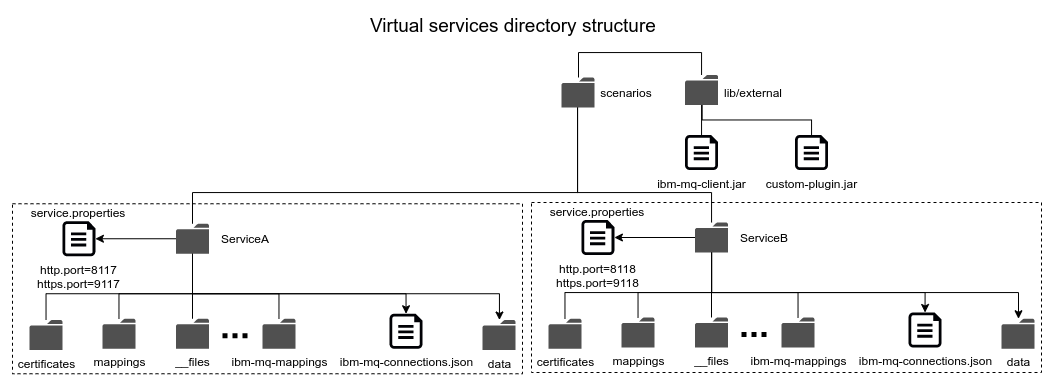
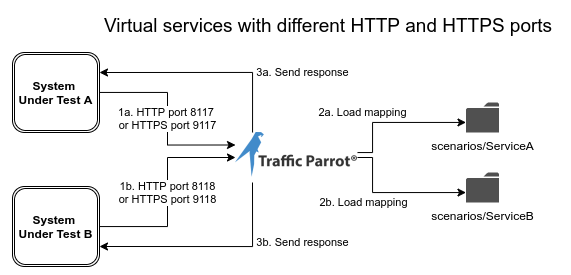
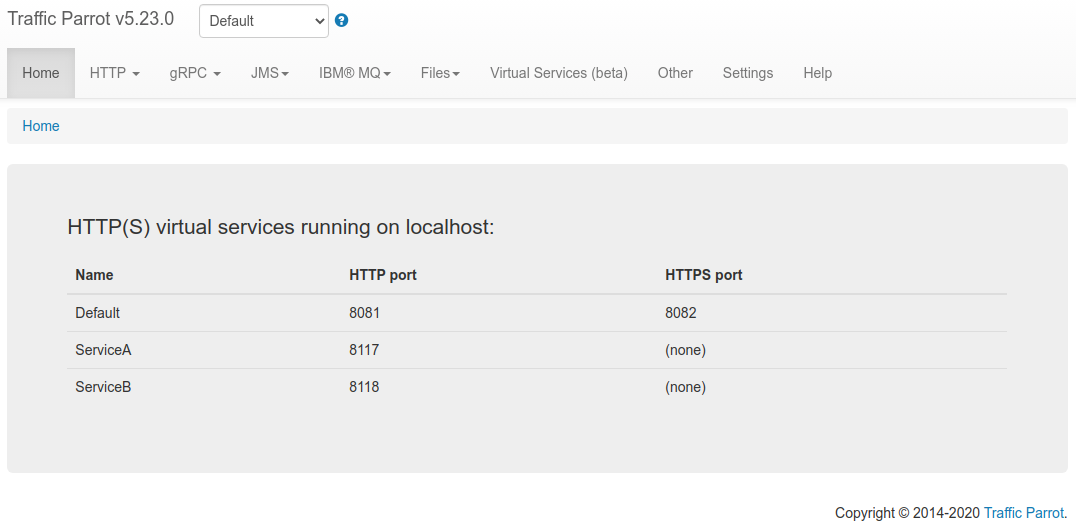
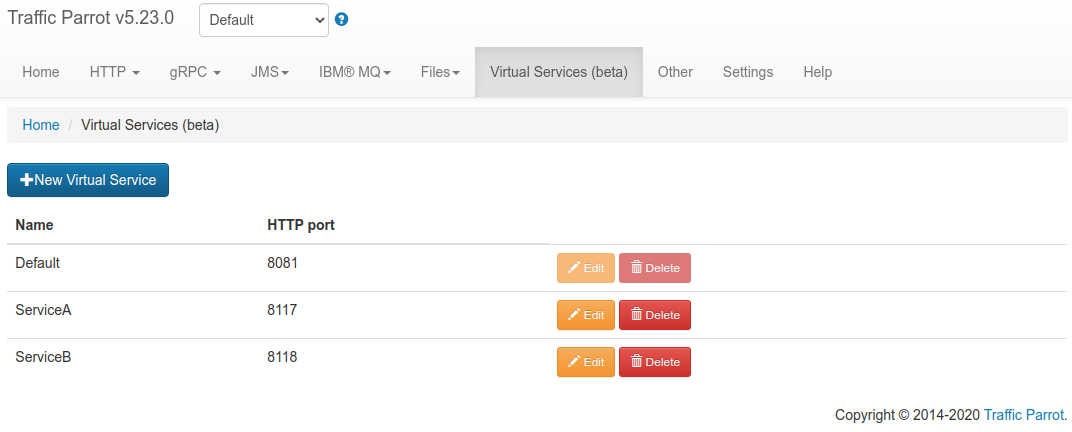
The virtual services can be managed using the Virtual Services UI page:

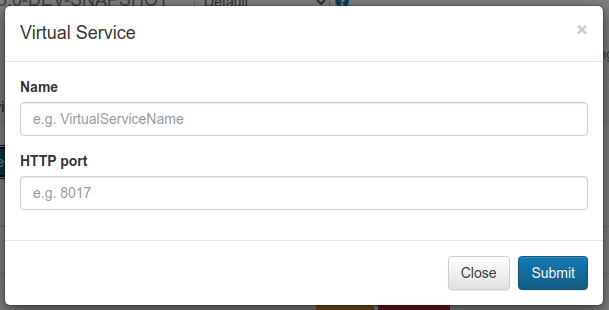
Click the submit button to create the virtual service. If a valid free HTTP/HTTPS port is specified, then the virtual service will be accessible on the ports specified.

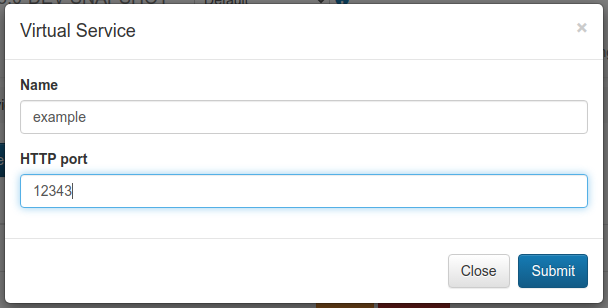
Click the submit button to edit the virtual service. If a valid free HTTP/HTTPS port is specified, then the virtual service will be accessible on those ports. The service will no longer be accessible on the old ports.

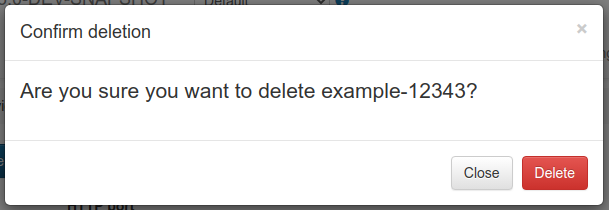
Click the delete button to delete the virtual service. The service will no longer be accessible on the old port. The deleted virtual service mappings will be backed up in the deleted-scenarios directory.
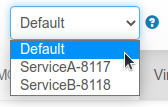
Once selected, the following will happen:
| Property name | Description | Example usage |
|---|---|---|
| http.port | The HTTP port for the virtual service | http.port=9017 |
| https.port | The HTTPS port for the virtual service | https.port=9018 |
| https.key.store.path | Path to the HTTPS key store to use, relative to the virtual service directory | https.key.store.path=certs/server.jks |
| https.key.store.password | The password for the HTTPS key store | https.key.store.password=password |
| https.key.manager.password | The password for the HTTPS key store manager | https.key.manager.password=password |
| https.key.store.type | The type of key store used, for example JKS or PKCS12 | https.key.store.type=JKS |
| https.need.client.auth | Whether client authentication is required. Set to true or false. | https.need.client.auth=true |
| https.trust.store.path | Path to the HTTPS trust store to use, relative to the virtual service directory | https.trust.store.path=certs/servertrust.jks |
| https.trust.store.password | The password for the HTTPS trust store | https.trust.store.password=password |
| https.trust.store.type | The type of trust store used, for example JKS or PKCS12 | https.trust.store.type=JKS |
| ibm.mq.queue.replay.on.startup | When set to true, replay mode will be enabled for this virtual service ibm-mq-mappings on startup | ibm.mq.queue.replay.on.startup=true |
| ibm.mq.queue.replay.request.queue.manager | The name of the queue manager to connect to consume request messages, as specified in ibm-mq-connections.json | ibm.mq.queue.replay.request.queue.manager=REQ.QM |
| ibm.mq.queue.replay.response.queue.manager | The name of the queue manager to connect to produce response messages, as specified in ibm-mq-connections.json | ibm.mq.queue.replay.response.queue.manager=RSP.QM |
| jms.queue.replay.on.startup | When set to true, replay mode will be enabled for this virtual service jms-mappings on startup | jms.queue.replay.on.startup=true |
| jms.queue.replay.request.connection.id | The id of the connection to use to consume request messages, as specified in jms-connections.json | jms.queue.replay.request.connection.id=1 |
| jms.queue.replay.response.connection.id | The id of the connection to use to produce response messages, as specified in jms-connections.json | jms.queue.replay.response.connection.id=2 |
To configure a HTTP virtual service you should:
To configure a HTTPS virtual service you should:
To configure a Native IBM® MQ virtual service you should:
To configure a JMS virtual service you should:
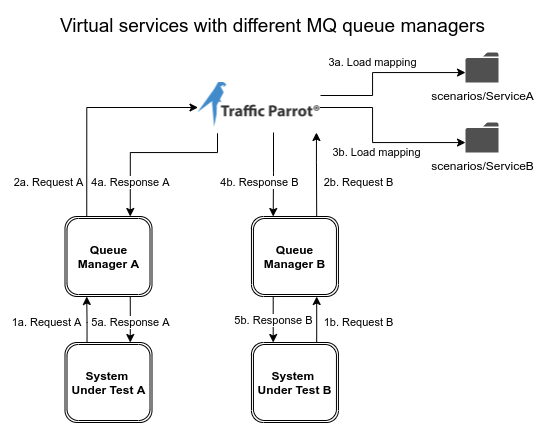
One Traffic Parrot can mock JMS request and reply for several test environments at once, each environment on its own IBM® MQ queue manager, by giving each environment its own virtual service. For two environments the layout is:
scenarios/
  TestEnvironment1/
    service.properties
    jms-connections.json
    jms-mappings/
      hello.json
  TestEnvironment2/
    service.properties
    jms-connections.json
    jms-mappings/
      hello.json
scenarios/TestEnvironment1/service.properties starts the service when Traffic Parrot starts and names, by connectionId, the connection in this service's own jms-connections.json that it consumes requests from and replies on:
jms.queue.replay.on.startup=true
jms.queue.replay.request.connection.id=1
jms.queue.replay.response.connection.id=1
scenarios/TestEnvironment1/jms-connections.json defines that connection, the first environment's queue manager:
[
  {
    "connectionId": "1",
    "connectionName": "Test environment 1 queue manager",
    "connectionData": {
      "jmsProvider": "IBM_MQ_9",
      "hostname": "qm1.example.com",
      "port": 1414,
      "queueManager": "QM1",
      "channel": "DEV.APP.SVRCONN",
      "username": "app",
      "password": "passw0rd",
      "useMQCSPAuthenticationMode": true,
      "copyRequestMessageIdToResponseMessageId": false
    }
  }
]
scenarios/TestEnvironment1/jms-mappings/hello.json is an ordinary JMS mapping, answering a request on DEV.QUEUE.1 whose body is hello with a reply on DEV.QUEUE.2:
{
  "request" : {
    "destination" : {
      "name" : "DEV.QUEUE.1",
      "type" : "QUEUE"
    },
    "bodyMatcher" : {
      "equalTo" : "hello"
    }
  },
  "response" : {
    "destination" : {
      "name" : "DEV.QUEUE.2",
      "type" : "QUEUE"
    },
    "text" : "Reply from TestEnvironment1 on QM1"
  }
}
scenarios/TestEnvironment2/ has the same three files, with its jms-connections.json pointing at the second queue manager (QM2 on its own host) and its mapping replying Reply from TestEnvironment2 on QM2. Both services start with Traffic Parrot, and each answers only the requests that arrive on its own queue manager, so the two environments use the same queue names and still get their own replies.
To add an environment later without a restart, copy its folder into scenarios/, select it in the virtual service dropdown and start replay on the JMS page; the services already running are not affected.
Every service set to start with Traffic Parrot must be able to reach its queue manager at that moment. If one cannot, Traffic Parrot logs Problem starting JMS virtual service '<name>' and Could not start server, and stops, whichever environment's queue manager it is. So start Traffic Parrot once every environment's queue manager is up, or leave jms.queue.replay.on.startup out of that environment's service.properties and start its replay from the UI when its queue manager is up.
A JMS connection to IBM® MQ has no TLS settings. For an environment whose queue manager is reached over a TLS channel, use a native IBM® MQ virtual service instead: its connection takes a cipher suite and certificates, and it serves JMS applications too, with each reply's correlation id set to the request's message id.
All the services run in one JVM, so raise -Xmx in jvm.args as you add services and mappings.
The Composite scenario feature allows you to combine mappings from multiple scenarios into a single active scenario. This is useful for testing complex environments where different teams maintain separate scenario sets that need to work together.
To access the Composite scenario management interface:
The Composite scenario also appears in the scenario dropdown selector with a link emoji (🔗) indicator. Selecting it from the dropdown activates the Composite scenario rather than opening the management interface.
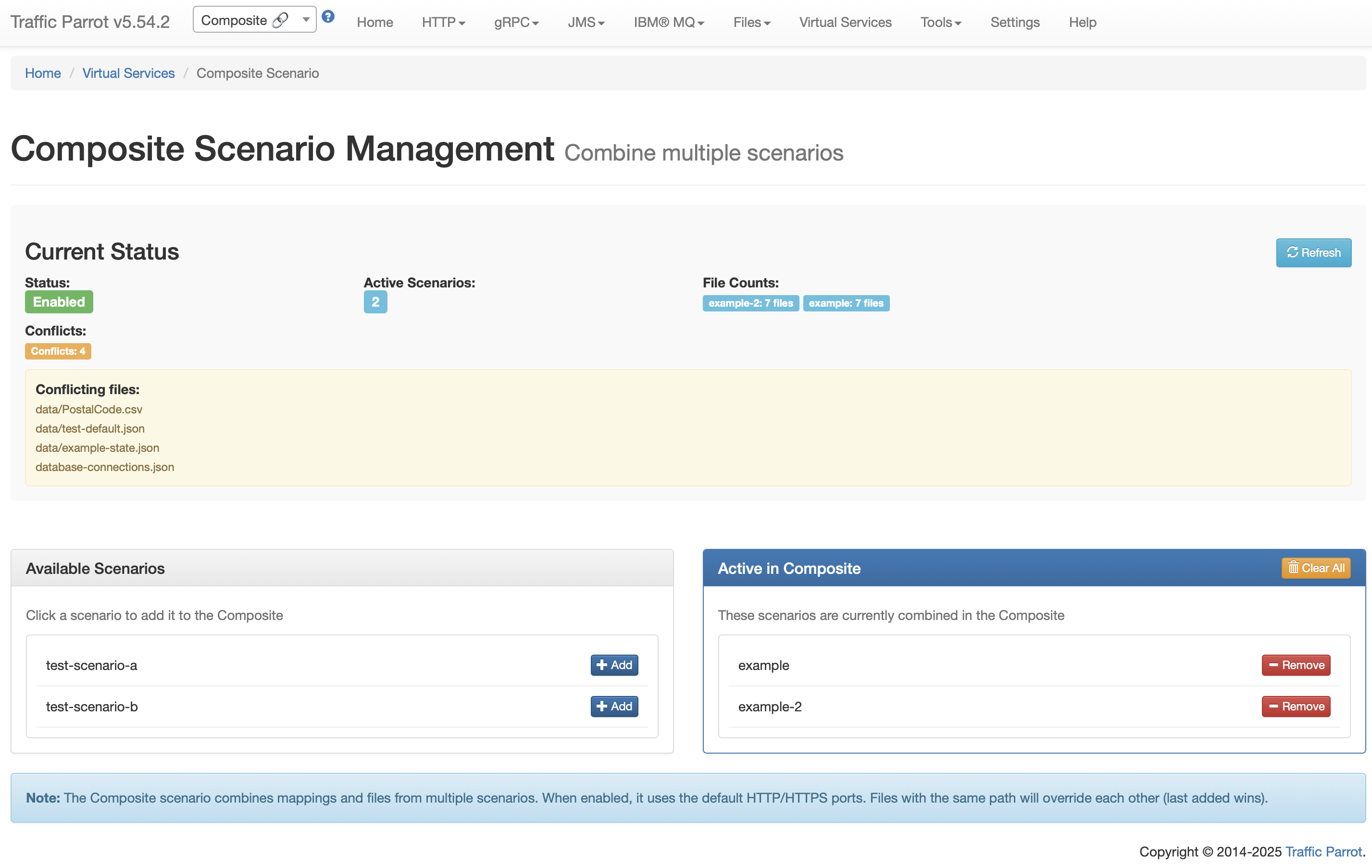
To add a scenario to the composite:
To remove a scenario from the composite:
Click "Clear All" to remove all scenarios from the composite at once.
When the Composite scenario is active:
The Composite scenario is HTTP-only and does not support combining non-HTTP protocol mappings.
The following REST API endpoints are available for managing composite scenarios:
| Method | Endpoint | Description |
|---|---|---|
GET |
/api/scenarios/http/composite |
Get composite scenario status and active scenarios |
POST |
/api/scenarios/http/composite/add?scenario={name} |
Add a scenario to the composite |
POST |
/api/scenarios/http/composite/remove?scenario={name} |
Remove a scenario from the composite |
POST |
/api/scenarios/http/composite/clear |
Clear all scenarios from the composite |
This documentation is for an old version of Traffic Parrot. There is a more recent Traffic Parrot version available for download at trafficparrot.com