
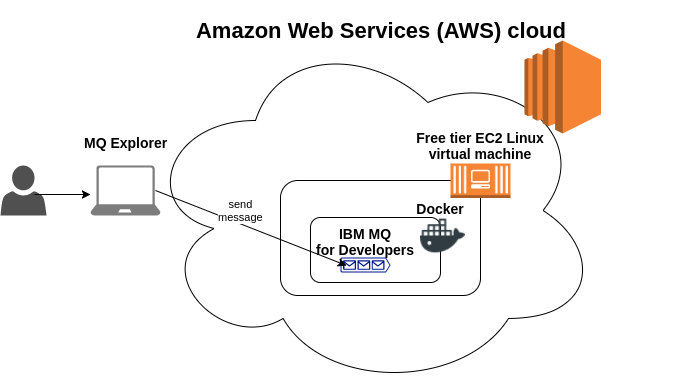
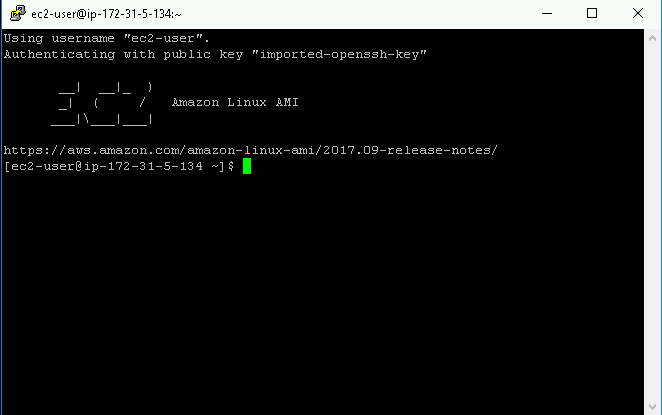
sudo yum update -y
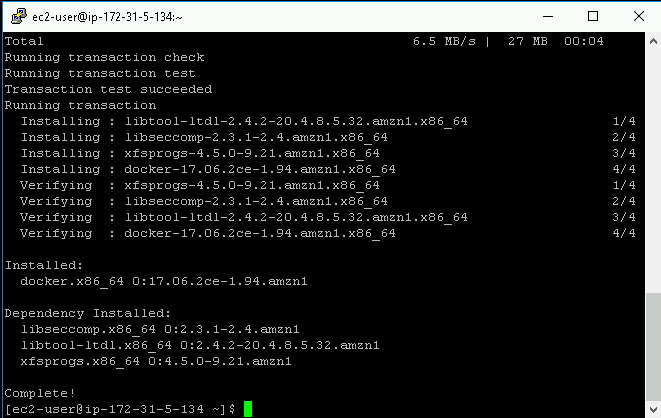
sudo yum install docker -y
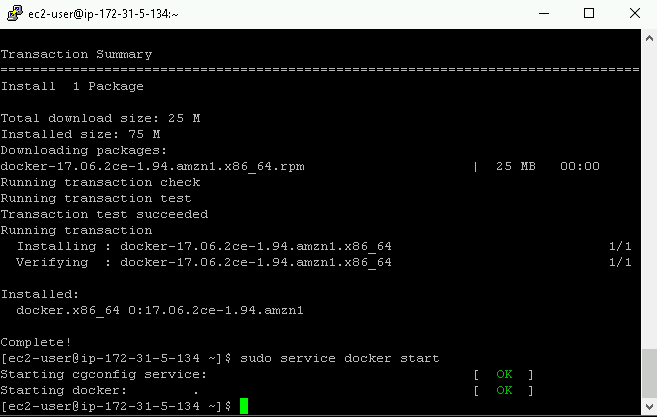
sudo service docker start
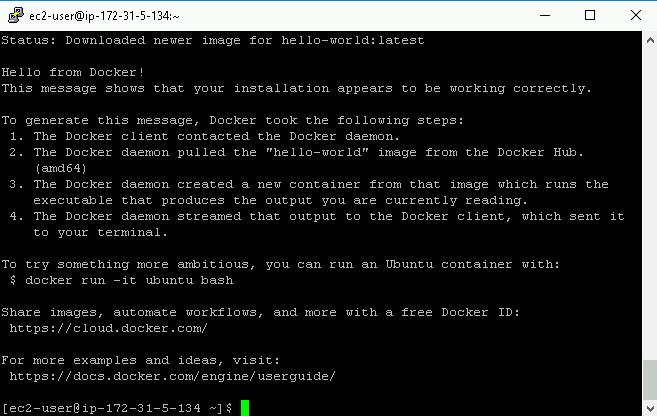
sudo docker run hello-world
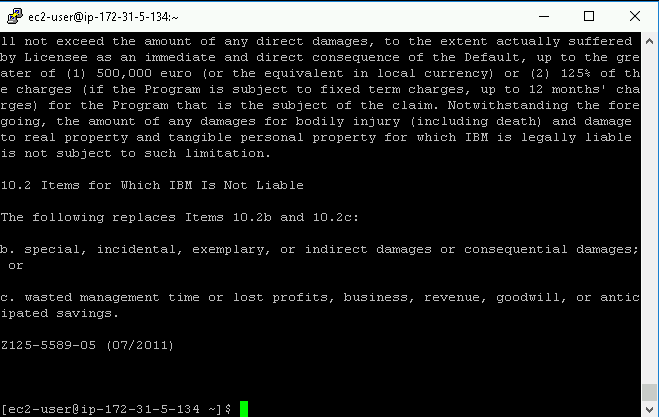
sudo docker run --env LICENSE=view icr.io/ibm-messaging/mq:9.4.4.0-r4You will be accepting the license in the next step.
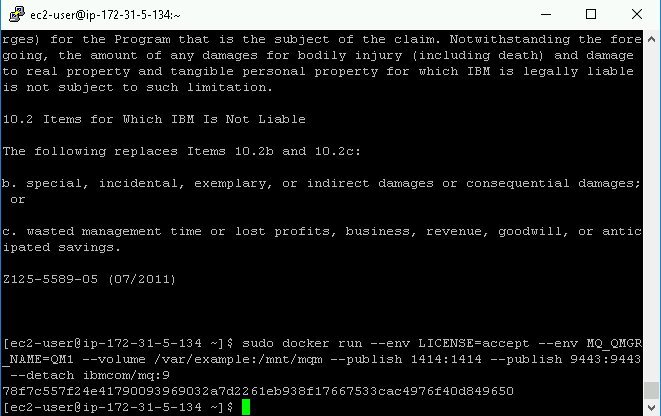
sudo docker run --env LICENSE=accept --env MQ_QMGR_NAME=QM1 --volume /var/example:/mnt/mqm --publish 1414:1414 --publish 9443:9443 --detach icr.io/ibm-messaging/mq:9.4.4.0-r4
If your JMS client, Traffic Parrot, or the web console cannot reach the queue manager and you see Connection refused or timed out, the most common cause is the AWS EC2 security group blocking the port. Open the EC2 console, find the security group attached to your instance, and add inbound rules allowing TCP 1414 (queue manager client connections) and 9443 (web console) from your client IP. Remember that your public IP can change — if connectivity stops working after a few days, re-check the security group rule. A second possibility: the container did not start. Run sudo docker ps and confirm a container based on icr.io/ibm-messaging/mq is listed; if it is missing, run sudo docker ps -a to find the exited container and sudo docker logs <container-id> to read why it exited.
If sudo docker run returns straight to the shell and sudo docker ps shows no running container, the most likely cause is that you did not pass --env LICENSE=accept. IBM® MQ refuses to start without an explicit license acknowledgement and will log a message before exiting. Read sudo docker logs <container-id> to confirm; then re-run the command from the previous step, making sure the LICENSE=accept flag is present.
Older tutorials reference ibmcom/mq on Docker Hub. That image has been deprecated; the current location is icr.io/ibm-messaging/mq on the IBM Container Registry, and the commands in this appendix already use it. If a copy-pasted command fails with manifest unknown or pull access denied, swap the image reference to the icr.io name and re-run.
If Traffic Parrot or your application connects but then reports MQRC_Q_MGR_NAME_ERROR or a similar 2058 error code, the queue manager name configured on the client does not match what the container is running. The example commands above set MQ_QMGR_NAME=QM1 — confirm both the container env var and the client configuration agree. The web console at https://your-ec2-hostname:9443/admin/ shows the queue manager name once you sign in.
The developer image ships with two pre-configured identities: the web console uses admin / passw0rd (note the digit zero) and client connections use app with an empty password. If you see MQRC_NOT_AUTHORIZED (reason 2035), check that the JMS connection factory or Traffic Parrot Send/Receive configuration uses app with an empty password, not admin. Production hardening for the developer image is out of scope — for production deployments follow the official IBM® MQ security documentation.
AWS free tier instances ship with a small EBS volume (typically 8 GB). The IBM® MQ image plus pulled layers consume a meaningful slice of that. If docker pull or docker run fails with no space left on device, run df -h to confirm and then sudo docker system prune -a to reclaim unused images and stopped containers. If you still need more headroom, extend the EBS volume from the AWS console and grow the filesystem with sudo growpart /dev/xvda 1 and sudo xfs_growfs -d /.
Continue with Chapter 4: Mocking and simulating JMS IBM® WebSphere MQ to use this Docker IBM® MQ for service virtualization, or browse the Traffic Parrot JMS documentation.