
A tester or developer uses a web browser to access the console. The console manages the virtual service. The system under test (application under test) connects directly to the virtual service on different ports.
Here is an example of how that could look like for a scenario where the virtual service is replaying files.
 Virtual service replaying files from a request directory to a response directory
First, go to Files in the top navigation bar and then click Add/Edit.

Fill in the Request/Response fields and click Save to configure a mapping.
After saving the mapping, it will appear in the list of mappings.

Clicking the edit button  will
allow you to edit an existing mapping.
The request priority can be set in order to set up a preference order for matching mappings.
The highest priority value is 1. If two or more mappings both match a request, the mapping with the higher priority will be used to provide the response. The default priority is 5.
This can be useful, if you want a "catch-all" mapping that returns a general response for most requests and specific mappings on top that return more specific responses.
When Traffic Parrot notices a request files, it will try to simulate the system it is replacing by creating a response file in the specified directory. To decide what is the name and content of the response file, it will go through all the request to response mappings it has available to find the response file definition. For more details how request matching works, see Request matching.
There are several matchers available to match request files, depending on the attribute.
| Matcher name | Matcher Id | Description |
|---|---|---|
| equal to | equalTo | Check that filename of the request file is equal to the one specified in the mapping |
| contains | contains | Check that the filename of the request file contains the sequence of characters specified in the mapping |
| does not contain | doesNotContain | Check that the filename of the request file does not contain the sequence of characters specified in the mapping |
| matches regex | matches | Check that the filename of the request file matches the regexp specified in the mapping |
| does not match regexp | doesNotMatch | Check that the filename of the request file does not match the regexp specified in the mapping |
The most common matchers are shown below. All other WireMock request body patterns are also supported.
| Matcher name | Matcher Id | Description |
|---|---|---|
| any | any | Any received request file contents will match. |
| equal to | equalTo | Check that the received request file contents is equal to the request body specified in the mapping |
| contains | contains | Check that the received request file contains the sequence of characters specified in the mapping |
| does not contain | doesNotContain | Check that the received request file does not contain the sequence of characters specified in the mapping |
| matches regex | matches | Check that the received request file contents matches the regexp specified in the mapping |
| does not match regexp | doesNotMatch | Check that the received request file contents does not match the regexp specified in the mapping |
| equal to JSON | equalToJson | Check that the received request file contents is JSON and that it is equal to the request body JSON specified in the mapping |
| matches JSON | matchesJson |
Check that the received request file contents matches (allowing for special wildcard tokens) JSON specified in the mapping.
Tokens allowed:
For example a "matches JSON" request body matcher:
{
  "name": "{{ anyValue }}",
  "lastName": "{{ anyValue }}",
  "age": "{{ anyNumber }}",
  "children": "{{ anyElements }}"
}
will match a request body:
{
  "name": "Bob",
  "lastName": "Smith",
  "age": 37,
  "children": [{"name": "sam"}, {"name": "mary"}]
}
|
| matches JSONPath | matchesJsonPath | Check that the received request file contents is JSON and that it matches JSONPath
specified in the mapping. For example, if we use the following expression as the request body matcher
$[?(@.xyz.size() == 2)]it will match this request body: {"xyz":[{"a":true}, {"b":false}]}
but will NOT match this one:
{"xyz":[{"a":true}, {"b":false}, {"c":true}]}
For more examples see the request matching documentation.
|
| equal to XML | equalToXml | Check that the received request file contents is XML and that it is equal to the request body XML specified in the mapping |
| matches XML | matchesXml |
Check that the received request file contents matches (allowing for special wildcard tokens) XML specified in the mapping.
Tokens allowed:
For example a matches XML request body matcher:
<example>
  <name>{{ anyValue }}</name>
  <age>{{ anyNumber }}</age>
  <children><tp:AnyElements/></children>
</example>
will match a request body:
<example> <name>Sam</name> <age>29</age> <children><child name="bob"/></children> </example> |
| matches XPath | matchesXPath | Check that the received request file contents is XML and that it matches XPath
specified in the mapping. For example, if we use the following expression as the request body matcher
/xyz[count(abc) = 2]it will match this request body: <xyz><abc/><abc/></xyz>but will NOT match this one: <xyz><abc/></xyz> |
| matches SWIFT field | matchesSwiftField |
Match on a specific field within a SWIFT MT message file. Instead of writing a complex regular expression to match the entire file contents, you can target an individual field by its tag number and apply a regex to just that field's value. The matcher value is a JSON object with two properties:
For example, to match a SWIFT MT103 file where tag 20 (Transaction Reference) starts with TXNREF: {"field": "20", "matches": "TXNREF.*"}
This will match a file containing: :20:TXNREF001 but will NOT match: :20:OTHERREF The matcher handles both full SWIFT envelopes (with block structure) and bare field content. Multi-line field values (e.g., :59: address fields) are supported. If the specified tag appears multiple times, the match succeeds if any occurrence matches. If the tag is not present or the input is not a SWIFT message, the matcher returns no-match (not an error). The corresponding JSON mapping file format is: {
"bodyMatcher": {
"matchesSwiftField": {
"field": "20",
"matches": "TXNREF.*"
}
}
}
|
| matches FIX field | matchesFixField |
Match on a specific tag within a FIX protocol message file. Instead of writing a complex regular expression to match the entire file contents, you can target an individual tag by its number and apply a regex to just that tag's value. The matcher value is a JSON object with two properties:
For example, to match a NewOrderSingle file (message type D) where tag 35 is D: {"field": "35", "matches": "D"}
This will match a file containing the FIX-standard SOH-delimited body: 8=FIX.4.4|9=176|35=D|49=SENDER|56=TARGET|11=ORDER123|55=AAPL|54=1|44=150.25|10=128| (where | represents the SOH character, ASCII 0x01) but will NOT match an ExecutionReport file where tag 35 is 8. Tag numbers are treated as opaque string keys, so the matcher works across FIX 4.2, 4.4, 5.0, and FIXT without any FIX-dictionary validation. If the specified tag appears multiple times (for example inside a repeating group), the match succeeds if any occurrence matches. If the tag is not present or the input is not a FIX message, the matcher returns no-match (not an error). The corresponding JSON mapping file format is: {
"bodyMatcher": {
"matchesFixField": {
"field": "35",
"matches": "D"
}
}
}
|
| equal to base64 | binaryEqualTo |
Check that the received request file's exact bytes equal the Base64 value specified in the mapping, decoded. This is the way to match a file that is not text on its content; the other matchers compare the content as text. Recording a request file that is not valid UTF-8 writes this matcher beside the file name matcher, see Binary files.
It is accepted as the top-level {
"fileNameMatcher": {
"equalTo": "statement.pgp"
},
"bodyMatcher": {
"binaryEqualTo": "AAEC/w=="
}
}
|
| NOT (negate a matcher) | not | Check that the received request file contents do not match the child matcher.
Selecting NOT (negate a matcher) in the Request body dropdown replaces the
request body field with a NOT child matcher sub-editor where you choose the matcher
to negate and its value. It is saved as a nested matcher, for example
"bodyMatcher": {
  "not": {
    "contains": "CANCELLED"
  }
}
See Authoring not in the messaging editor
for the matchers that can be negated.
|
| AND (all sub-matchers match) | and | Check that the received request file contents match every sub-matcher.
Selecting AND (all sub-matchers match) in the Request body dropdown replaces the
request body field with a Sub-matchers panel in which each row is a matcher and its
value. It is saved as a list of sub-matchers, for example
"bodyMatcher": {
  "and": [
    {"contains": "ORDER-"},
    {"doesNotContain": "DRAFT"}
  ]
}
At least two sub-matchers are required. See
Authoring and and or in the messaging editor.
|
| OR (any sub-matcher matches) | or | Check that the received request file contents match at least one sub-matcher.
It is authored through the same Sub-matchers panel as AND (all sub-matchers match)
above, and saved the same way under an or key, for example
"bodyMatcher": {
  "or": [
    {"equalTo": "PING"},
    {"equalTo": "HEALTHCHECK"}
  ]
}
At least two sub-matchers are required. See
Authoring and and or in the messaging editor.
|
Instead of typing the expected value of the request bodyMatcher inline,
you can keep it in a separate file under the __files directory and
replace the matcher's value with a bodyFileName object, the same
convention a JMS or
HTTP mapping uses for a body kept in a
file. This is useful when the expected request file is large or is generated by a
build step. The file is read when the mapping loads, resolved relative to
__files and contained to it, so a mapping whose file is missing or would
resolve outside __files is refused with an error naming the mapping file.
For example
"bodyMatcher": {
  "equalToXml": { "bodyFileName": "orders/expected-order.xml" }
}
Only the top-level bodyMatcher reads its value from a file. A
bodyFileName nested inside and, or or
not, or on fileNameMatcher, is refused when the mapping
loads, with an error naming the mapping file, the matcher and the file: move the file
reference to the top level, or write that value inline. The file form is available
for the matchers above whose value is a text, JSON or XML document:
equalTo, contains, doesNotContain,
matches, doesNotMatch, equalToXml,
matchesXml, matchesXPath, equalToJson,
matchesJson, matchesJsonPath, matchesJsonSchema,
matchesGraphQL, matchesSwiftField and
matchesFixField. A binaryEqualTo matcher keeps its bytes
inline. The mapping
schema served at /schemas/file-message-mapping.schema.json describes
the same rule, so trafficparrot.sh validate, which checks each mapping
file against it, reports a file reference in a position the mapping cannot load
from before the mapping is loaded.
A file that is not text, such as a PGP, zip or EBCDIC file, passes through recording and replay byte for byte on Local File System, SFTP and FTP connections: the copy forwarded while recording, the reply saved with the mapping and the reply written on replay are each identical to the original.
When you record a request file that is not valid UTF-8, the mapping matches it by
file name and by content: its request has a file name equalTo and a
binaryEqualTo of the file's exact bytes, as base64 in the mapping JSON,
so two binary files of one name are each answered by their own mapping. Its reply is
saved to __files/file-message-<mapping id>-<reply file name> with a
bodyType of BYTES. A character in the reply file name other
than A to Z, a to z, 0 to 9, ., _ or - is
replaced with _. A text file is recorded as before, with its content and a body
matcher in the mapping.
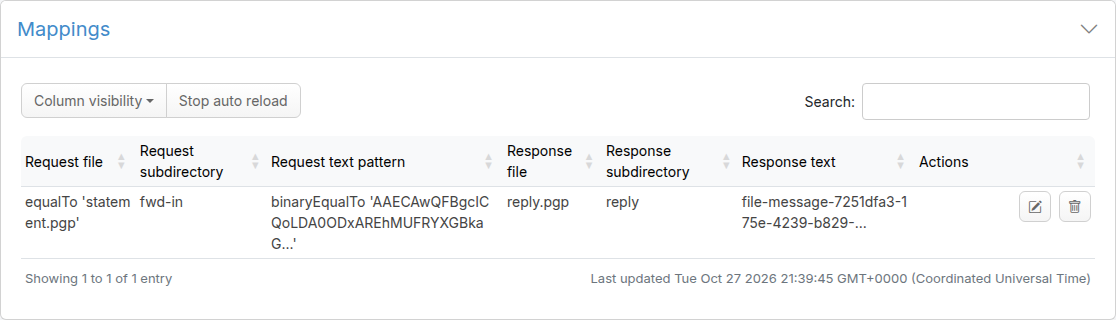
Text matchers compare a file's content as text. To match a binary file on its
content, choose equal to base64 (binaryEqualTo) as the request
body matcher and give the Base64 of the expected bytes, or record the file: the
file's exact bytes must equal them, and the file name matcher applies as well. In
the mapping JSON it is the top-level bodyMatcher beside the
fileNameMatcher; see
Request file body (contents) matchers.
To reply with a binary file of your own, put it under __files and
reference it from the mapping's response with bodyFileName
and a bodyType of BYTES:
"response": {
  "destination": { "name": "reply", "type": "QUEUE" },
  "fileName": "reply.pgp",
  "bodyFileName": "statement-reply.pgp",
  "bodyType": "BYTES"
}
The file is written to the response directory as reply.pgp, byte for
byte. Handlebars templates are not applied to a BYTES body; the response
file name is still templated. With a BYTES body type, an inline
text holds the content as base64, which may be wrapped over several
lines. A mapping whose inline BYTES body is not base64 is refused when the
mappings load, with an error naming the mapping file; as with any invalid file message
mapping, the Files pages then list no mappings, show the error under the empty list,
and replay matches nothing until it is fixed.
The Add/Edit page shows a binary reply as base64 under a Response from file note naming its __files file, as the JMS editor shows a bytes message. Saving writes the file back byte for byte. A Save whose response body is not base64 is refused with the reason, and the mapping and its file are left as they were.
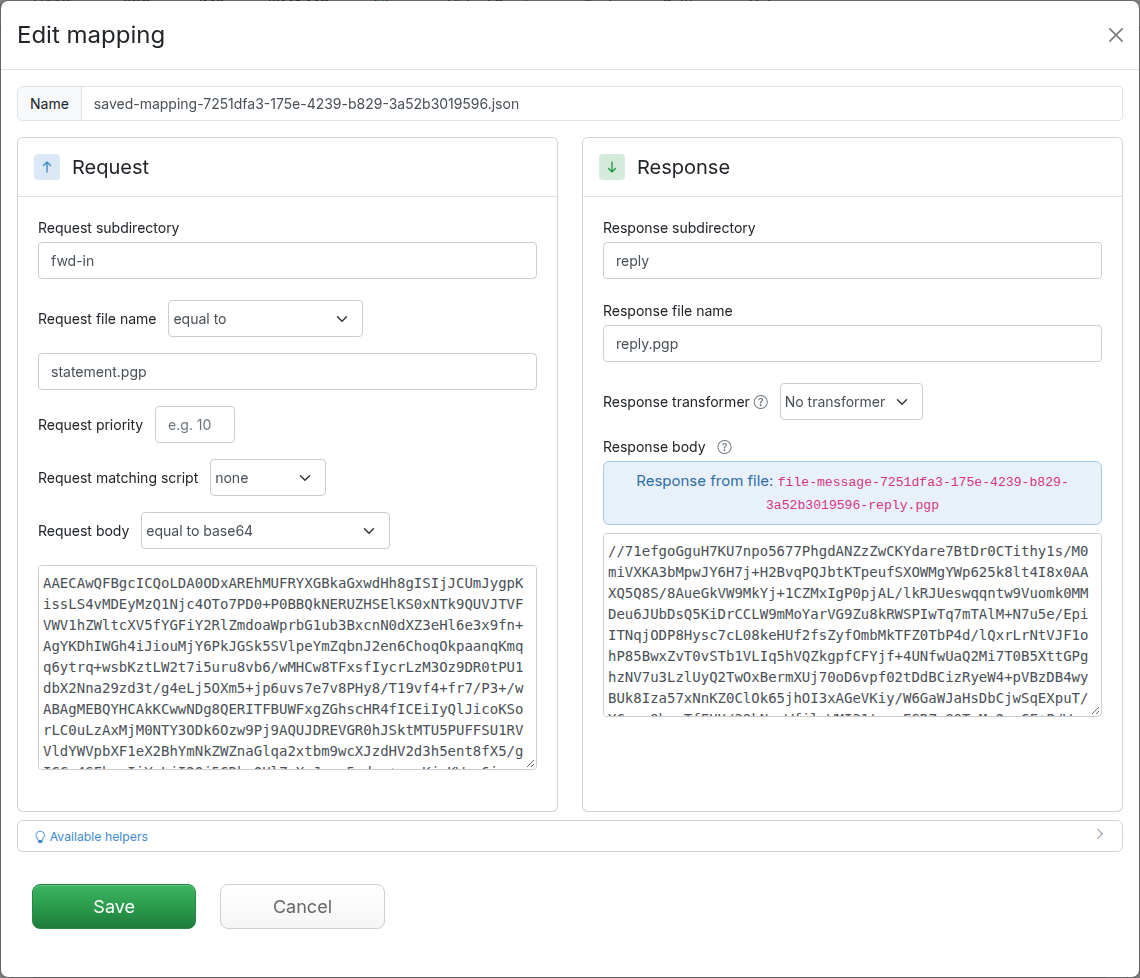
The JMS, IBM® MQ and file message editors accept a response body up to trafficparrot.multipart.upload.max.size.mb (default 10 MB). Base64 is a third larger than the file it encodes and the form encoding adds a little more, so a binary reply of up to about 7 MB can be saved at the default.
In a custom file message response transformer, FileMessage.bytes()
returns the request file's exact content and
FileMessage.ofBytes(fileName, bytes, timestamp) builds a message that is
written as those bytes; text still holds the content decoded as UTF-8. A
FileMessageResponse with a BYTES body type and base64
text writes the bytes the base64 encodes.
Go to Files in the top navigation bar and then click Export. Click the button to download a ZIP file that contains all of the File mappings and data files.
The ZIP file contains the following directories:
Go to Files in the top navigation bar and then click Import. Select a ZIP file that was previously exported and it will be uploaded and the mappings and data files will be restored.
To run several consume and reply pairs in one replay session, choose Script on the Files replay page instead of Manual. Each block of the script has three lines: RequestRootDirectory names the connection to consume request files from, ResponseRootDirectory the connection to write responses to, and RequestSubdirectories the subdirectories to consume, each in quotes. Separate blocks with a blank line. For example, one block answers the system under test on a gateway connection while a second consumes the gateway's triggers and replies on the system under test's own root:
RequestRootDirectory:'gateway'
ResponseRootDirectory:'gateway'
RequestSubdirectories:'inbox'

RequestRootDirectory:'gateway'
ResponseRootDirectory:'sut'
RequestSubdirectories:'triggers'
The IBM® MQ page's keys (RequestQueueManager, ResponseQueueManager and RequestQueueNames) are still accepted, so a script written for the Files replay API keeps running. Starting with Script chosen and nothing typed is refused with Please enter a replay script, or choose Manual. Through the API, a script session needs parameterType set to SCRIPT; a script sent without it starts a Manual session and the script is ignored.
Files > Requests in the top navigation bar lists the request files replay picked up that matched no mapping, each with the mappings that came closest and the field each one missed on. A file a mapping matched is consumed and its reply written to the response directory, without being listed; a file no mapping matched is listed and left in its request directory.
The page needs trafficparrot.messaging.diagnostics.enabled=true in trafficparrot.properties, read when Traffic Parrot starts. It is false by default, because finding the near misses compares each unmatched file with every mapping. With it off the page keeps its intro and stays at 0 MESSAGES; an unmatched file is still written to the log, under No match for.
Each row shows when the file was picked up, the request directory it was in (its destination), its body type and how many near misses were found. Expand a row to see the file's content, laid out as JSON when it is JSON, and under Near Misses the three closest mappings, best first. Each one is headed with the mapping's request directory and how close the file came, as a percentage, and compares what the mapping expects with what the file carried, for the destination, the body type and the body content, with a tick on each row that matched and a cross on each that did not. A file name the mapping's file name matcher refuses counts against the body content row; the name itself is not shown. Show full near-miss JSON prints the comparison as GET /fileMessage/management/nearMisses returns it. With no mapping to compare against, the row reads No near misses found.
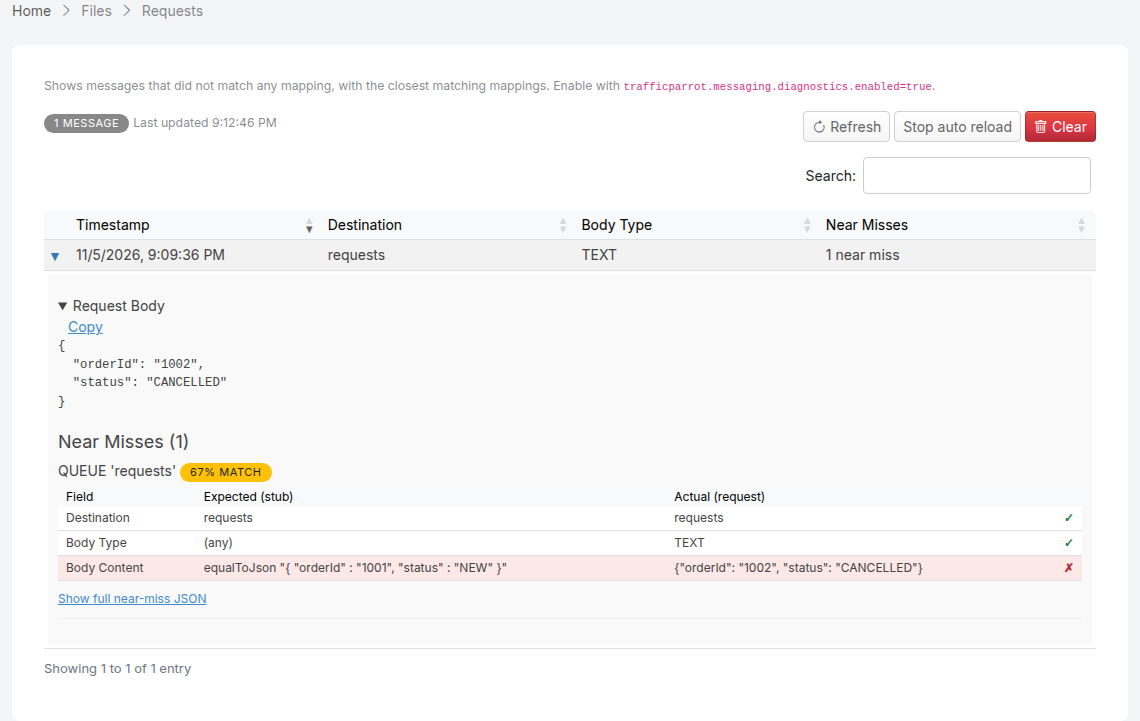
The list reloads every three seconds and pauses while a row is expanded; Refresh reloads it at once and collapses the rows. Clear empties it, after a confirmation. Files are listed under the scenario selected when they were picked up, at most trafficparrot.virtualservice.maxRequestJournalEntries of them per scenario (1000 by default; 0 switches the journal and this page off), and are forgotten when Traffic Parrot restarts.
The same journal answers the request count API, whether or not the diagnostics property is set: POST /api/fileMessage/requests/count counts the files picked up, matched or not, that match the pattern in its body, every file when the body is empty, and DELETE /api/fileMessage/requests resets the journal, which also empties this page. Both are in the OpenAPI documentation.
Traffic Parrot supports three file transfer drivers for record and replay:
Traffic Parrot can also be the SFTP server a system under test connects to, served through a Local File System connection: see Traffic Parrot as the SFTP server.
Connections are configured in the root-directories.json file located in the main Traffic Parrot directory. Each connection appears in the dropdown on the record and replay panels. All directories configured when adding a mapping are relative to the connection's root directory (local) or remote base path (SFTP/FTP).

All three drivers share the same mapping format, UI, and record/replay behavior. You select which connection to use from the dropdown; no separate pages are needed for different protocols.
The Local File System driver reads and writes files on the local disk or a mounted network share.
This is the default driver if no driver field is specified.
Example configuration with two local file system connections:
[
  {
    "connectionId": "1",
    "connectionName": "C Drive",
    "connectionData": {
      "driver": "LOCAL_FILE_SYSTEM",
      "rootDirectory": "C:\\some\\root\\directory"
    }
  },
  {
    "connectionId": "2",
    "connectionName": "Network Drive",
    "connectionData": {
      "driver": "LOCAL_FILE_SYSTEM",
      "rootDirectory": "\\\\network\\share"
    }
  }
]
Note that the \ character must be escaped as \\ in JSON.
| Field | Required | Description |
|---|---|---|
driver |
No | Set to LOCAL_FILE_SYSTEM. This is the default if omitted. |
rootDirectory |
Yes | Absolute path to the root directory on disk. All request/response directories in mappings are relative to this path. |
The SFTP driver connects to a remote SFTP server over SSH. It supports password authentication and private key authentication.
Example SFTP connection configuration:
[
  {
    "connectionId": "3",
    "connectionName": "My SFTP Server",
    "connectionData": {
      "driver": "SFTP",
      "hostname": "sftp.example.com",
      "port": 22,
      "username": "sftpuser",
      "password": "secret",
      "remoteBasePath": "/data/files"
    }
  }
]
| Field | Required | Default | Description |
|---|---|---|---|
driver |
Yes | Must be SFTP. |
|
hostname |
Yes | Hostname or IP address of the SFTP server. | |
port |
No | 22 |
SSH port number. |
username |
Yes | Username for authentication. | |
password |
No | Password for authentication. Either password or privateKeyPath (or both) must be provided. |
|
privateKeyPath |
No | Absolute path to an SSH private key file for key-based authentication. | |
remoteBasePath |
Yes | Base directory on the remote SFTP server. All request/response directories in mappings are relative to this path. |
You can also use private key authentication with a passphrase-protected key. In that case, set password to the passphrase for the private key.
The FTP driver connects to a remote FTP server. It supports passive mode, which is recommended when the server is behind a firewall or NAT.
Example FTP connection configuration:
[
  {
    "connectionId": "4",
    "connectionName": "My FTP Server",
    "connectionData": {
      "driver": "FTP",
      "hostname": "ftp.example.com",
      "port": 21,
      "username": "ftpuser",
      "password": "secret",
      "passiveMode": true,
      "remoteBasePath": "/data/files"
    }
  }
]
| Field | Required | Default | Description |
|---|---|---|---|
driver |
Yes | Must be FTP. |
|
hostname |
Yes | Hostname or IP address of the FTP server. | |
port |
No | 21 |
FTP port number. |
username |
Yes | Username for authentication. | |
password |
Yes | Password for authentication. | |
passiveMode |
No | true |
Whether to use passive mode for data connections. Recommended when the server is behind a firewall or NAT. |
remoteBasePath |
Yes | Base directory on the remote FTP server. All request/response directories in mappings are relative to this path. |
An SFTP or FTP connection lists the request directory once a second. A file is picked up once it has been listed with the same size and modified time at two consecutive polls, so a file still being uploaded is left alone until the upload finishes, and a large file written slowly is picked up once, complete. The same applies when recording from an SFTP or FTP directory.
A file whose name matches a pattern in trafficparrot.file.remote.temporaryFileNames is never picked up. The default, *.tmp,*.part,*.filepart, covers the names clients commonly give an upload in progress. The property is a comma-separated list of patterns in which * matches any run of characters and ? one character, matched case-sensitively against the file name. A value replaces the default list rather than adding to it, and an empty value skips no names. Traffic Parrot's own uploads, which are written under a temporary name and renamed once complete, are always skipped, whatever the property says.
When a file matches a mapping, Traffic Parrot deletes it from the request directory before it writes the response, on every driver. A client can therefore upload its next file under the same name as soon as it sees the response, and that file is picked up too. A file that matches no mapping stays in the request directory and is not picked up again unless its size or modified time changes, so on an FTP server that lists times to the minute, a file overwritten within the same minute with the same number of bytes is not picked up again.
The two-poll check cannot tell a finished upload from one that has paused: a client that pauses for more than a second while writing under the final file name, or creates the file empty and writes to it later, may have the partial file picked up. A client that writes in stages should upload under a temporary name, one matching the property, and rename the file when done. The two-poll check applies to SFTP and FTP connections only. The property applies to a Local File System connection as well, when replaying and when recording: a file written into a local request directory under a matching name is left alone and picked up under its final name once renamed, so a client that uploads under a temporary name, straight into the directory or through the embedded SFTP server, is consumed once.
Traffic Parrot can be the SFTP server itself: the one a system under test uploads its request files to and downloads the replies from, so a file gateway flow needs no SFTP server of its own. The embedded server is off by default and is switched on in trafficparrot.properties:
trafficparrot.file.sftp.server.enabled=true
trafficparrot.file.sftp.server.port=8022
trafficparrot.file.sftp.server.bindAddress=0.0.0.0
trafficparrot.file.sftp.server.rootDirectory=sftp-server-root
trafficparrot.file.sftp.server.usersFile=sftp-server-users.json
trafficparrot.file.sftp.server.hostKeyFile=sftp-server-host.key
The values shown are the defaults, so enabled is the only one that has to change. A relative path resolves against the Traffic Parrot installation directory, as a Local File System connection's root does. The properties page describes each property. The server needs a licence that includes file messaging: with the property on and no such licence, Traffic Parrot starts without the server and writes a warning to the log.
The users file is a JSON array, read when Traffic Parrot starts. The release ships no users file, so create it next to trafficparrot.properties:
[
  {
    "username": "partner-a",
    "password": "secret"
  },
  {
    "username": "partner-b",
    "authorizedKeysPath": "certificates/partner-b-authorized-keys",
    "homeDirectory": "partners/b"
  }
]
| Field | Required | Description |
|---|---|---|
username |
Yes | The login name. Each name appears once. |
password |
One of the two | The password, as plain text. A user has a password, an authorizedKeysPath, or both. |
authorizedKeysPath |
One of the two | Path, relative to the users file's directory, of a file in OpenSSH authorized_keys format holding the public keys the user may log in with. Keep it under certificates, which an upgrade carries over. |
homeDirectory |
No | The user's directory, relative to the root directory; the default is the username. A user sees its home as / and cannot list, read or write outside it. Two users may share one home, two logins for one mailbox, but a home inside another user's home is refused, since the outer user could read the inner one's files; so are the root directory itself and .sftp-uploads, which the server keeps for uploads in progress. |
A users file that is missing or not valid JSON, holds no users, or has an entry with neither a password nor a readable keys file, an unknown field or a home outside the root directory stops Traffic Parrot starting, with a message naming the file, the entry and the reason. The Current configuration files editor on the Settings page will not open the users file or the host key, and a Handlebars partial cannot include them. Keep the default file names: an upgrade carries the default names only.
On the first start the server generates an ECDSA host key, writes it to the host key file, readable by its owner only where the file system supports that, and keeps it, so clients see the same key across restarts. To use a key of your own, put it there before the first start: an unencrypted RSA, ECDSA or Ed25519 private key in OpenSSH or PEM format. Traffic Parrot never rewrites a key you supplied; one it cannot read, or one protected by a passphrase, stops it starting. The start-up line in the log names the address, the number of users, the root directory, the host key file and the key's fingerprint, which you can give clients to pin.
The server creates each user's home under the root directory at start. Replay serves them through an ordinary Local File System connection whose rootDirectory is the server's root directory, with a mapping per user, so one replay session answers every user:
rootDirectory is sftp-server-root, or the absolute path of the directory you configured.The server speaks SFTP only: upload, download, list, delete, rename and create directory. It refuses a shell, a command, SCP, port forwarding and symbolic links.
An upload becomes visible to replay only when the client closes the file: the server writes it under .sftp-uploads in the root directory and moves it into place on close, so a slow or paused upload is never picked up part-written, and a file a client overwrites keeps its old content until the new one is complete. An upload the client never closes, or whose write failed, is discarded and logged with its name, directory and reason; one left incomplete when Traffic Parrot stopped is deleted at the next start. Appending to a file, and writing into the middle of one, go straight to the file. A client that uploads under a temporary name and renames the file when done is served too: the Local File System connection leaves a name matching trafficparrot.file.remote.temporaryFileNames alone and picks the file up under its final name.
A refused login is written to the log at WARN when the connection closes, with the user name, the user's home directory (or unknown user), the client's address and the reason: no such user, a wrong password, a password login for a user with keys only, or a key that is not authorized. The password tried is never logged. A connection that never tries to log in, such as a liveness probe, is logged at DEBUG only.
You can define connections of different types in the same root-directories.json file. Each connection appears in the dropdown, and you select the one you want to use when recording or replaying.
Example with all three driver types:
[
  {
    "connectionId": "1",
    "connectionName": "Local Files",
    "connectionData": {
      "driver": "LOCAL_FILE_SYSTEM",
      "rootDirectory": "/tmp/file-transfers-root"
    }
  },
  {
    "connectionId": "2",
    "connectionName": "SFTP Server",
    "connectionData": {
      "driver": "SFTP",
      "hostname": "sftp.example.com",
      "username": "user",
      "password": "pass",
      "remoteBasePath": "/data"
    }
  },
  {
    "connectionId": "3",
    "connectionName": "FTP Server",
    "connectionData": {
      "driver": "FTP",
      "hostname": "ftp.example.com",
      "username": "user",
      "password": "pass",
      "remoteBasePath": "/data"
    }
  }
]
If you are upgrading from a previous version of Traffic Parrot, your existing root-directories.json file will continue to work. Traffic Parrot auto-detects the old format and treats each entry as a Local File System connection.
The old format:
[
  {
    "id": "1",
    "name": "C Drive",
    "rootDirectory": "C:\\some\\root\\directory"
  }
]
is equivalent to the new format:
[
  {
    "connectionId": "1",
    "connectionName": "C Drive",
    "connectionData": {
      "driver": "LOCAL_FILE_SYSTEM",
      "rootDirectory": "C:\\some\\root\\directory"
    }
  }
]
To use the new FTP or SFTP drivers, add entries using the new format with connectionData containing a driver field
directly to your existing root-directories.json file, as shown in the examples above.
You can mix old-format and new-format entries in the same file.
If you would like to change the location of the connections configuration file, change the value of the property
trafficparrot.virtualservice.rootDirectoriesUrl=classpath:root-directories.json
to for example
trafficparrot.virtualservice.rootDirectoriesUrl=file:/home/john/git/project/root-directories.json
This can be useful if you would like to version control it with your application source code.